

Usage
The file
Section titled “The file”One row per parcel, with a header row if you like:
order_id,carrier,tracking_number1001,DHL,JD0146000062812307041002,UPS,1Z999AA10123456784- Order number: the CS-Cart order ID (a leading
#is fine). - Carrier: the name or code of a CS-Cart carrier, or one of your own carriers or its other names. Empty is allowed when you choose a default carrier for the import.
- Tracking number: up to 255 characters. Format the column as text in your spreadsheet so that long numbers keep their leading zeros.
- Items (optional): leave empty to ship everything of the order that is still to ship. Otherwise list SKUs, either in one cell (
TSHIRT-RED:2; MUG-BLUE) or with a SKU column and a quantity column on several rows of the same parcel. A SKU without quantity means everything still to ship of that SKU. - Comment (optional): shown on the shipment.
Download a sample file on the first page.
Step 1: upload or paste
Section titled “Step 1: upload or paste”Open Orders → Bulk tracking import. Choose a file (CSV, TSV, TXT or XLSX) or paste the cells copied from Excel or Google Sheets. Pick a saved column preset or leave Detect the columns automatically.
Step 2: map the columns
Section titled “Step 2: map the columns”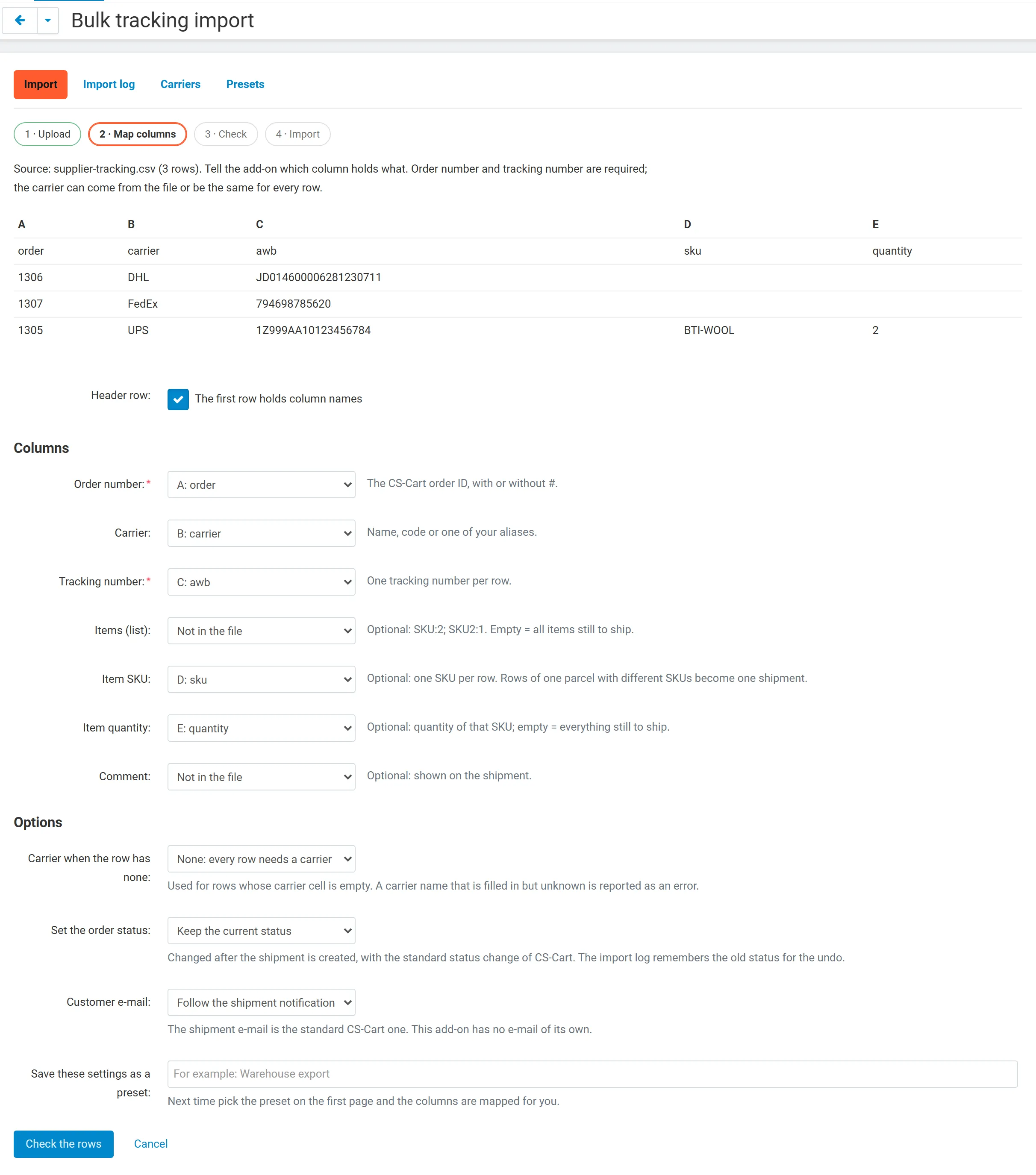
The first rows of the file are shown with column letters. Tick Header row if the first row holds column names. The columns are pre-selected when the header names are recognised (order, carrier, courier, tracking number, AWB, SKU, quantity and similar). Order and tracking number are required.
Options of the import:
- Carrier when the row has none for files without a carrier column. A carrier name that is filled in but unknown is always an error.
- Set the order status, for example Complete. The change uses the standard status change of CS-Cart.
- Customer e-mail: follow the shipment notification settings of CS-Cart, or send none for this import.
- Save these settings as a preset: give it a name; next time pick it on the first page.
Step 3: check the rows (dry run)
Section titled “Step 3: check the rows (dry run)”Every row gets a result. Nothing has been created yet. The check runs in one request (2,000 rows took about 22 seconds on our test store).
| Result | Examples |
|---|---|
| Ready | The shipment will be created. |
| Skipped | The tracking number is already on a shipment of the order; everything in the order is already shipped; the same order and tracking number appears twice. |
| Error | Order not found (also for orders of another store or vendor); the order is a Multi-Vendor parent order; the order is incomplete, failed, declined or cancelled; unknown carrier; no tracking number; SKU not in the order; more than is left to ship; the order has no shipping method. |
Use the counters above the table to filter, and Download the result as CSV to fix the file. Rows that are not ready are left out of the import. If two rows of one file ship the same order, the second is checked against what the first one will already have shipped.
A tracking number that appears on several orders in the file is allowed (a consolidated parcel); the rows show a note.
Step 4: import
Section titled “Step 4: import”Create N shipments creates one shipment per shipping group of each order (an order of a single vendor has one group) with the standard CS-Cart shipment function, so stock rules, other add-ons and the notification settings behave as for a shipment you create by hand. Large imports run in slices of about 20 seconds; the page continues by itself, keep it open. The result appears in the import log.
Every row is checked again when it is created. If the order changed since the check, the row ends as an error or a skip, never as a wrong shipment.
Import log and undo
Section titled “Import log and undo”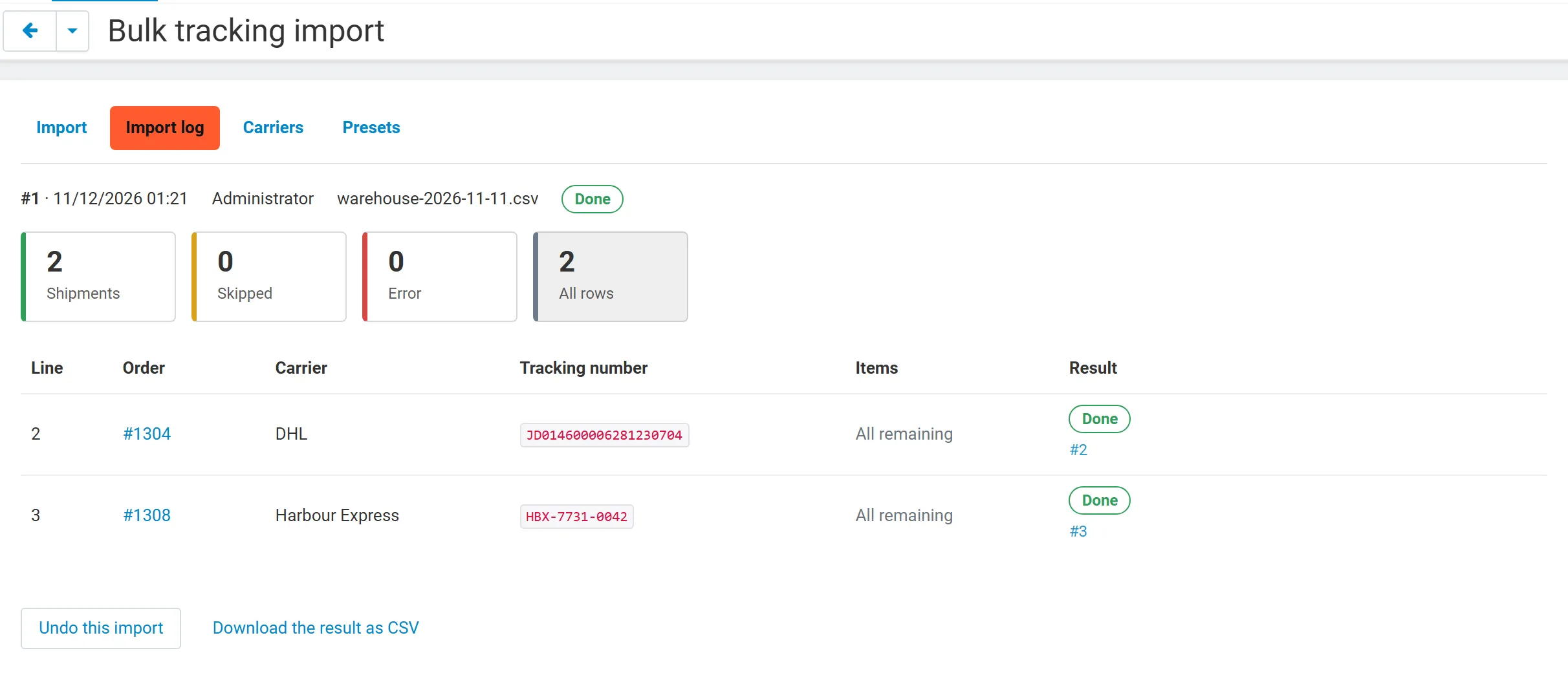
Orders → Bulk tracking import → Import log lists all imports with their rows, the created shipments and a CSV report. Undo this import deletes the shipments the import created and, where an order is still in the status the import set, puts the previous status back. An order whose status somebody changed in the meantime, or that a later import (also of a vendor) gave a status, keeps its status. Shipments of a row that failed half-way (an order with several shipping groups where one could not be created) are deleted too. Only the latest finished import that created shipments (of your company, on Multi-Vendor) can be undone, and only once; an import in which every row was skipped does not count. Undoing does not send e-mails; a customer who already got the shipment e-mail keeps it.
Multi-Vendor
Section titled “Multi-Vendor”Vendors use the same pages. Their rows can only match orders of their own company; any other order number is reported as “Order not found”. Administrators can open and undo the imports of vendors.
Your own carriers
Section titled “Your own carriers”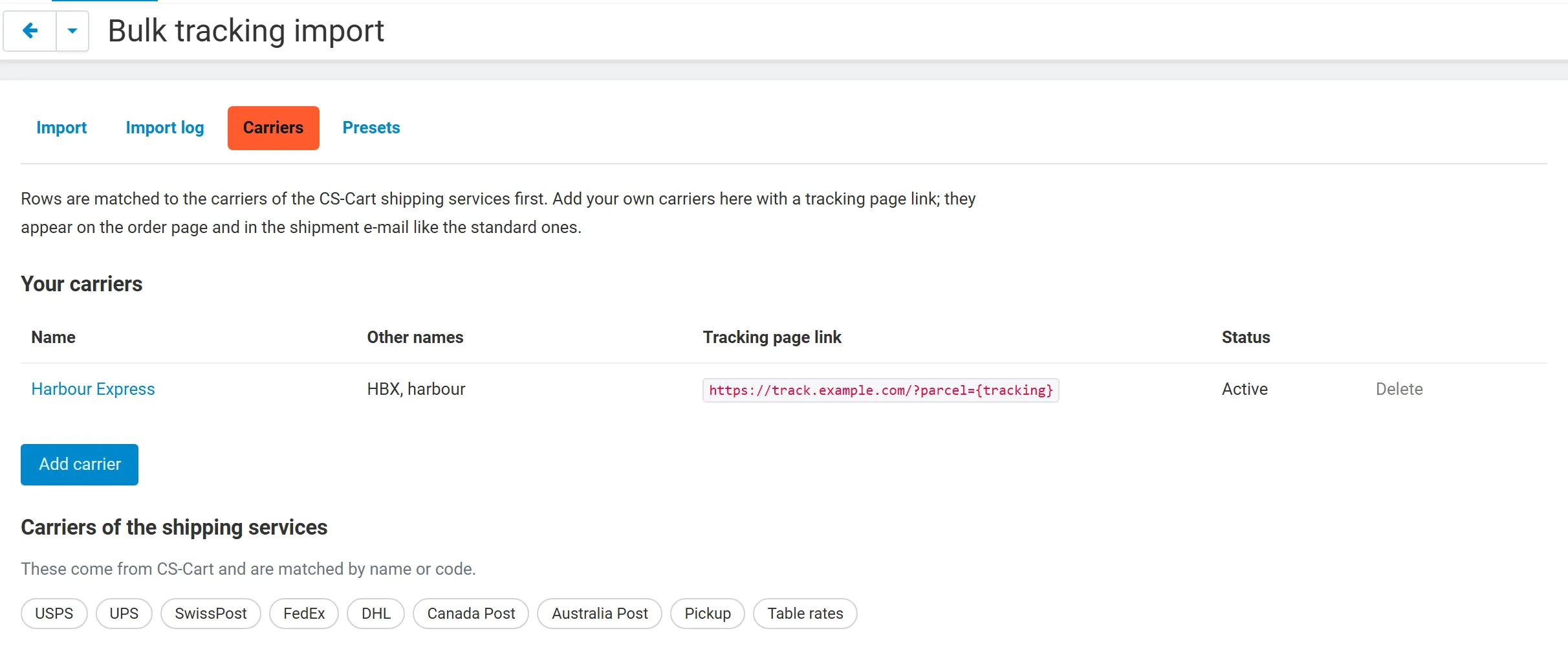
On the Carriers tab. The order page and the shipment e-mail show the carrier name and, when you gave a tracking page link, a link with the tracking number filled in. In the standard shipment editor of CS-Cart the carrier selector lists only the CS-Cart carriers: when you open such a shipment there and save it, choose the carrier again or leave the carrier field as it is.
REST API
Section titled “REST API”See Developer notes.