

Configuration
Open Add-ons → Manage add-ons → Discount Rules → Settings. On Ultimate stores every setting can be set per storefront.
General
Section titled “General”| Setting | Default | Description |
|---|---|---|
| Enable | On | Turns the add-on on or off without uninstalling it. Off means stock CS-Cart behaviour. |
| Coupon promotions | Stack | How a promotion that needs a coupon code combines with catalog discounts. |
| Other cart promotions | Stack | The same for cart promotions without a coupon code (for example “10% off orders over $100”). |
| Explain discounts in the cart and on orders | On | Shows the short note under a cart line and in the order when the add-on replaced, removed or limited a discount. |
The three policies:
| Policy | What happens on a cart line |
|---|---|
| Stack (CS-Cart default) | Nothing changes: catalog discount and promotion add up. |
| Best discount wins | The promotions set to this policy are compared with the catalog discount of the line. If their discount is larger, they replace the catalog discount; if not, the catalog discount stays and they do not apply to that line. A tie keeps the catalog price. |
| Never combine with catalog discounts | The promotion does not apply to lines that keep a catalog discount. Lines without a catalog discount get it as usual. |
Discount caps
Section titled “Discount caps”Caps limit cart promotions and coupons. A catalog discount is the price you chose to show, so it is never cut, but it counts towards a line or order cap. Amounts are in the primary currency of the store; leave a field empty for no cap.
| Setting | Description |
|---|---|
| Maximum discount per line (%) / (amount) | Highest total discount of one cart line (all units), as a percent of the price before any promotion or as an amount. |
| Maximum discount per order (%) / (amount) | Highest total discount of the order. |
| Default maximum per promotion (%) / (amount) | Highest discount one promotion may give. A promotion can set its own value on its page. |
When several limits apply, the strictest wins. Reductions are shared out in proportion to what each promotion gave, in whole cents.
Margin floor
Section titled “Margin floor”| Setting | Default | Description |
|---|---|---|
| Margin floor for cart promotions | Off | Cart promotions and coupons are reduced so that a line does not drop below cost plus the margin because of them. Lines without a cost, catalog promotions and discounts the add-on cannot attribute to a promotion are not limited. |
| Minimum margin over cost (%) | 10 | The lowest price of a line is cost + this percent of the cost. |
| Cost source | Automatic | Automatic uses the cost of Product Cost & Profit Reports when that add-on is active, otherwise the Cost (Discount Rules) field on the product page. “Own field” always uses the field of this add-on. |
Enter the cost the way your prices are entered. If your catalog prices include tax, enter the cost with tax or raise the margin; the floor compares with the price in the cart.
On a promotion
Section titled “On a promotion”On the page of a promotion (Marketing → Promotions) a Discount Rules block lets you set:
- Combination with catalog discounts: use the setting of the add-on, or Stack, Best discount wins or Never combine for this promotion only.
- Maximum discount (%) / (amount): a cap for this promotion. Empty uses the default of the add-on.
Multi-Vendor
Section titled “Multi-Vendor”- Vendors who may edit promotions (Direct payments) see the same block on their own promotions; vendors who may edit products see the cost field.
- A cart with products of several vendors is split into suborders. Each suborder gets exactly its share of the discounts the parent order decided, so the suborders add up to the order.
License
Section titled “License”The license status is shown in a License card at the top of the add-on page, above the tabs, so you see it on every tab. The License tab holds the key itself. The key is stored once for the whole installation.
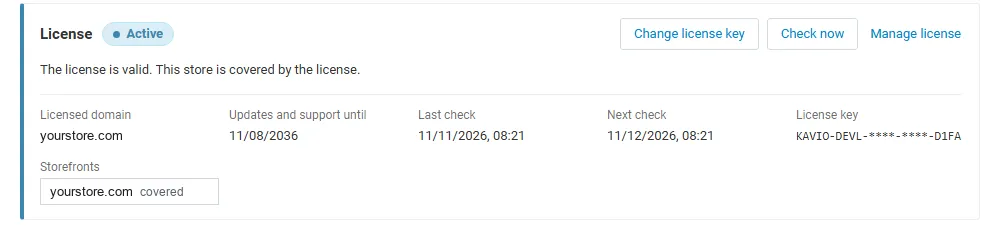
The License card shows:
- the status in color: green when valid, blue for a development host or the 14-day period before a key is required (with the days left), amber when the license server could not be reached (with the days left) or a Marketplace number is still being verified, red when the add-on is switched off;
- the licensed domain, every storefront with its result (covered, development host, not covered), the end of the updates and support period, the last and the next check, and the key in use (masked);
- the actions Enter license key / Change license key, Check now, Manage license and, without a valid license, Buy a license.
In Add-ons → Manage add-ons the add-on’s row shows a small license badge next to its name.
When it checks: when you save a key, then once a day from the admin panel; or from cron: php admin.php --dispatch=kv_discount_rules_license.check. What is sent: the license key, the add-on ID and version, your storefront host names, the CS-Cart version and edition, and a random nonce. Nothing about your customers or orders. Only administrators who may manage settings see the license details; vendors never do.