

Usage
How an e-invoice is made
Section titled “How an e-invoice is made”- A customer places an order. Business buyers can enter their Buyer reference / Leitweg-ID, Peppol ID and VAT ID at checkout or in their profile.
- When the order reaches a status from Create the e-invoice when the order reaches (Processed or Complete by default), the add-on creates the e-invoice: it takes the invoice number (yours or the one of Invoices & Credit Notes), your seller data, the buyer data, the lines with their taxes, discounts, shipping and the payment method, and freezes them. Later changes to the order do not change the document unless you rebuild it.
- The document is checked against the rules of every format. The result is the validation log.
- If the order status e-mail goes to a business buyer, the e-invoice is attached (setting).
One frozen document gives four files, so you can send a German public buyer an XRechnung and a French customer a Factur-X of the same invoice.
| Format | File | Typical receiver |
|---|---|---|
| Factur-X / ZUGFeRD | PDF/A-3 with factur-x.xml inside |
Everyone: readable as a PDF, importable by accounting software (France, Germany) |
| XRechnung CII | XML | German public sector portals, German businesses |
| XRechnung UBL | XML | German public sector portals that prefer UBL |
| Peppol UBL | XML (Peppol BIS Billing 3.0) | Peppol access points (Belgium, the Netherlands, Nordics …) |
Admin: order page
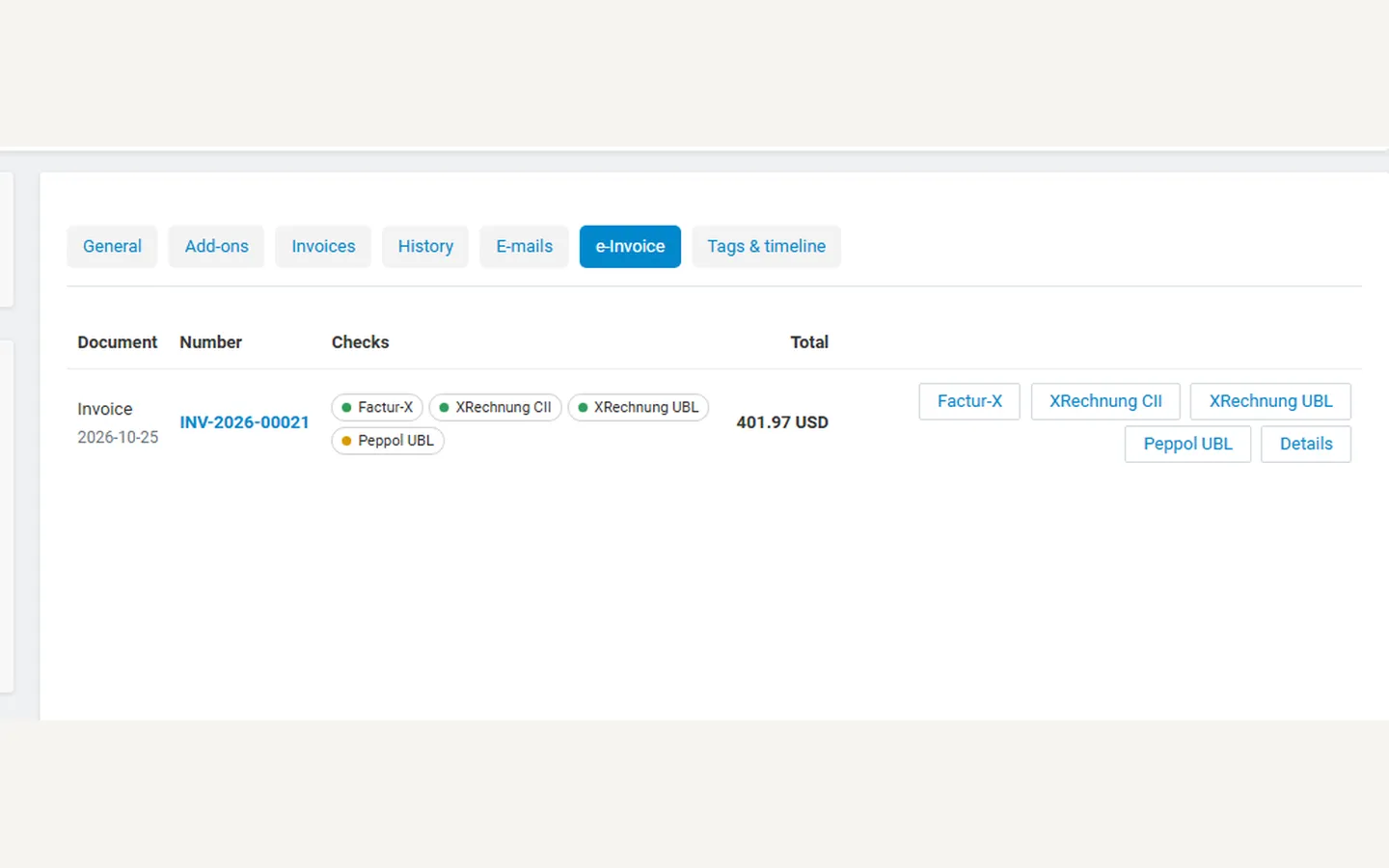
Section titled “Admin: order page”Open an order: the e-Invoice tab lists its e-invoice and e-credit notes with a check badge per format and download buttons. Without an e-invoice, Create e-invoice creates it now (with Invoices & Credit Notes: the invoice is issued there first, so both carry the same number). The e-Invoice item in the order’s tools menu downloads the main format.
Admin: Orders → e-Invoices
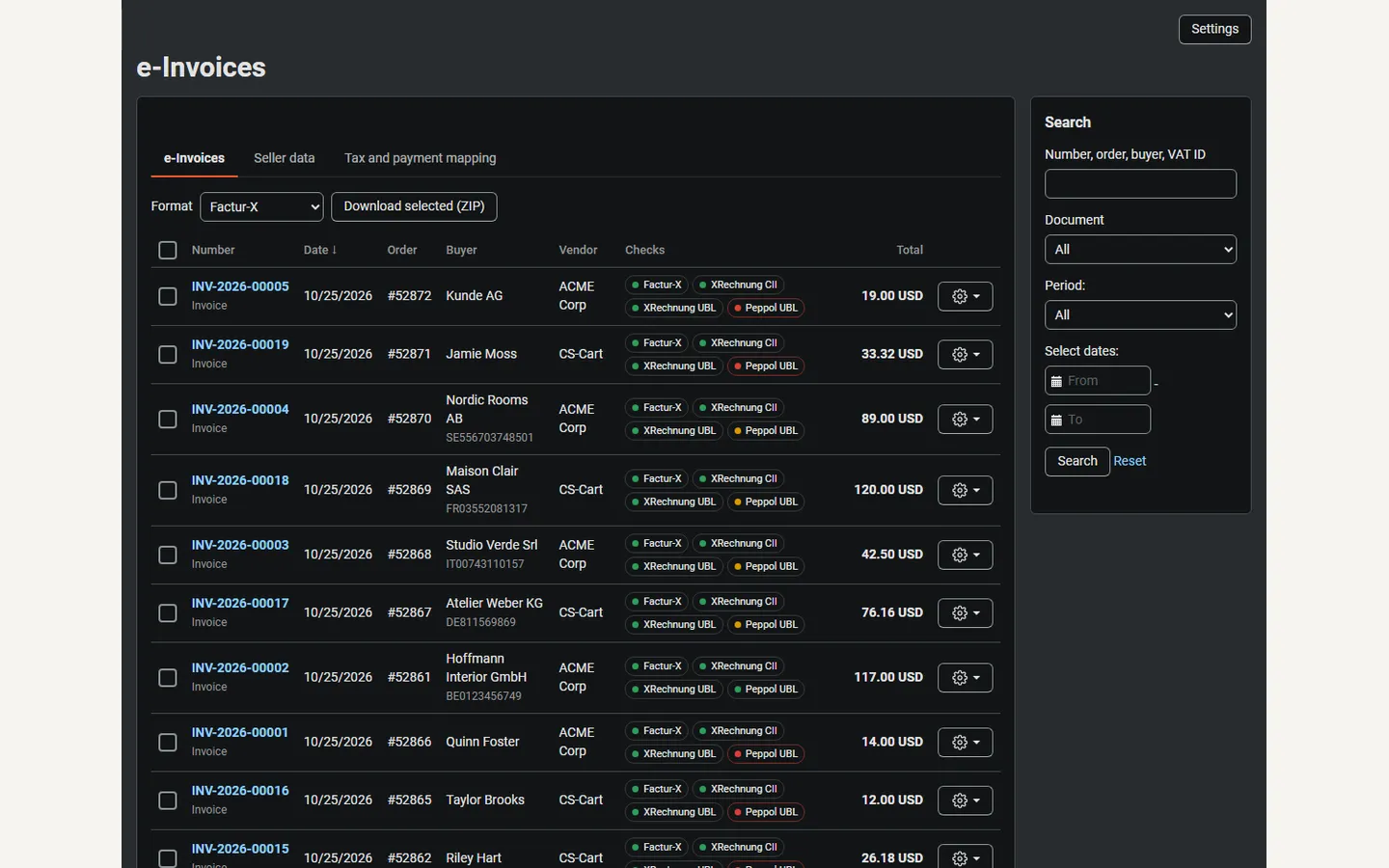
Section titled “Admin: Orders → e-Invoices”All e-invoices and e-credit notes with number, date, order, buyer and VAT ID, vendor (Multi-Vendor), check badges and total. Search by number, order, buyer or VAT ID, filter by type and period. Select documents and use Download selected (ZIP) with the format you need, for your archive or a portal upload.
From Orders → View orders, select orders and use Print documents → e-Invoices (ZIP): orders without an e-invoice get one first (when you may create them), then all their documents are zipped in the main format.
The document page and the validation log
Section titled “The document page and the validation log”Click a number to open the document: seller, buyer, amounts, the four downloads (the document’s own format is highlighted), the validation log, the archive and the Validation report button. Each format has its own card; the document’s own format is marked and also gets the XML Schema check:
- No problems found: the data is complete for that format.
- Warnings: the file is fine, but something was filled in for you, for example a buyer Peppol ID derived from the VAT ID, or no IBAN for a credit transfer.
- Needs attention: a rule of that format is broken, for example XRechnung without a seller phone number, or Peppol without the buyer’s Peppol ID. Each message names the rule (for example
BR-DE-6) and what to fix.
Fix the data (seller data, mapping, the customer’s fields on the order) and click Rebuild from order. The number and date stay the same. Do not rebuild a document your buyer has already received: correct it with a credit note instead.
The add-on’s own test suite checks every format against the official validators (the KoSIT validator with the XRechnung configuration, the Peppol BIS 3.0 rules and veraPDF for the PDF/A part). The log shows the checks that store data can break.
Credit notes
Section titled “Credit notes”- With Invoices & Credit Notes: create credit notes there (full, partial, returns, wallet refunds, cancellations). Each one becomes an e-credit note with the same number, the credited lines and a reference to the invoice. With Invoices & Credit Notes 1.0.1 or later each credit note becomes an e-credit note the moment it is issued (also credit notes created by hand on its own pages); with 1.0.0 they are picked up when the order changes status, a return changes, or you open the order page.
- Without it: when the order reaches a status from Create a full e-credit note when the order reaches (Canceled by default), a full e-credit note is created. On the document page, Create full credit note does the same by hand, with an optional reason.
- Partial credit notes (2.0, without Invoices & Credit Notes): open Partial credit note on the invoice page, enter the quantity to credit per line (in order units), an amount of shipping or payment surcharge, and an optional reason. The order discount is credited in proportion to the credited goods. The form shows what is still open per line and in total; a credit note can never exceed what is left, and a double click never creates a second one. After partial credit notes the full credit button becomes Credit the rest, and the automatic credit note at cancellation also credits only the rest. Credit notes use the format of their invoice.
Validation report and archive (2.0)
Section titled “Validation report and archive (2.0)”Validation report on the document page opens a printable report of every check (with rule IDs, sources and the XML Schema result of each format) and the archived copies with their SHA-256; Download JSON gives the same data. Every file that is issued, sent over Peppol or e-mailed is archived byte for byte; see Archive and validation report.
Peppol
Section titled “Peppol”Connect your provider account on Orders > e-Invoices > Peppol (Recommand or B2Brouter). The document page then shows a Peppol panel with the buyer’s Peppol ID, the state of the delivery and a Send via Peppol button; the e-Invoices list shows the Peppol state of every document, has a Peppol filter and sends selected documents in bulk. With Send automatically on, new e-invoices of buyers with a Peppol ID are sent when they are created. Incoming e-invoices appear under Orders > e-Invoices > Incoming. Everything about sending, delivery states, retries, receiving and the cron job: Peppol sending and receiving.
Without a connection, download the Peppol UBL file and upload it to any access point.
Peppol needs both electronic addresses. Enter your own Peppol ID in the seller data; buyers enter theirs at checkout. Without one, the address is derived from the VAT ID (shown as a warning to check).
Customers
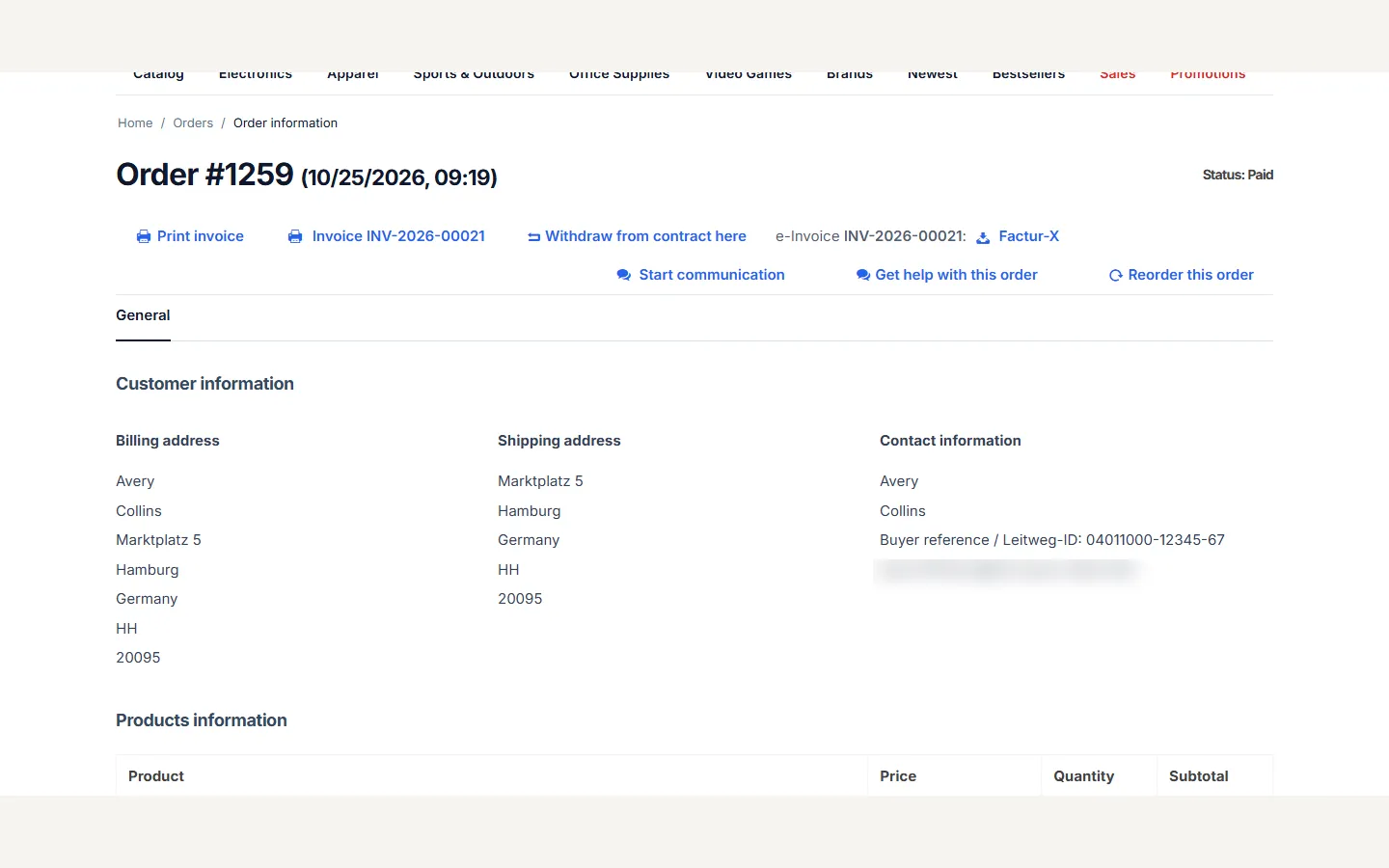
Section titled “Customers”On the order page in the customer account, the e-invoice of the order appears next to the print link with a download per allowed format. Downloads are private to the order’s customer (guests: the order they just placed). The links never appear on cached pages.
Vendors (Multi-Vendor)
Section titled “Vendors (Multi-Vendor)”Vendors see Orders → e-Invoices with the documents of their own orders and the e-Invoice tab on their order pages. When vendors are the sellers, they also create and rebuild e-invoices and keep their own Seller data (VAT ID, IBAN, Peppol ID …).