

Configuration
Open Add-ons → Manage add-ons → Ecommerce Tracking Pro → Settings.
Every setting can be overridden per storefront. In CS-Cart (Ultimate), select a store in the admin store picker. In Multi-Vendor with several storefronts, use the storefront switcher. The setting type is ROOT,STOREFRONT. Refunds and the server-side fallback always use the settings of the storefront the order was placed on.
General
Section titled “General”Google tag
Section titled “Google tag”| Setting | Default | Description |
|---|---|---|
| Send events via | gtag.js | gtag.js: the add-on loads the Google tag for your measurement ID and calls gtag('event', …). Google Tag Manager: the add-on loads your GTM container and pushes events to window.dataLayer in the GA4 ecommerce format. You configure the GA4 tags in GTM (see Usage → GTM setup). |
| Measurement ID | (empty) | G-XXXXXXXXXX from Admin → Data streams. Required in gtag.js mode. In GTM mode it is only needed for the server-side events. |
| GTM container ID | (empty) | GTM-XXXXXXX. Used in GTM mode. |
| Load the tag on the storefront | On | Turn off if your theme or another add-on already prints gtag.js or the GTM container. Events are still pushed to dataLayer/gtag, so the existing tag receives them. |
Behavior
Section titled “Behavior”| Setting | Default | Description |
|---|---|---|
| Do not track administrators and vendors | On | While an administrator or vendor administrator is logged in on the storefront, nothing is printed and no order is recorded for the fallback. |
| Send the customer ID as user_id | Off | Sends the numeric CS-Cart user ID of logged-in customers as user_id (gtag config, dataLayer, Measurement Protocol). Mention it in your privacy policy. |
| Debug mode | Off | Adds debug_mode: true to the events (so they appear in GA4 → Admin → DebugView), logs each event to the browser console ([GA4 ecommerce] …), and logs every Measurement Protocol request (with Google’s validation result) to Administration → Logs (type General, action Runtime). Turn it off in production. |
Status
Section titled “Status”A read-only block with:
- whether tracking is ready (a valid ID for the selected mode);
- warnings for malformed IDs;
- how consent is handled;
- a warning while the core Google Analytics add-on is active.
Ecommerce data
Section titled “Ecommerce data”| Setting | Default | Description |
|---|---|---|
| Events | all | Untick an event to stop sending it. purchase also controls the server-side fallback. |
| item_id | Product code (SKU) | Product code matches Google Merchant Center feeds; products without a code fall back to the product ID. Product ID always sends the numeric ID. |
| Language of item names and categories | Default storefront language | Names, categories, brands and variants in one language keep reports consistent in multilingual stores. Language of the visitor sends what the visitor sees. |
| item_brand from feature | Automatic | The product feature that holds the brand. Automatic uses the first active feature of the Brand type. You can pick any Brand or Select-type feature, or Do not send. |
| Currency | Customer’s currency | The currency of price, value, tax, shipping and discount. Customer’s currency reports what the shopper saw (for orders: the currency the order was placed in). A fixed currency converts every amount with the store’s exchange rate. |
| Purchase value | Order total | value of purchase and refund: Order total (shipping and taxes included), or Subtotal after discounts (without shipping and taxes). tax and shipping are always sent as separate parameters. |
Consent Mode
Section titled “Consent Mode”| Setting | Default | Description |
|---|---|---|
| Consent Mode v2 | Advanced | Advanced: the tag loads immediately. Until consent is granted, Google receives only cookieless pings. Basic: the tag (and GTM container) loads only after analytics consent is granted. Disabled: no consent commands; use it only where consent is not required. |
| Regions with strict defaults | EEA, UK, CH | ISO 3166-1 country codes or ISO 3166-2 region codes (US-CA), comma separated. Leave empty to apply the strict default everywhere. |
| Default consent in these regions | Denied | Default for ad_storage, ad_user_data, ad_personalization and analytics_storage in the listed regions. |
| Default consent elsewhere | Granted | Default for all other visitors. |
| Wait for the consent banner (ms) | 500 | wait_for_update: how long the tag waits for a consent update before the first hit. |
| Redact ads data while ad_storage is denied | On | gtag('set', 'ads_data_redaction', true). |
| Pass ad click information through URLs | Off | gtag('set', 'url_passthrough', true). |
| Use the cookie consent of the GDPR add-on | On | Adds Google Analytics 4 (purpose: performance) and Google advertising (purpose: marketing) to the CS-Cart cookie consent dialog. The customer’s choice is sent as a Consent Mode update and remembered for the next pages. |
The add-on prints two consent default commands: one without a region (the “elsewhere” value) and one with your region list. Google applies the most specific matching region. The defaults come before the tag and before any event.
When the GDPR add-on is set to explicit consent, the cookie dialog reports denied until the visitor accepts, everywhere. The dialog’s state wins over the regional defaults, because the store has decided that consent is required. With implicit consent, the services count as accepted unless the visitor opts out.
Server-side events
Section titled “Server-side events”| Setting | Default | Description |
|---|---|---|
| Measurement Protocol API secret | (empty) | Created in Admin → Data streams → your web stream → Measurement Protocol API secrets. Required for the fallback and refunds, together with the measurement ID. |
| Data collection endpoint | Global | www.google-analytics.com, or region1.google-analytics.com to collect in the EU. |
| Server-side purchase fallback | On | Orders whose purchase was not confirmed by the browser are sent through the Measurement Protocol after the delay below. |
| Wait before the fallback (minutes) | 30 | 5 or more. Long enough for slow payment returns; GA4 accepts events up to 72 hours old, and older orders are never sent. |
| Send refund when the order status changes to | (none) | Statuses that mean “refunded” in your store (for example Canceled, or a custom Refunded status). When an order enters one of them, a full refund is sent once. |
The Status block shows whether the Measurement Protocol is ready, counters for the last 30 days (tracked, confirmed by the browser, sent by the server, waiting, refunds), the last fallback run and the cron command.
License
Section titled “License”The license status is shown in a License card at the top of the add-on page, above the tabs, so you see it on every tab. The License tab holds the key itself. The key is stored once for the whole installation (not per storefront).
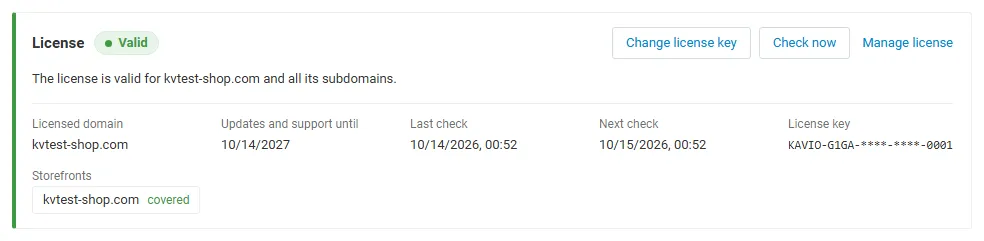
The License card shows:
- the status in color: green when valid, blue for a development host or the 14-day period before a key is required (with the days left), amber when the license server could not be reached (with the days left) or a Marketplace number is still being verified, red when the add-on is switched off;
- in plain words what the status means and, when the add-on is (or will be) switched off, what stops: no Google tag, no ecommerce events and no Measurement Protocol requests (purchase fallback, refunds) are sent. Checkout and order status changes keep working;
- the licensed domain, every storefront with its result (covered, development host, not covered), the end of the updates and support period, the last and the next check, and the key in use (masked);
- the actions Enter license key / Change license key (opens the License tab), Check now (verifies at once and stays on the page), Manage license (your licenses on cs-cart.kaviolabs.com) and, without a valid license, Buy a license.
In Add-ons → Manage add-ons the add-on’s row shows a small license badge next to its name, for example License: Valid or License: Pending · 9 days left.
| Setting | Description |
|---|---|
| License key | Your Kavio Labs license key (KAVIO-XXXX-XXXX-XXXX-XXXX, from My licenses on cs-cart.kaviolabs.com) or your CS-Cart Marketplace license number. If you entered the Marketplace license number in Add-ons → Manage add-ons (the add-on’s license field), leave this empty: the add-on uses that number. |
| License status | Points to the License card and explains what the check sends. |
What the license covers. A license is bound to the base domain you entered at purchase (for example example.com) and covers every subdomain of it (www.example.com, shop.example.com, staging.example.com). Local development hosts are always allowed: localhost, 127.0.0.1 and other private IP addresses, and host names ending in .localhost, .test, .local, .example or .invalid. A store on a different base domain needs its own license. If you move your store to a new domain, contact support.
When the add-on checks. When you save the key, and then once a day. The check runs only in the admin panel (on a page you open) or from cron, never while customers browse the storefront, and takes a few seconds at most. A cron job keeps the license verified even when nobody opens the admin panel:
php /path/to/store/admin.php --dispatch=kv_ga4_ecommerce_license.checkWhat is sent. The check sends this to https://cs-cart.kaviolabs.com and nothing else: the license key, the add-on ID and version, the host names of your storefronts, your CS-Cart version and edition, and a random one-time value. No customer, order or personal data is sent. The server answers with a digitally signed result, so a forged answer is ignored.
Statuses.
| Status (card) | Color | What happens |
|---|---|---|
| Valid | Green | The license is valid for this domain. Everything works. |
| Development host | Blue | The store runs on a local development host, which every license covers. Everything works. |
| Pending verification | Amber | A CS-Cart Marketplace license number was accepted, but the Marketplace has not confirmed it yet. Everything works. |
| Pending · N days left | Blue | No verified key yet (a new installation, or right after upgrading from 1.0.x). Everything works for 14 days. |
| Grace period · N days left | Amber | The last checks failed (for example a network problem). The add-on keeps working for 14 days after the first failed check. |
| Partly valid | Amber | (CS-Cart with several storefronts) Some storefronts run on another base domain. Tracking is off on those storefronts only. |
| Not activated, Invalid key, Revoked, Domain mismatch, Not verified | Red | No tag, no events and no server-side (Measurement Protocol) purchases or refunds are sent; orders placed meanwhile are not tracked. Checkout, order status changes and the rest of your store are not affected. Domain mismatch shows the licensed domain next to the domain your store runs on. |
When your updates and support period ends, the add-on keeps working. Only updates and support stop.
License information appears in the admin panel only, and only for administrators who may manage add-ons; vendors (Multi-Vendor) and customers never see it. When the add-on is switched off, other admin pages also show a notice once per session with a link to the add-on page; the add-on page itself shows the card instead.