

Usage
How a KSeF invoice is made
Section titled “How a KSeF invoice is made”- An order reaches one of the issue statuses (default Processed or Complete), or you click Create KSeF invoice on the KSeF tab of the order, or you select orders in the orders list and choose Create KSeF invoices.
- The add-on builds the FA(3) invoice from the order, gives it the next number and checks it against the official FA(3) schema and its own rules.
- The invoice is sent to KSeF: at once when you created it in the admin panel, otherwise by the queue (cron or Send queue now).
- KSeF assigns the KSeF number. The add-on stores it with the official receipt (UPO) and builds the verification link and QR code (KOD I).
Orders without a buyer tax ID are skipped unless B2C invoicing is on. Create KSeF invoice (single or bulk) refuses cancelled, declined, failed and incomplete orders and orders that are already in a correction status. Parent orders of a Multi-Vendor checkout are not invoiced; their vendor orders are.
Statuses
Section titled “Statuses”| Status | Meaning |
|---|---|
| Queued | Waiting to be sent. With the offline mark: KSeF could not be reached, the invoice is sent in offline mode by the next run; Send by shows the deadline (the next business day). |
| Waiting | The seller has no active KSeF connection yet, the KSeF login failed, or a correction waits for the KSeF number of its invoice. Sent automatically once the reason is gone. |
| Processing | Sent; KSeF has not assigned the number yet. The queue asks again. |
| Accepted | KSeF number and UPO stored. |
| Rejected | KSeF refused the invoice (the reason and code are shown, for example a duplicate number). Fix the data and click Rebuild from order. |
| Check failed | The invoice did not pass the checks and was not sent (for example an invalid buyer NIP). Fix the data and rebuild. |
| Voided (not sent) | Never sent to KSeF: the order was cancelled, declined, failed or deleted before the invoice went out, or you clicked Void (do not send). The number is not reused. If the order becomes active again (an issue status), the invoice is rebuilt with the same number. |
Orders → KSeF invoices
Section titled “Orders → KSeF invoices”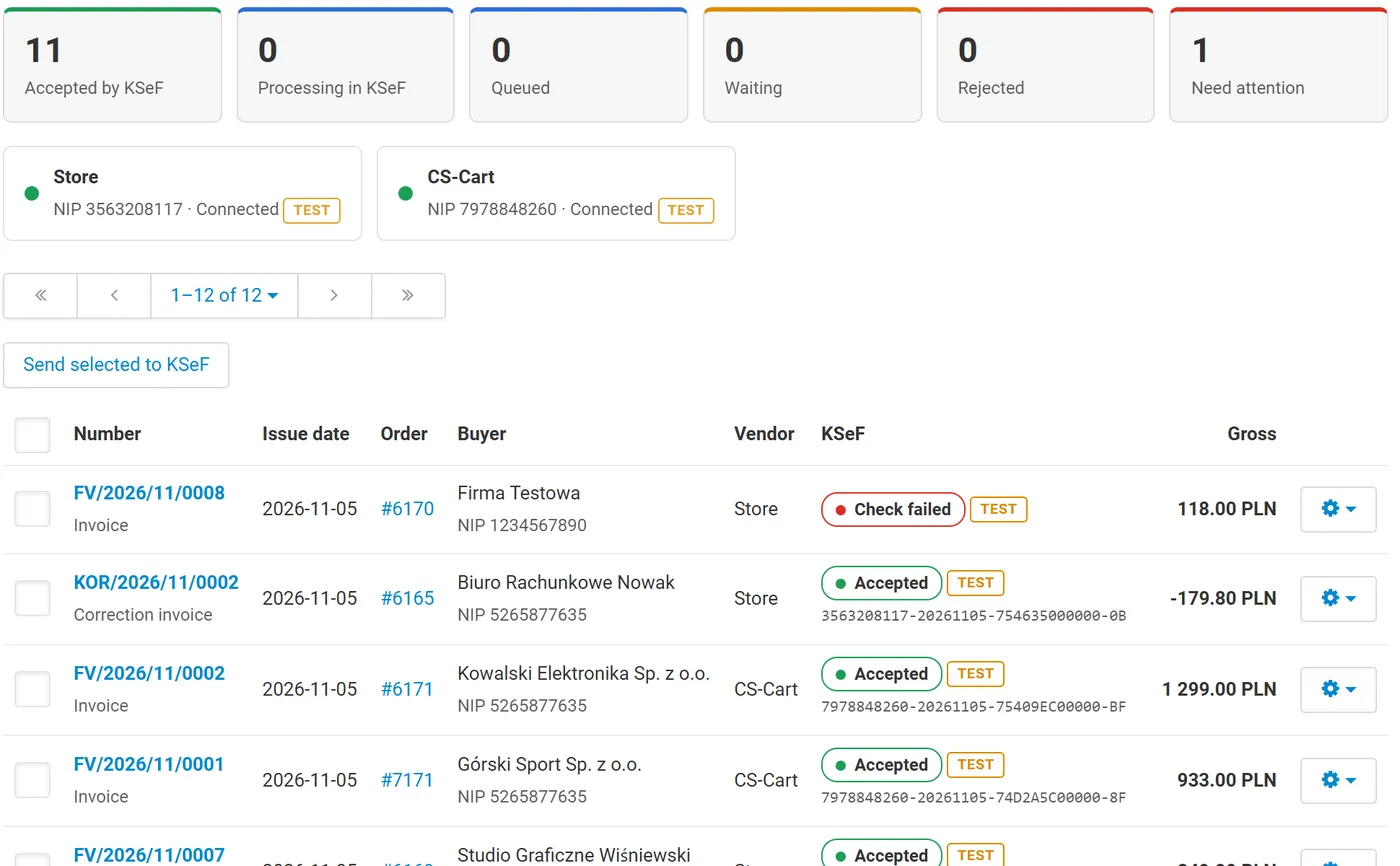
Tiles count the documents per status and filter the list. The connection cards show each seller’s NIP, environment and last connection result. Select documents and click Send selected to KSeF, or Send queue now for everything due. Search by number, buyer, NIP, KSeF number or order.
The document page
Section titled “The document page”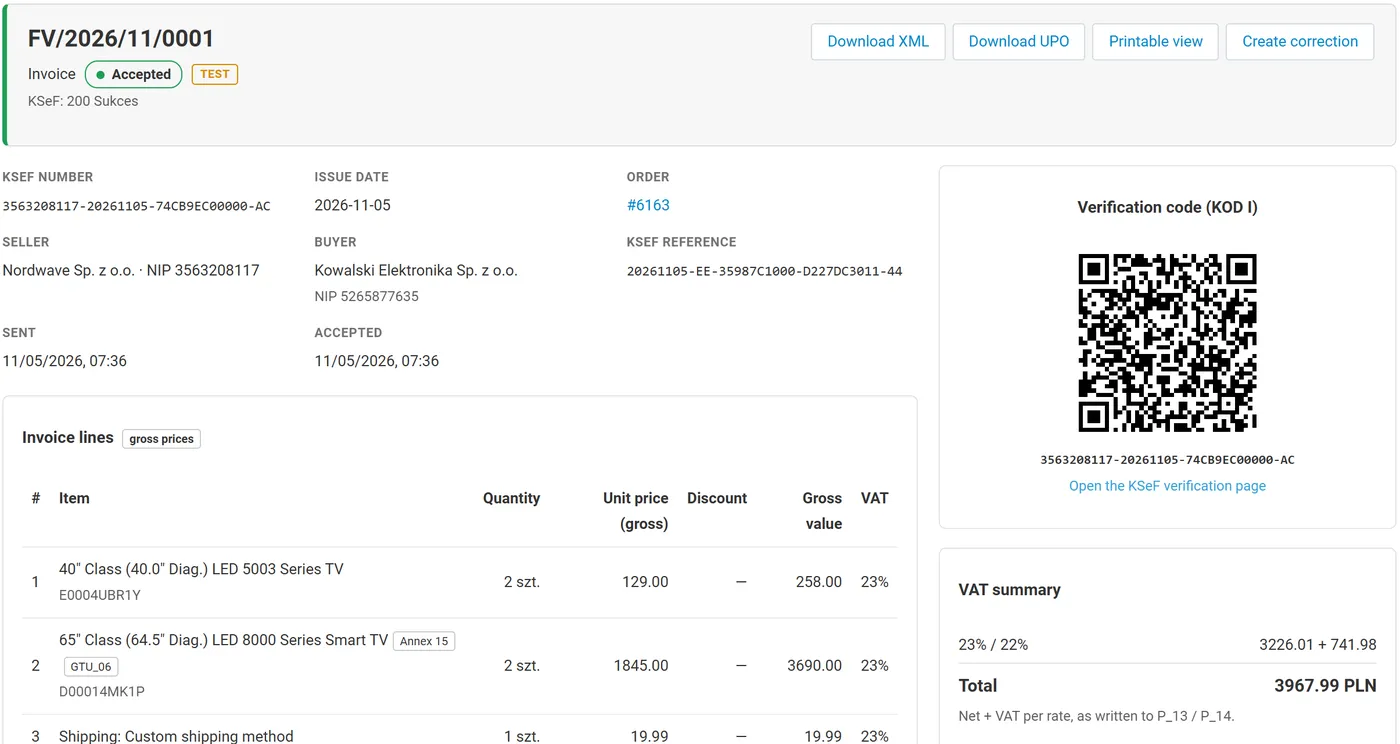
- KSeF number, KSeF reference, sent and accepted times, the order and the buyer.
- The verification QR code (KOD I) with the link to the KSeF verification page. Print it on your own invoice layouts if you like.
- The invoice lines (net or gross prices, discounts, VAT rates, GTU and Annex 15 marks), the VAT summary per rate, the checks, the history and the FA(3) XML.
- Download XML, Download UPO, Printable view, Create correction, Send to KSeF now / Check KSeF status, Rebuild from order, Void (do not send) (queued and waiting documents) and Discard (rejected documents and failed checks).
Corrections
Section titled “Corrections”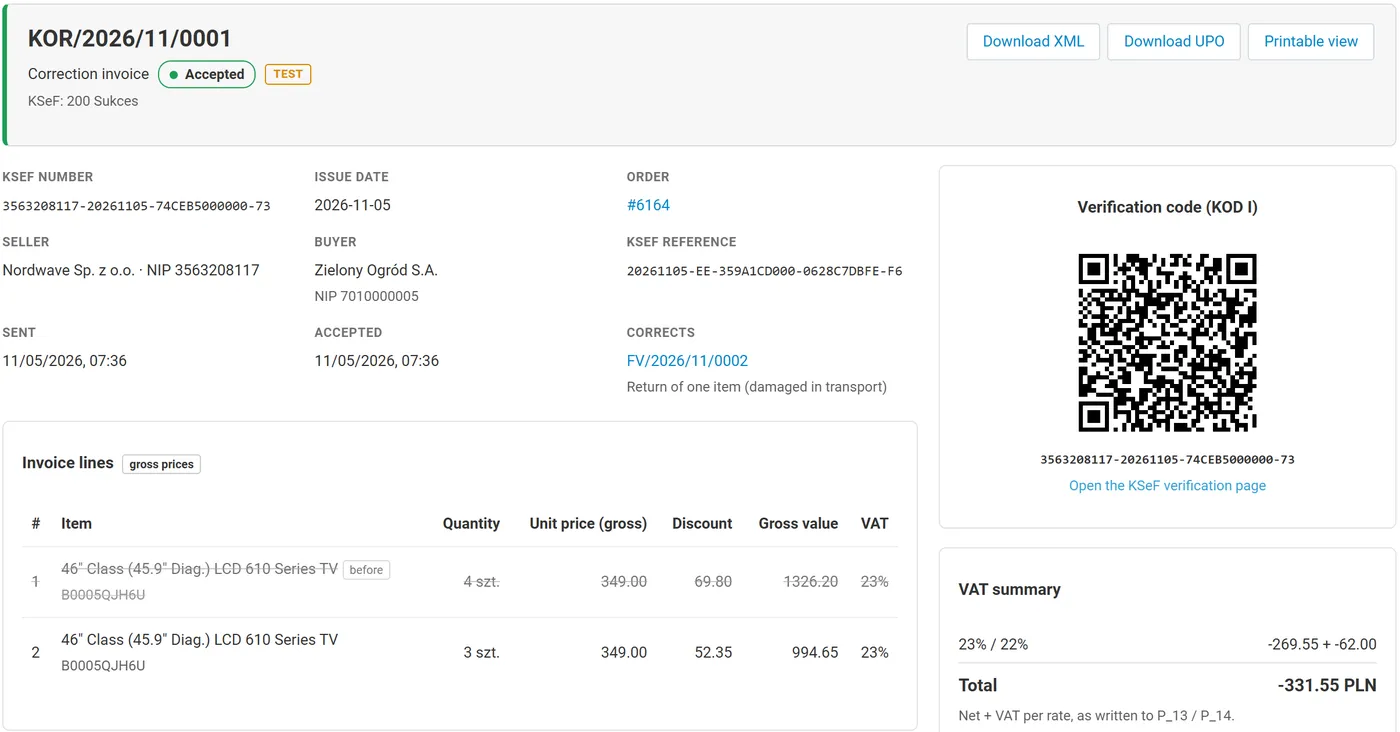
Create correction opens a form with the current lines of the invoice (after earlier corrections). Enter the new quantities of the lines that change, or tick Full correction, and give a reason. The correction invoice (FA(3) type KOR) lists each changed line before and after the change, refers to the KSeF number of the invoice and carries the difference as its total.
Full corrections are also created automatically when an order reaches a correction status (for example Canceled). A correction of an invoice that has no KSeF number yet waits and is sent right after it.
Cancelled orders
Section titled “Cancelled orders”When an order is cancelled, declined, failed, deleted or reaches a correction status before its invoice was sent, the invoice is voided and never sent to KSeF. The queue also checks the order status right before each upload.
An invoice already sent to KSeF cannot be withdrawn. If its order is cancelled afterwards, the document page and the dashboard notice ask for a full correction (correction to zero). If the status is one of your correction statuses, that correction is created automatically.
Invoices issued outside KSeF
Section titled “Invoices issued outside KSeF”The add-on corrects only invoices it created. An order that was already invoiced in another system (for example before you installed the add-on) must not get a second invoice from Create KSeF invoice. A correction of a B2B invoice issued outside KSeF must still be issued in KSeF; use the taxpayer application or your accounting software for it.
Offline mode
Section titled “Offline mode”When KSeF cannot be reached (network problem or an announced KSeF outage), the invoice gets the offline mark and its send deadline: the next business day after its issue date. The queue retries with growing intervals and sends it in offline mode as soon as KSeF answers. An invoice that goes offline on a later day than its issue date is first dated with that day, so the deadline runs from that day. Once in offline mode, the invoice keeps its issue date.
A notice on the dashboard and on the KSeF invoices page warns when a deadline is due today or has passed.
Invoices sent online always carry the send day as issue date. For example, an invoice that waited for the connection or for the next cron run after midnight gets the day it is sent. KSeF records an online invoice dated earlier than the day it receives it as an offline invoice.
QR codes. An online invoice gets its verification QR code (KOD I) once it is sent; before that its content can still change. An invoice in offline mode gets KOD I at once, labelled OFFLINE until the KSeF number is assigned. Invoices issued in offline mode must also carry a second code, KOD II, signed with a KSeF certificate of the Offline type. Add it on the KSeF connection page (KSeF Offline certificate); the printable view then shows both codes. Without one, the document page and the dashboard notice warn you.
Rate limits. When KSeF answers “too many requests” (HTTP 429) or “session temporarily unavailable” (21184), the document stays queued and is sent again a few minutes later, without the offline mark.
The add-on cannot know about outages that the Ministry of Finance announces; check the KSeF communications for the deadlines that apply during a failure.
Incoming invoices
Section titled “Incoming invoices”Orders → KSeF invoices → Incoming invoices lists the purchase invoices your suppliers sent to KSeF for your NIP (last 7–90 days) with their KSeF numbers and amounts, loaded from KSeF when you ask. Download XML gets the structured invoice. Nothing is stored in the store.
Customers
Section titled “Customers”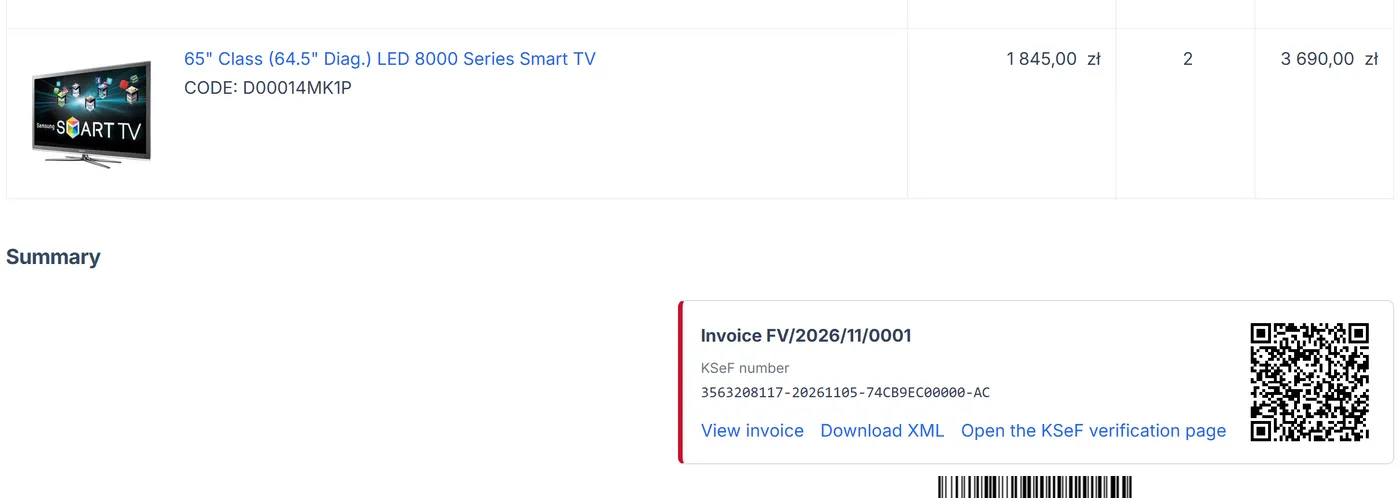
On the order page of the customer account (and for guests who placed the order in their session) the add-on shows the KSeF invoices of the order with the KSeF number, the verification QR code, a printable view and the XML download. Customers never see documents of other orders, nor documents that KSeF did not accept.
Vendors (Multi-Vendor)
Section titled “Vendors (Multi-Vendor)”When vendors issue their own invoices, each vendor connects its own NIP and token under Orders → KSeF invoices → KSeF connection in the vendor panel. Vendors see and send only the documents of their own orders, check incoming invoices of their own NIP, and have their own gapless numbering. When the marketplace is the seller of record, vendors can look at the documents of their orders but only the marketplace administrator can create, send, rebuild, discard or correct them, because every document goes out under the marketplace NIP.