

Configuration
Overview · Installation · Usage · Developer notes · FAQ
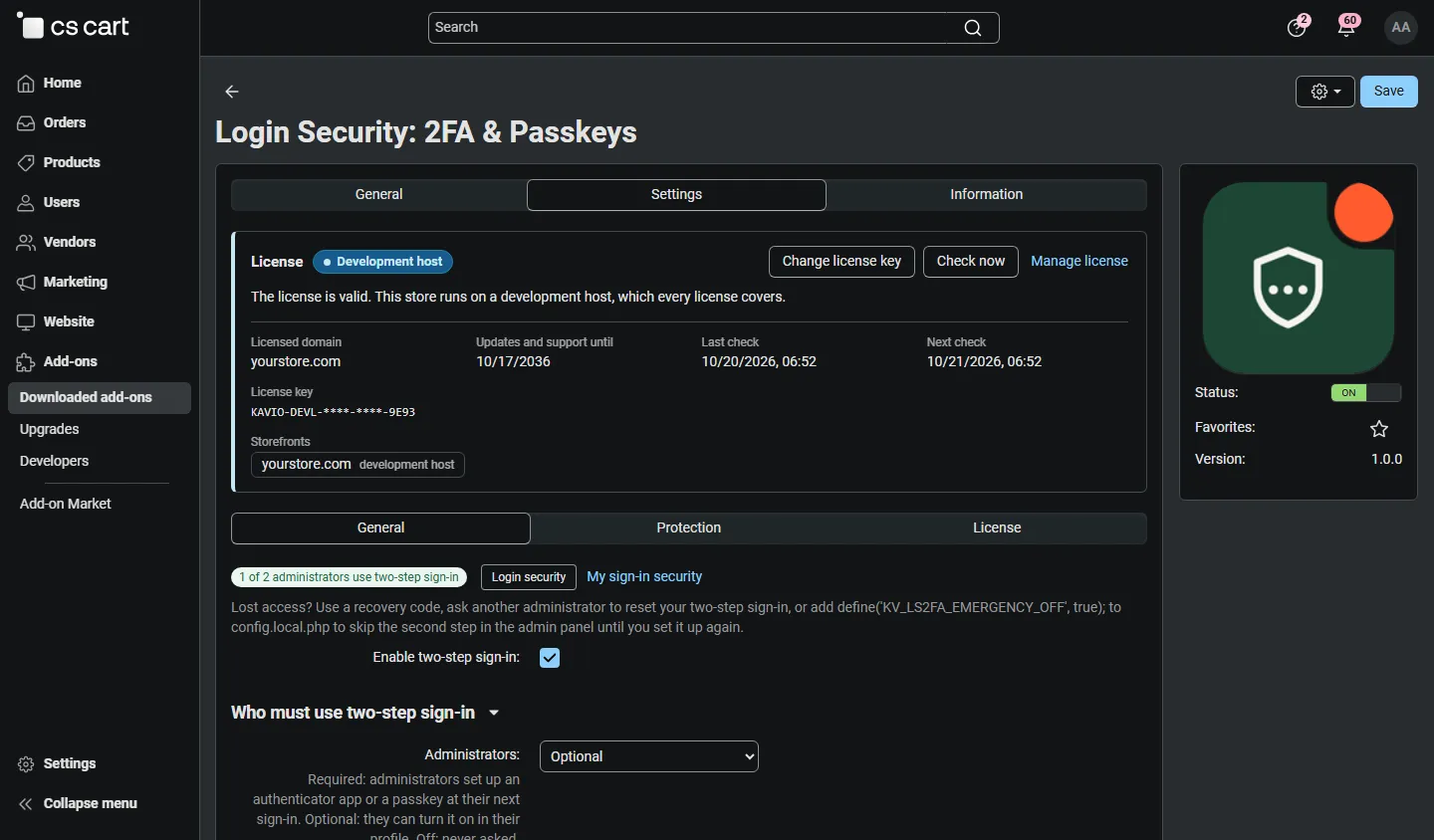
Open Add-ons → Manage add-ons → Login Security: 2FA & Passkeys. The General tab starts with an overview: how many administrators use two-step sign-in, a link to the Login security page and a reminder of the recovery options.
General
Section titled “General”| Setting | Default | Description |
|---|---|---|
| Enable two-step sign-in | On | Off skips the second step for everybody and hides the passkey buttons. Methods and codes are kept. |
| Administrators | Required | Required: an administrator without a method sets one up right after the password at the next sign-in. Optional: administrators turn it on in their profile. Off: never asked (methods are kept). Applies to the main administrators and, in CS-Cart Ultimate, to storefront administrators. |
| Vendor administrators (Multi-Vendor) | Optional | The same choice for the vendor panel. |
| Customers | Optional | Optional lets customers turn it on on their Sign-in security page. Required asks every customer with an account to set it up at their next sign-in; new registrations and accounts created at checkout are not interrupted, they are asked at the next sign-in. |
| Authenticator apps (TOTP) | On | Codes from Google Authenticator, Microsoft Authenticator, 1Password, Authy and similar apps. |
| Passkeys | On | Face ID, Touch ID, Windows Hello, Android screen lock, security keys, as a second step and for passwordless sign-in. |
| Passwordless passkey sign-in on the storefront | On | A Sign in with a passkey button under the sign-in form (pop-up, sign-in page, checkout). Customers who added a passkey sign in with it and no password. |
| Passwordless passkey sign-in in the admin panel | On | The same button on the admin panel sign-in page. |
| Passwordless passkey sign-in in the vendor panel (Multi-Vendor) | On | The same button on the vendor panel sign-in page. On an upgrade from 1.0 it starts with the value of the admin panel switch (once, on the first synchronization of release 1.1.2 or later: administrators off and vendors still at the default On gives vendors Off; later changes are never touched). Switch it off to require password + second step for vendors while administrators may use passkeys alone (or the other way round). |
| Name shown in authenticator apps | (company name) | The issuer name your users see in the app and when they save a passkey. Empty uses the company name from Settings → Company. |
If you switch a method off, users who already set it up keep using it, so nobody loses access; new setups of that method are no longer offered. The same holds for e-mail codes: when you set a role’s mode to Off, nobody can turn them on any more, but users who already turned them on keep receiving codes. The Always mode is different: it covers users who set up nothing, so switching it off ends their e-mail step.
E-mail one-time codes
Section titled “E-mail one-time codes”| Setting | Default | Description |
|---|---|---|
| Administrators / Vendor administrators (Multi-Vendor) / Customers | Off | Off: no e-mail codes for this role. Users can turn it on: each user chooses E-mail code on their security page (or in the forced setup of the required policy) and confirms it with a first code. Always, no setup needed: every user of this role who has no authenticator app and no passkey gets a code at each sign-in, without any setup; users who set up an app or a passkey use that instead. |
| E-mail code lifetime (minutes) | 10 | 2 – 30 minutes. |
How the codes are protected:
- 6 random digits, stored only as a keyed hash (HMAC-SHA256 with a key derived from your store’s
crypt_key) and compared in constant time. The code itself is only in the e-mail. - A code works once, only in the browser that asked for it, and for at most 5 tries; a new code replaces the previous one. Wrong codes also count towards the account lock (Wrong codes before the second step is locked).
- Sending is limited to one code per minute and 5 codes per 15 minutes per account, and, for customers, 30 codes per hour per IP address (behind a proxy or the full page cache the visitor’s real address is used). Administrators and vendors are limited per account only, so busy customer traffic can never block them.
- Fail closed: if the e-mail cannot be sent (mail server down, wrong settings), the sign-in stops with a message. It never continues without the second step. Users with an app, a passkey or recovery codes can use those; administrators have the recovery options.
- E-mail codes are weaker than an authenticator app or a passkey: whoever can read the mailbox can pass the step. Use them where convenience matters (customers, vendors), and prefer apps or passkeys for administrators.
The e-mail uses the template Login security: sign-in code under Design → E-mail templates (one for customers, one for administrators and vendors). Keep {{ code }} in it.
Protection
Section titled “Protection”| Setting | Default | Description |
|---|---|---|
| Trusted devices: skip the second step for (days) | 30 | Users can tick Don’t ask again on this device on the second step. 0 switches trusted devices off. Users sign out of all trusted devices on their security page; an administrator reset removes them too. |
| Allow trusted devices for administrators and vendor administrators | Off | Off: administrators and vendor administrators confirm every sign-in. |
| Recovery codes per user | 10 | 0 – 20. Users get this many single-use codes when they set up their first method. 0 creates no recovery codes: a user who loses every method then needs an administrator reset (or, for administrators, the console command). Existing codes are kept when you change the number; the new number applies the next time codes are created. |
| Wrong codes before the second step is locked | 5 | Counted per account within the lock duration (3 – 20). |
| Lock duration (minutes) | 15 | The second step of the account is locked for this time and the parked sign-in is dropped. The password is always needed first, so a lock never shuts anyone out for good. |
| Passkey user verification | Preferred | Required: the device must check the fingerprint, face or PIN every time it is used as a second step. Passwordless sign-in always requires it. |
| Refuse passkeys whose signature counter goes back | On | Security keys count their uses. A counter that does not grow points to a cloned key, and the sign-in is refused. Synced passkeys do not count and are not affected. |
| E-mail users about security changes | On | E-mails for new sign-in method, method removed and recovery code used. Lock e-mails and reset e-mails are always sent. |
| E-mail the store administrator when an account is locked | Off | Also sends the lock e-mail to the site administrator address of Settings → Company. |
| Keep the security log for (days) | 90 | Older log entries are removed when an administrator opens the Login security page. |
| Full administrators can reset the root administrator | On | When the store’s root administrator is locked out, an administrator with full privileges (no restricting user group, not a storefront or vendor administrator) can reset their two-step sign-in from the root administrator’s profile after typing their own password again. The reset is logged and ends all sessions of the root administrator. Off: only the root administrator themselves or the console command. |
| Allow API sign-in tokens for users with two-step sign-in | Off | The REST API has no second step. Off (recommended): API calls authenticated with a sign-in token (POST /api/auth_tokens, the storefront REST API used by mobile apps) are refused with 401 for users who have two-step sign-in. On: such tokens work as before 1.1. Administrator API keys are a separate credential that you create per administrator; they are not affected. |
The security e-mails use the template Login security: alert (one for customers, one for administrators and vendors) under Design → E-mail templates, where you can change the wording and design.
In CS-Cart Ultimate the policies are set once for the whole installation; storefront administrators follow the administrator policy.
License
Section titled “License”The license status is shown in a License card at the top of the add-on page, above the tabs, so you see it on every tab. The License tab holds the key itself. The key is stored once for the whole installation.
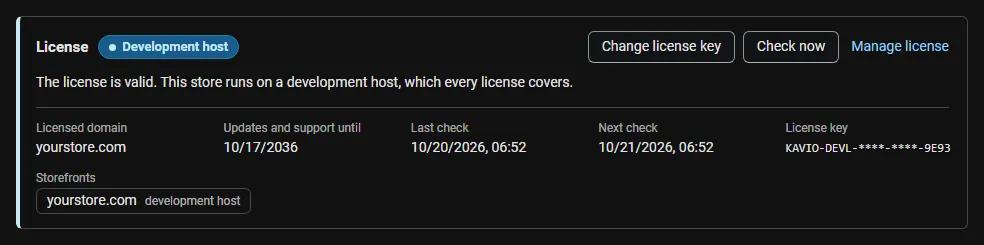
The License card shows:
- the status in color: green when valid, blue for a development host or the 14-day period before a key is required (with the days left), amber when the license server could not be reached (with the days left) or a Marketplace number is still being verified, red when the add-on is switched off;
- in plain words what the status means and, when the add-on is (or will be) switched off, what stops: no new authenticator apps or passkeys can be added and the passkey sign-in buttons are hidden; users who already set up two-step sign-in are still asked for their code, so account security never drops;
- the licensed domain, every storefront with its result (covered, development host, not covered), the end of the updates and support period, the last and the next check, and the key in use (masked);
- the actions Enter license key / Change license key (opens the License tab), Check now (verifies at once and stays on the page), Manage license (your licenses on cs-cart.kaviolabs.com) and, without a valid license, Buy a license.
In Add-ons → Manage add-ons the add-on’s row shows a small license badge next to its name, for example License: Valid or License: Pending · 9 days left. The Login security, Security log and My sign-in security pages show the license status in a bar at the top.
| Setting | Description |
|---|---|
| License key | Your Kavio Labs license key (KAVIO-XXXX-XXXX-XXXX-XXXX, from My licenses on cs-cart.kaviolabs.com) or your CS-Cart Marketplace license number. If you entered the Marketplace license number in Add-ons → Manage add-ons (the add-on’s license field), leave this empty: the add-on uses that number. |
| License status | Points to the License card and explains what the check sends. |
What the license covers. A license is bound to the base domain you entered at purchase (for example example.com) and covers every subdomain of it (www.example.com, shop.example.com, staging.example.com). Local development hosts are always allowed: localhost, 127.0.0.1 and other private IP addresses, and host names ending in .localhost, .test, .local, .example or .invalid. A store on a different base domain needs its own license. If you move your store to a new domain, contact support.
When the add-on checks. When you save the key, and then once a day. The check runs only in the admin panel (on a page you open) or from cron, never while customers browse the storefront or sign in, and takes a few seconds at most. A cron job keeps the license verified even when nobody opens the admin panel:
php /path/to/store/admin.php --dispatch=kv_login_security_2fa_license.checkWhat is sent. The check sends this to https://cs-cart.kaviolabs.com and nothing else: the license key, the add-on ID and version, the host names of your storefronts, your CS-Cart version and edition, and a random one-time value. No customer, account, order or personal data is sent. The server answers with a digitally signed result, so a forged answer is ignored.
Statuses.
| Status (card) | Color | What happens |
|---|---|---|
| Valid | Green | The license is valid for this domain. Everything works. |
| Development host | Blue | The store runs on a local development host, which every license covers. Everything works. |
| Pending verification | Amber | A CS-Cart Marketplace license number was accepted, but the Marketplace has not confirmed it yet. Everything works. |
| Pending · N days left | Blue | No verified key yet (a new installation). Everything works for 14 days. |
| Grace period · N days left | Amber | The last checks failed (for example a network problem). The add-on keeps working for 14 days after the first failed check. |
| Not activated, Invalid key, Revoked, Domain mismatch, Not verified | Red | No new authenticator apps or passkeys can be added, the forced setup of the required policy pauses and the passkey sign-in buttons are hidden. Users who already set up two-step sign-in are still asked for their code or passkey, recovery codes keep working and methods can still be removed: account security never drops and nobody is locked out. Domain mismatch shows the licensed domain next to the domain your store runs on. |
When your updates and support period ends, the add-on keeps working. Only updates and support stop.
License information appears in the admin panel only, and only for administrators who may manage add-ons; vendors and customers never see it.
Client IP (limits behind a proxy)
Section titled “Client IP (limits behind a proxy)”Rate limits and IP rules count requests per visitor address. A forwarded header such as X-Forwarded-For can be sent by anyone, so the add-on only reads it when the connection really comes from a proxy. This works out of the box behind Cloudflare and behind private reverse proxies (nginx, Varnish, a load balancer on a loopback or private address). Open the Client IP tab of the add-on settings only if you need to change it:
| Setting | Default | Description |
|---|---|---|
| Where the visitor IP address comes from | Automatic: Cloudflare and private reverse proxies | Automatic: CF-Connecting-IP when the connection comes from a Cloudflare address (official ranges built in); X-Forwarded-For (read from the right, proxies skipped, the first other address is the visitor) when the connection comes from a loopback or private address (127.0.0.0/8, ::1, 10/8, 172.16/12, 192.168/16, fc00::/7) or a listed proxy. Automatic, plus the proxies listed below: same. Direct connection only: every forwarded header is ignored. |
| Trusted proxies | empty | Only for proxies with a public address: addresses or CIDR blocks, one per line or separated by commas (IPv4 and IPv6). |
IPv6 visitors are counted per /64 network. To set it once for every Kavio Labs add-on, put this in config.local.php (a value there wins over the add-on setting):
$config['kv_client_ip_mode'] = 'cloudflare'; // cloudflare (automatic) | proxy | direct$config['kv_client_ip_trusted_proxies'] = '203.0.113.50'; // public proxy addresses only