

Usage
1. Receive a lot
Section titled “1. Receive a lot”Open Products → Lots & recalls and click + (Add lot).
- Choose the product (each product variation is its own product, so choose the variation).
- Type the lot number exactly as printed on the delivery. It is stored in capitals; the same number can exist once per product.
- Enter the production date, the expiry date and the quantity received. Dates use the browser date picker (year-month-day).
- Optional: supplier, delivery reference (delivery note, PO, container) and a certificate or document note or link.
- Tick Also add this quantity to the product stock if the normal stock has not been updated yet. Save.
Many lots at once: gear menu → Import lots from CSV with the columns product_code, lot_number, quantity, produced, expiry, supplier, reference, certificate. Existing lot numbers are skipped, so an import never changes stock by surprise. Export CSV writes the same columns plus stock, sold and status.
The register shows in-stock lots, lots expiring soon and expired lots that still have stock, and recall counts. Filter by lot number, supplier, status or expiry.
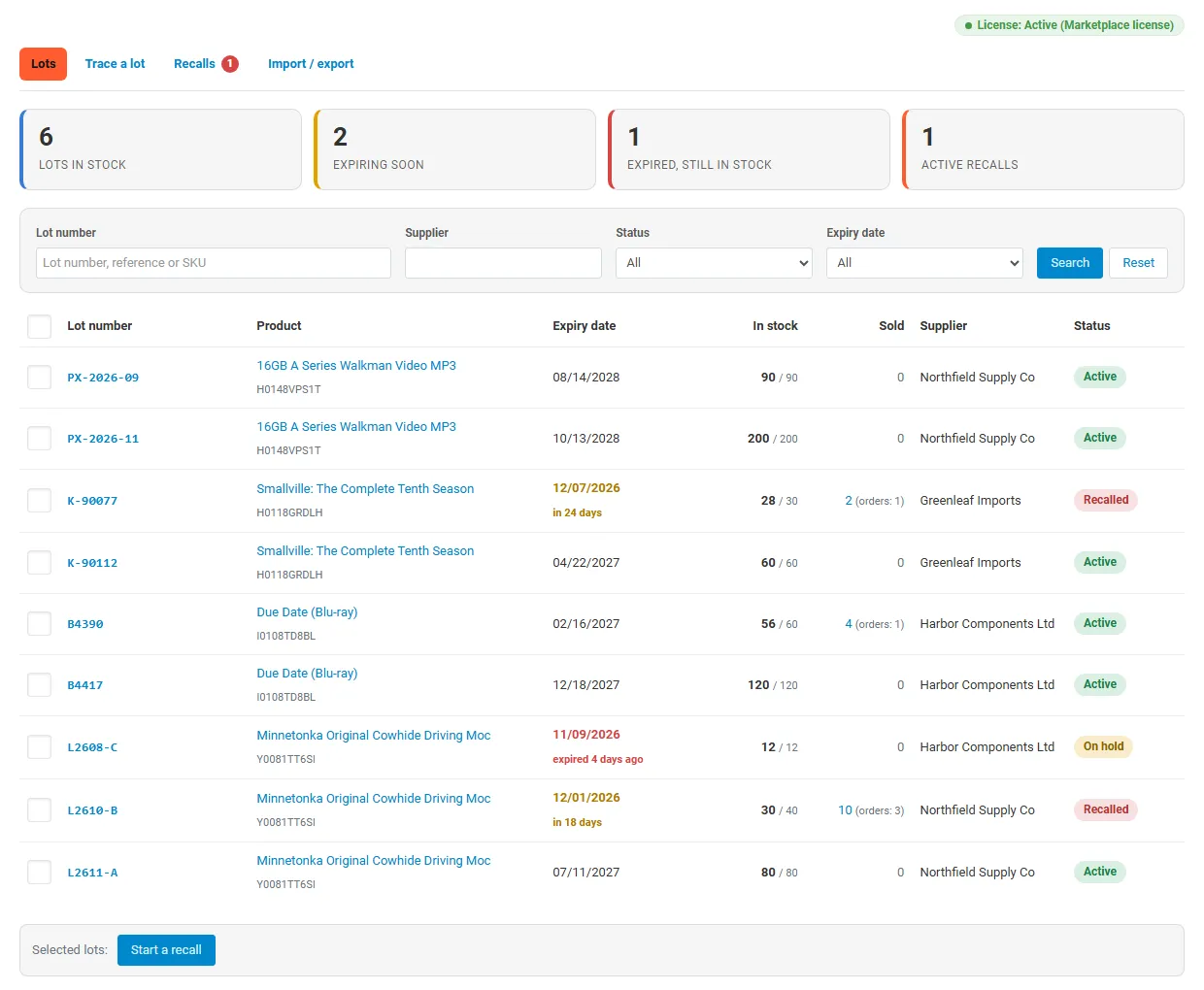
2. Orders take their units from the lots
Section titled “2. Orders take their units from the lots”When an order is placed the add-on allocates each tracked line:
- FEFO (default): the lot that expires first; lots without an expiry date are used last.
- FIFO: the lot received first.
- Lots that are on hold, recalled, closed, expired or closer to expiry than the minimum shelf life are never picked.
- A line can be split over several lots. If the lots do not have enough units, the order is still placed (the add-on never blocks checkout) and the order page shows the missing units.
The order page gets a Lots tab:
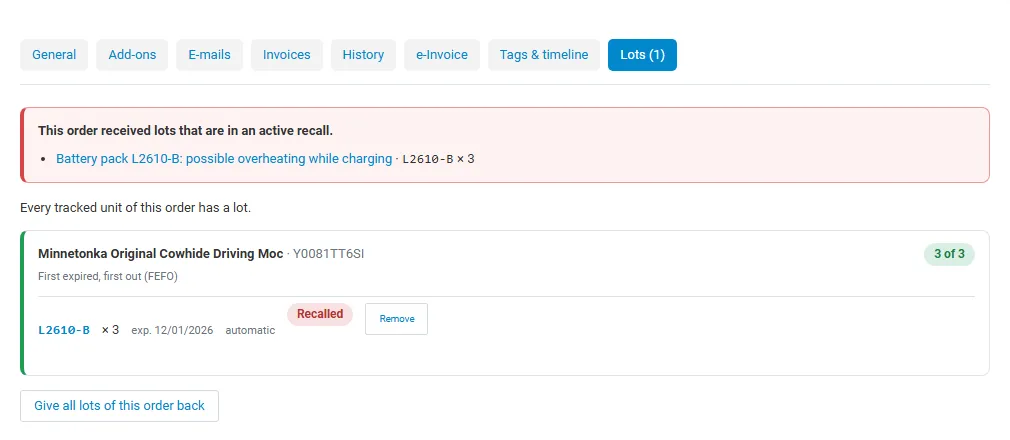
- Assign lot picks a lot and quantity yourself (the only way in Manual mode). A lot on hold, recalled or expired needs the Allow anyway tick.
- Remove gives units back to the lot (shipped units cannot be removed).
- Allocate automatically fills the missing units by the rule of the product.
- Give all lots of this order back releases everything that was not shipped.
What happens later:
| Event | Result |
|---|---|
| Order waiting for an online payment (status Incomplete) | No lots are taken yet (core does not take product stock either); the lots are allocated when the payment is confirmed and the order gets its first real status. |
| Order cancelled, declined or failed (settings) | Units go back to their lots. |
| Order comes back from such a status | Units are allocated again. |
| Order edited in the admin panel | Lines that shrank give units back; lines that grew or are new are filled. Lots you assigned by hand to a line that no longer exists are released. |
| Shipment created | The lots in that shipment are recorded (partial shipments split correctly). |
| Order deleted | Units go back; the history stays in the log. |
On Multi-Vendor the lots are allocated on the vendor’s order, not on the parent order.
3. The lot on documents
Section titled “3. The lot on documents”With Show the lot number on orders, invoices, packing slips and order e-mails on, each order line shows Lot: L2611A (exp. 2027-01-31) x2 in its options, in the admin order page, the customer order page, the invoice, the packing slip and order e-mails. A line split over two lots lists both.
4. Trace a lot
Section titled “4. Trace a lot”Products → Lots & recalls → Trace a lot: type a lot number (a part is enough), a customer name or e-mail, an order number or a date range.
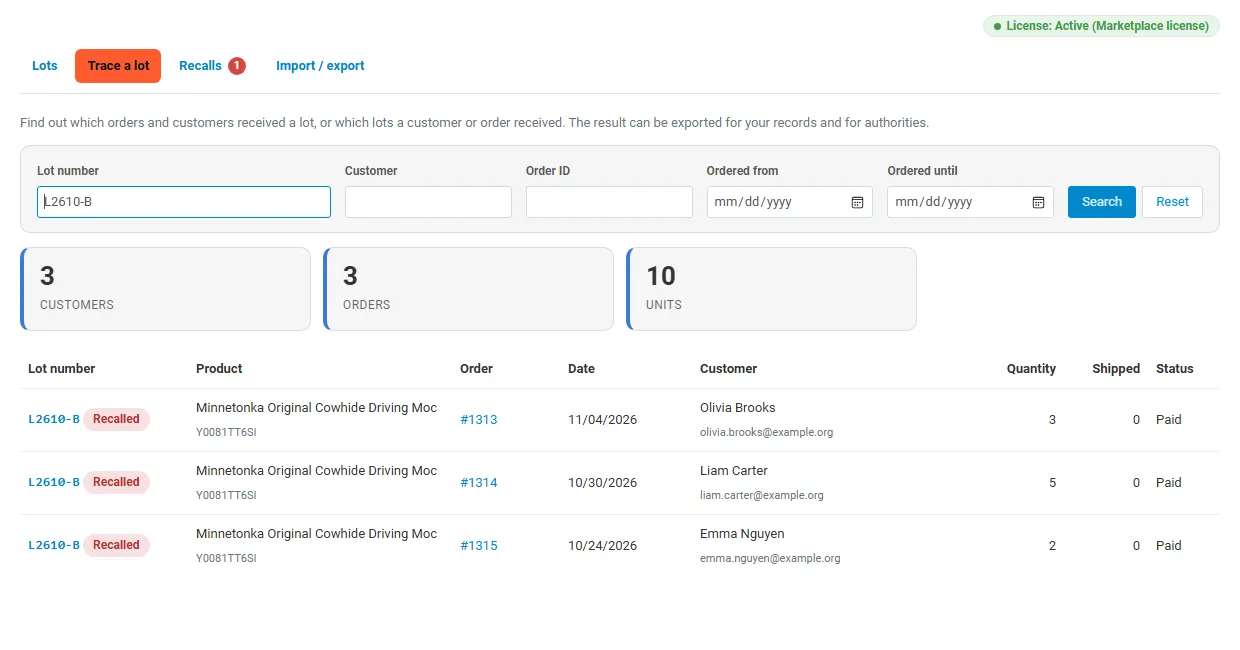
The result lists every order, the customer, the quantity and what was shipped, and shows totals for customers, orders and units. Lots that are in an active recall are marked. Export CSV saves the list. A lot’s own page shows its stock, its orders, its recalls and a history line for every change (created, stock corrected, allocated, released, shipped, recalled). Lot history (print / PDF) makes a report for the file.
5. Run a recall
Section titled “5. Run a recall”- Pick the lots. Select lots in the register and click Start a recall, or open a lot and click Start a recall.
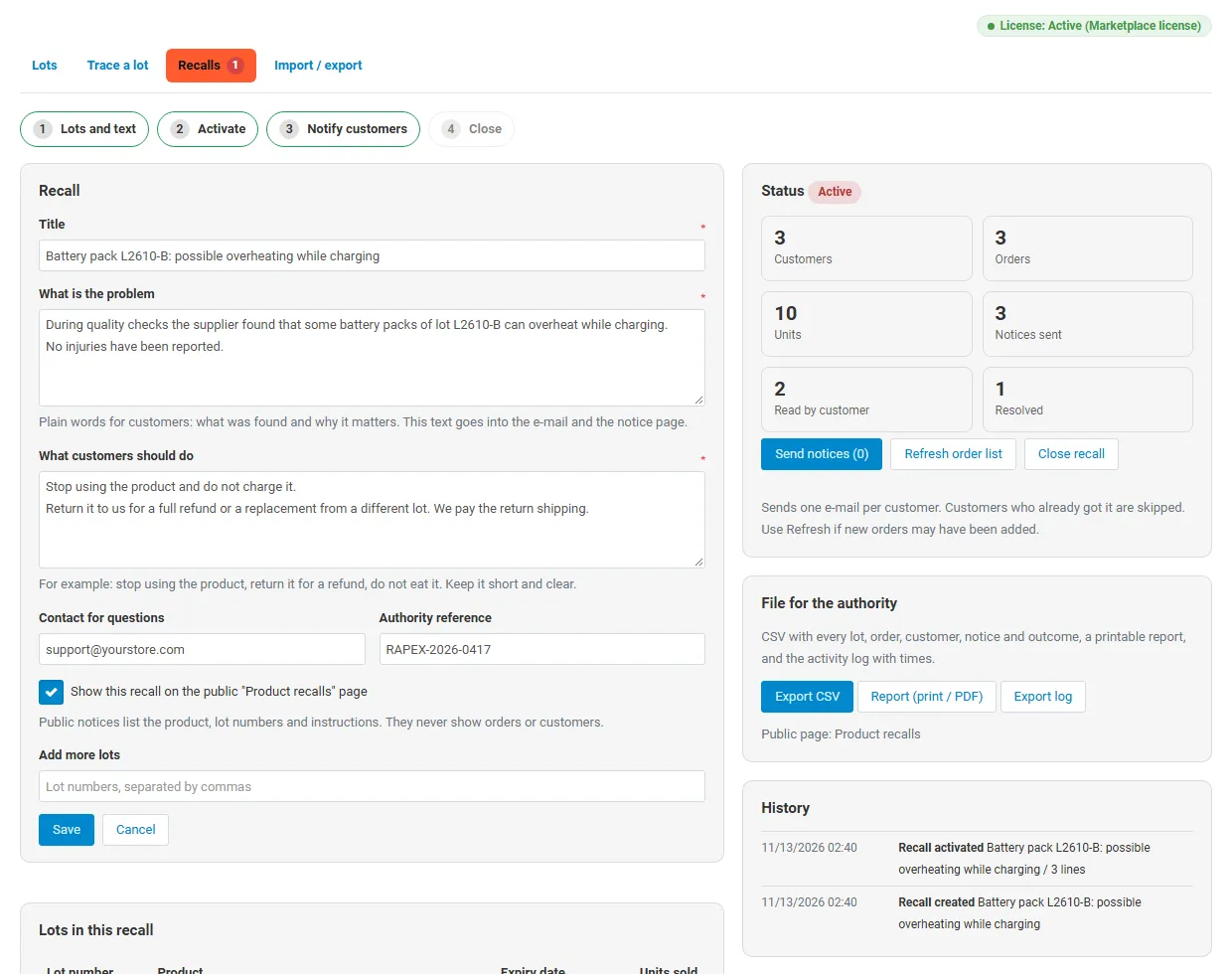
- Write it. Title, what is the problem, what customers should do, a contact and, if you have one, the authority’s reference. Tick public to show it on the Product recalls page. The text goes into the e-mail and the notice pages; write it in plain words. The recall is a draft: nothing happens yet.
- Activate. The lots are marked Recalled and no new order is allocated from them (the product stays on sale with its normal stock; set it to zero or disable the product if no other lot is left). The add-on lists every order that received them (order, customer, e-mail, quantity). Orders without an e-mail address are marked so you can contact them another way.
- Notify. Send notices sends one e-mail per customer (100 customers per click; click again for the rest). Failed sends are listed and retried by the next click. Each customer gets a link to a private notice page with their products and an I have read this notice button; the recall page shows who read it. Customers who are signed in also see a box on their order page.
- Follow up. Mark lines as resolved with a note (refunded, returned, replaced). Refresh order list adds orders placed in the meantime (for example from a lot you added to an active recall).
- Export the file for the authority. Export CSV has one row per affected order line (lot, product, supplier, dates, order, customer, e-mail, country, quantity, notice state and time, read time, outcome). Report (print / PDF) is a printable summary with the activity log. Export log gives every action with its time.
- Close. The public notice disappears; the records stay.
A recalled lot is not sold again by accident: to resume selling it, open the lot, tick I confirm this recalled lot may be sold again and set it to Active.
What customers see
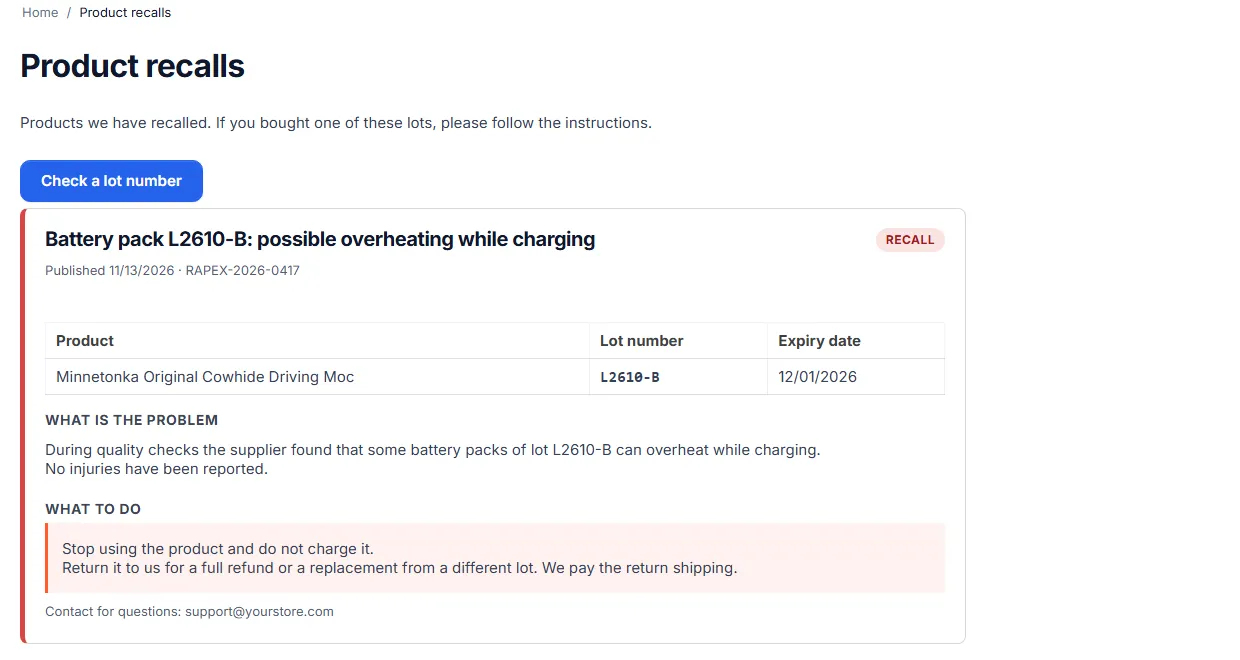
Section titled “What customers see”- A public page Product recalls with the product, lot numbers, expiry dates, what is wrong, what to do and the contact (no orders, no customers).
- A Check a lot number form for visitors.
- The notice e-mail and a private notice page per customer.
Multi-Vendor
Section titled “Multi-Vendor”Vendors see Products → Lots & recalls for their own products and orders only: they receive lots, run recalls for their lots and notify their own customers. You, as the marketplace owner, see everything and can start a recall that covers lots of several vendors. A vendor cannot open, change or recall another vendor’s lot, and cannot see another vendor’s orders in the trace.
The notice pages, the lot check and the order pages are not cached by the 4.21 full page cache; the add-on prints nothing on cached pages such as the home page, categories or product pages.