

Configuration
Overview · Installation · Usage · Developer notes · FAQ
Open Add-ons → Manage add-ons → Marketing Pixels Pack. The settings have a General tab, one tab per platform and a License tab. In CS-Cart Ultimate and on Multi-Vendor stores with several storefronts, choose the storefront at the top of the page to give each storefront its own IDs and options.
General
Section titled “General”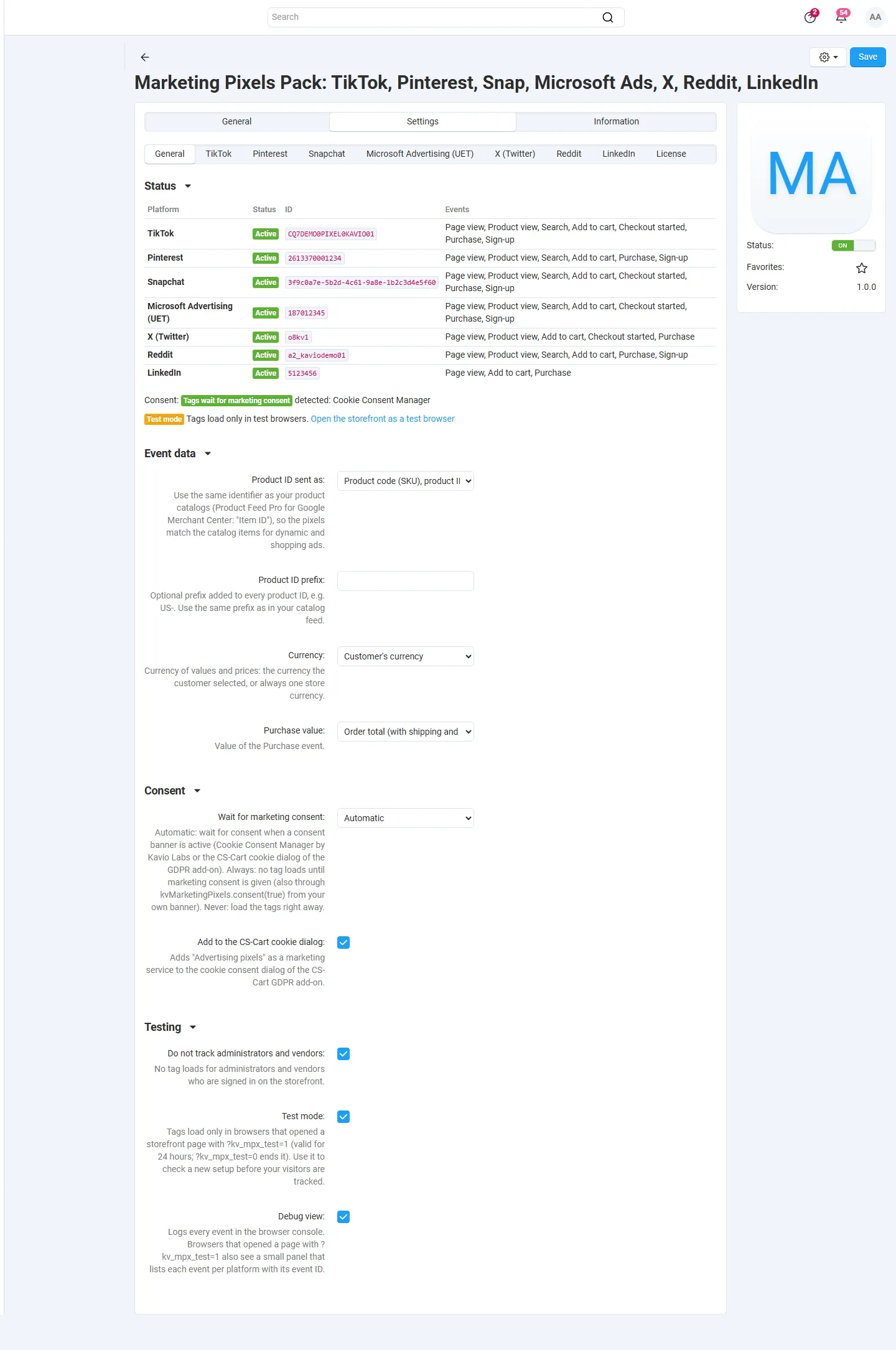
Status. A table of the seven platforms: Active, Off, ID missing, Invalid ID (the ID does not have the platform’s format), No events selected, or Page views only (X and LinkedIn without event or conversion IDs). It also shows whether the tags wait for marketing consent and which consent banner was found, and links to the storefront as a test browser while test mode or the debug view is on.
| Setting | Default | Description |
|---|---|---|
| Product ID sent as | Product code (SKU), product ID when empty | The product identifier in every event. Use the same rule as your product catalogs: Product Feed Pro for Google Merchant Center calls it Item ID and uses the product code by default. TikTok, Pinterest, Snapchat and Microsoft catalogs built from the same feed then match the events. |
| Product ID prefix | empty | Added in front of every product ID, for example US-. Use the same prefix as in your feed. Letters, digits, -, _, . and :, up to 20 characters. |
| Currency | Customer’s currency | Values and prices in the currency the customer selected, or always in one store currency (converted with the store’s exchange rate). Purchases use the order’s currency. |
| Purchase value | Order total | Order total (with shipping and taxes) or Subtotal minus discounts. |
| Wait for marketing consent | Automatic | Automatic: wait for marketing consent when a consent banner is active (Cookie Consent Manager by Kavio Labs or the CS-Cart cookie dialog of the GDPR add-on); without a banner, load right away. Always: never load a tag before consent (your own banner then calls kvMarketingPixels.consent(true), see Developer notes). Never: load the tags right away. |
| Add to the CS-Cart cookie dialog | On | Adds the service Advertising pixels (purpose Marketing) to the cookie dialog of the CS-Cart GDPR add-on. |
| Do not track administrators and vendors | On | No tag loads for administrators and vendors signed in on the storefront. |
| Test mode | Off | Tags load only in browsers that opened a storefront page with ?kv_mpx_test=1 at the end of the address (for 24 hours; ?kv_mpx_test=0 ends it). Your visitors get no tag. |
| Debug view | Off | Logs every event in the browser console ([Marketing Pixels]). Browsers that opened a page with ?kv_mpx_test=1 also see a small panel with each event per platform and its event ID. |
Platforms
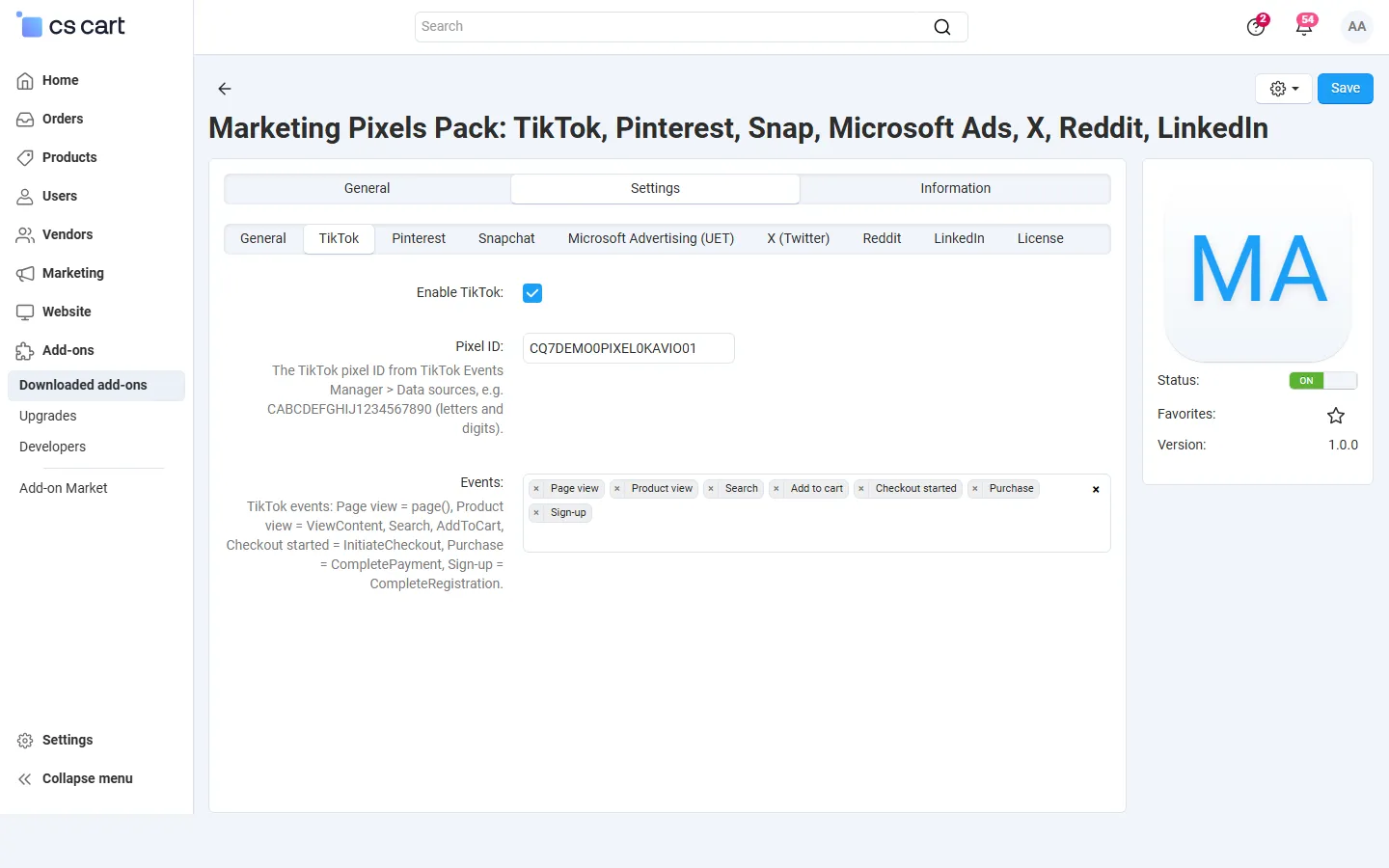
Section titled “Platforms”Each platform tab has Enable, the platform’s ID and the events. A platform runs only when it is enabled and its ID has the right format.
| Tab | ID | Where to find it | Events you can choose |
|---|---|---|---|
| TikTok | Pixel ID, e.g. CABCDEFGHIJ1234567890 |
TikTok Ads Manager → Tools → Events → Web events (the pixel code) | Page view, Product view, Search, Add to cart, Checkout started, Purchase, Sign-up |
| Tag ID, digits | Pinterest Ads Manager → Conversions → Tag manager | Page view, Product view, Search, Add to cart, Purchase, Sign-up | |
| Snapchat | Pixel ID (36 characters with dashes) | Snapchat Ads Manager → Events Manager | Page view, Product view, Search, Add to cart, Checkout started, Purchase, Sign-up |
| Microsoft Advertising (UET) | UET tag ID, digits | Microsoft Advertising → Tools → UET tag | Product view, Search, Add to cart, Checkout started, Purchase, Sign-up (page views: always, by the tag itself) |
| X (Twitter) | Pixel ID, e.g. o8abc, plus one event ID per event |
X Ads → Tools → Events manager | Event IDs for Product view, Search, Add to cart, Checkout started, Purchase, Sign-up (page views: always) |
Pixel ID, e.g. a2_abcdef123456 or t2_abcdef12 |
Reddit Ads → Events Manager | Page view, Product view, Search, Add to cart, Purchase, Sign-up | |
| Partner ID, digits, plus conversion IDs | Campaign Manager → Analyze → Insight Tag / Conversions | Conversion IDs for Add to cart, Checkout started, Purchase, Sign-up (page views: always) |
X event IDs. In X Events manager, create one event per action (for example Purchase, type Purchase). Its ID looks like tw-o8abc-o8xyz; enter it completely or only the last part (o8xyz). Events without an ID are not sent.
LinkedIn conversion IDs. In Campaign Manager create a conversion with the Event-specific (JavaScript) method for each action and enter its numeric ID. Conversions without an ID are not sent; the Insight Tag still records page views for your audiences and website demographics.
Pinterest and Reddit have no checkout started event, so the option is not offered there.
License
Section titled “License”The license status is shown in a License card at the top of the add-on page, above the tabs, so you see it on every tab. The License tab holds the key itself. The key is stored once for the whole installation.
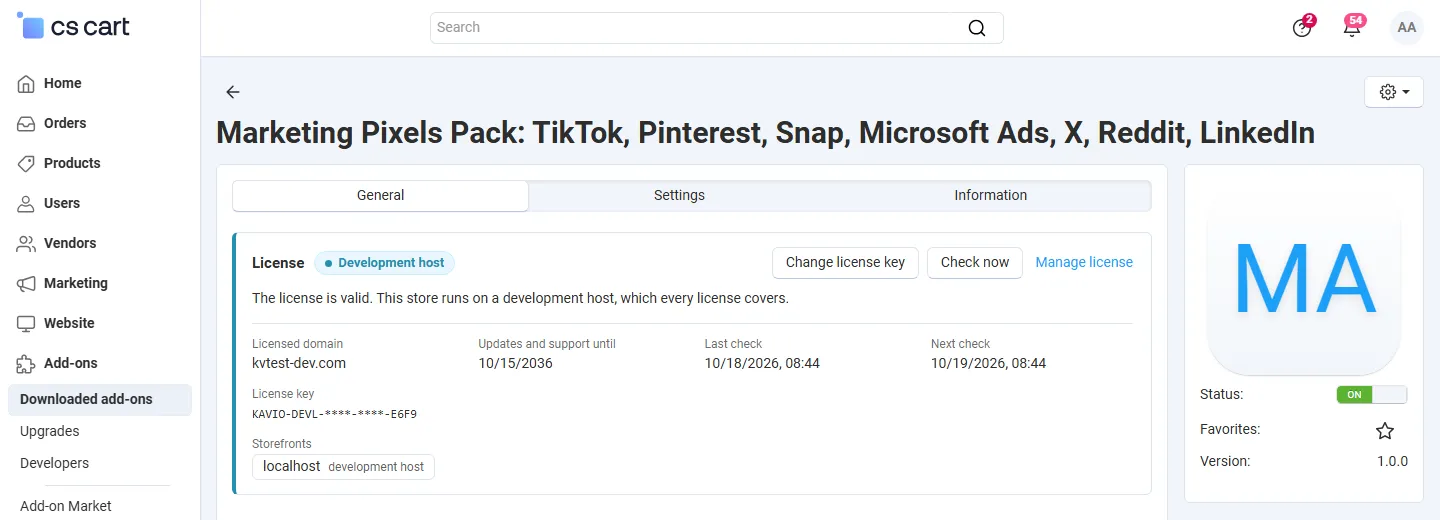
The License card shows:
- the status in color: green when valid, blue for a development host or the 14-day period before a key is required (with the days left), amber when the license server could not be reached (with the days left) or a Marketplace number is still being verified, red when the add-on is switched off;
- in plain words what the status means and, when the add-on is (or will be) switched off, what stops: no tag is loaded and no event is sent on the storefront until the license is valid; checkout and orders are not affected;
- the licensed domain, every storefront with its result (covered, development host, not covered), the end of the updates and support period, the last and the next check, and the key in use (masked);
- the actions Enter license key / Change license key (opens the License tab), Check now (verifies at once and stays on the page), Manage license (your licenses on cs-cart.kaviolabs.com) and, without a valid license, Buy a license.
In Add-ons → Manage add-ons the add-on’s row shows a small license badge next to its name, for example License: Valid or License: Pending · 9 days left.
| Setting | Description |
|---|---|
| License key | Your Kavio Labs license key (KAVIO-XXXX-XXXX-XXXX-XXXX, from My licenses on cs-cart.kaviolabs.com) or your CS-Cart Marketplace license number. If you entered the Marketplace license number in Add-ons → Manage add-ons (the add-on’s license field), leave this empty: the add-on uses that number. |
| License status | Points to the License card and explains what the check sends. |
What the license covers. A license is bound to the base domain you entered at purchase (for example example.com) and covers every subdomain of it (www.example.com, shop.example.com, staging.example.com). Local development hosts are always allowed: localhost, 127.0.0.1 and other private IP addresses, and host names ending in .localhost, .test, .local, .example or .invalid. A store on a different base domain needs its own license. If you move your store to a new domain, contact support.
When the add-on checks. When you save the key, and then once a day. The check runs only in the admin panel (on a page you open) or from cron, never while customers browse the storefront, and takes a few seconds at most. A cron job keeps the license verified even when nobody opens the admin panel:
php /home/yourstore/public_html/admin.php --dispatch=kv_marketing_pixels_pack_license.checkWhat is sent. The check sends this to https://cs-cart.kaviolabs.com and nothing else: the license key, the add-on ID and version, the host names of your storefronts, your CS-Cart version and edition, and a random one-time value. No customer, product or order data is sent. The server answers with a digitally signed result, so a forged answer is ignored.
Statuses.
| Status (card) | Color | What happens |
|---|---|---|
| Valid | Green | The license is valid for this domain. Everything works. |
| Development host | Blue | The store runs on a local development host, which every license covers. Everything works. |
| Pending verification | Amber | A CS-Cart Marketplace license number was accepted, but the Marketplace has not confirmed it yet. Everything works. |
| Pending · N days left | Blue | No verified key yet (a new installation). Everything works for 14 days. |
| Grace period · N days left | Amber | The last checks failed (for example a network problem). The add-on keeps working for 14 days after the first failed check. |
| Not activated, Invalid key, Revoked, Domain mismatch, Not verified | Red | No tag is loaded and no event is sent on the storefront. Checkout and orders are not affected, and the settings stay available. Domain mismatch shows the licensed domain next to the domain your store runs on. |
When your updates and support period ends, the add-on keeps working. Only updates and support stop.
License information appears in the admin panel only, and only for administrators who may manage add-ons; vendors and customers never see it.