

Usage
Overview · Installation · Configuration · Developer notes · FAQ
Open Orders → Order desk.
The order list
Section titled “The order list”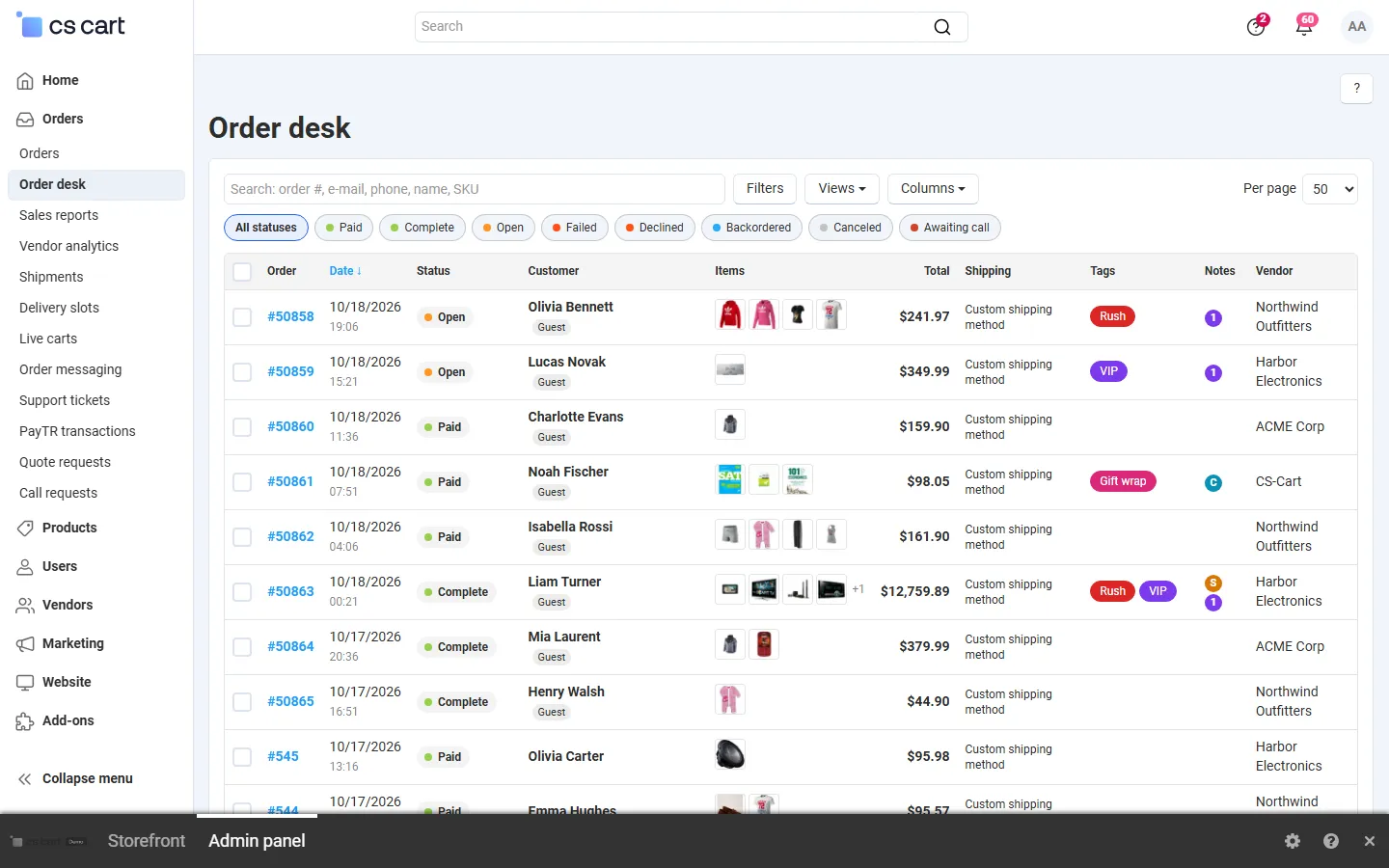
- Status chips above the list filter by status; click several to combine them, All statuses clears them. Every status has its colour from Administration → Order statuses (the same colour everywhere on the desk).
- Columns: open Columns and tick what you need: order, date, status, customer (name, company, Guest badge), e-mail, phone, items (up to four product images with the quantity and SKU in the tooltip, “+n” for more), quantity, total, shipping, payment, tags, notes, vendor (Multi-Vendor administrators), manager, invoice number, ship to, customer orders. Your columns, sorting and page size are remembered for your user.
- Notes indicator: C = customer note, S = staff note (core order fields), a purple number = internal notes on the desk.
- Sorting: click a column header with a link (order, date, status, customer, e-mail, total); click again to reverse.
- Paging: the list loads one page at a time from the server, so it stays fast with 50,000 orders and more.
Search and filters
Section titled “Search and filters”The search box finds:
| You type | It finds |
|---|---|
1024 or #1024 |
Order 1024 (and, from 5 digits, phone numbers containing the digits) |
jane@example.com or part of it |
Orders by e-mail |
+44 20 7946 0101, (020) 7946-0101 |
Orders by phone, billing phone or shipping phone, whatever the formatting |
Jane Doe, Doe Jane, Acme |
Orders by customer name or company |
TSHIRT-RED |
Orders that contain a product whose SKU starts with it |
Filters opens more filters: date from/to, total from/to, payment method, shipping method, vendor (Multi-Vendor administrators), notes (any, customer, staff, internal) and tags. Click Apply filters; Reset clears everything.
Saved views
Section titled “Saved views”Open Views, type a name and click Save current view: the filters, columns, sorting and page size are saved. Administrators can tick Shared so the whole team sees the view. Click a view to apply it; the × deletes your own views.
Quick view
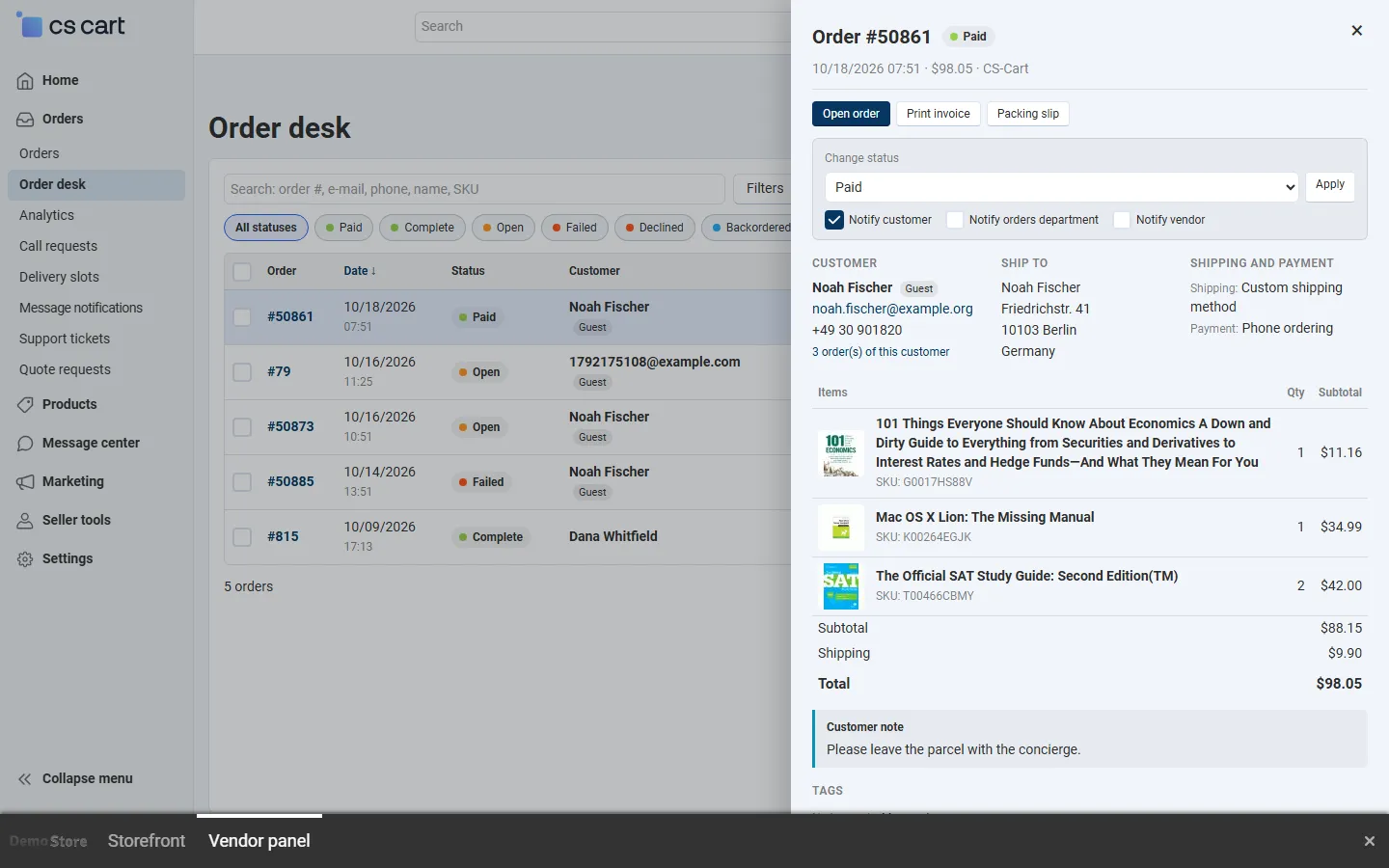
Section titled “Quick view”Click a row (or press Enter) to open the order in a drawer on the right:
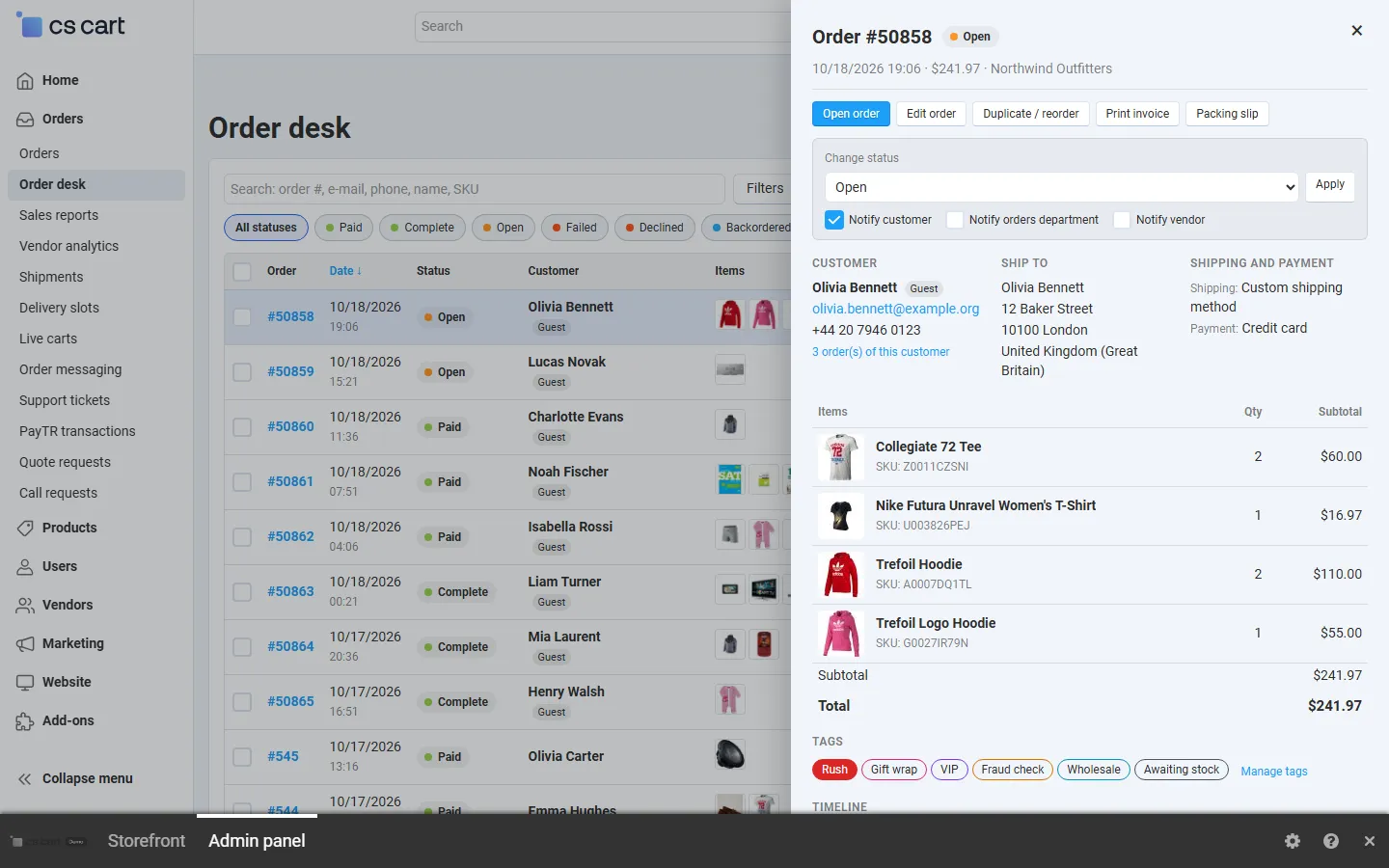
- header with the status, date, total and vendor;
- Open order, Edit order, Duplicate / reorder (the core order editor with a copy of the order for the same customer), Print invoice, Packing slip;
- Change status with Notify customer, Notify orders department and (Multi-Vendor) Notify vendor;
- customer with the number of their orders (click it to list them), ship-to address, shipping and payment;
- items with images, options and SKUs, totals;
- customer and staff notes;
- tags (click to add or remove) and the timeline with Add note.
j/k move to the next or previous order while the drawer is open. Esc closes it.
Tags, notes and the timeline
Section titled “Tags, notes and the timeline”- Tags: create tags with Manage tags (name and colour). Click a tag in the quick view or on the order page to add or remove it. Filter the list by tags.
- Internal notes: staff-only notes; customers never see them.
Ctrl+Enteradds the note. - Timeline: every status change (from any page, payment callbacks and checkout), tag change, note, e-mail sent with the desk, print and export, with who and when.
- On the core order page, the Tags & timeline tab shows the same tags, notes and timeline.
Customer panel
Section titled “Customer panel”The panel stands in the sidebar of the order page and in the quick view.

- Orders: all orders of the customer, without incomplete ones. On Multi-Vendor, an administrator counts each vendor’s order of a split checkout.
- Paid total and average order: orders in statuses that count as paid (the “Order is paid” status setting), in your base currency.
- Refund rate: see Configuration. Hover over the figure to see the numbers behind it. It turns red from 25%, once two or more orders are affected.
- Last orders: the five newest, with status and total. “by e-mail” or “by phone” tells you why an order that is not on this account is listed. All N orders in the desk opens the desk filtered to this customer, ready for bulk actions.
- Which orders match: the same account, or the same e-mail or phone number. Two registered accounts are never merged by a shared phone. A guest order that shares a phone with an account does list that account’s orders.
- Totals on very active customers: the newest 2,000 orders are counted, and the panel says so.
Customer notes are for things every order of this customer should show, such as “Call before shipping”. They carry author and date, and customers never see them. They appear on all orders of the account, and on orders with the same e-mail or phone, also for guests. Tick Show as a warning to put a note at the top of the panel. Use the order notes for things about one order.
On a store with many orders, the first panel you open finishes the contact index in the background and shows its progress. Your work is not blocked.
Bulk actions
Section titled “Bulk actions”Tick orders (or the header checkbox for the page). To act on all orders that match the filters, click Select all N matching orders (up to 5,000). The bulk bar offers:
| Action | What it does |
|---|---|
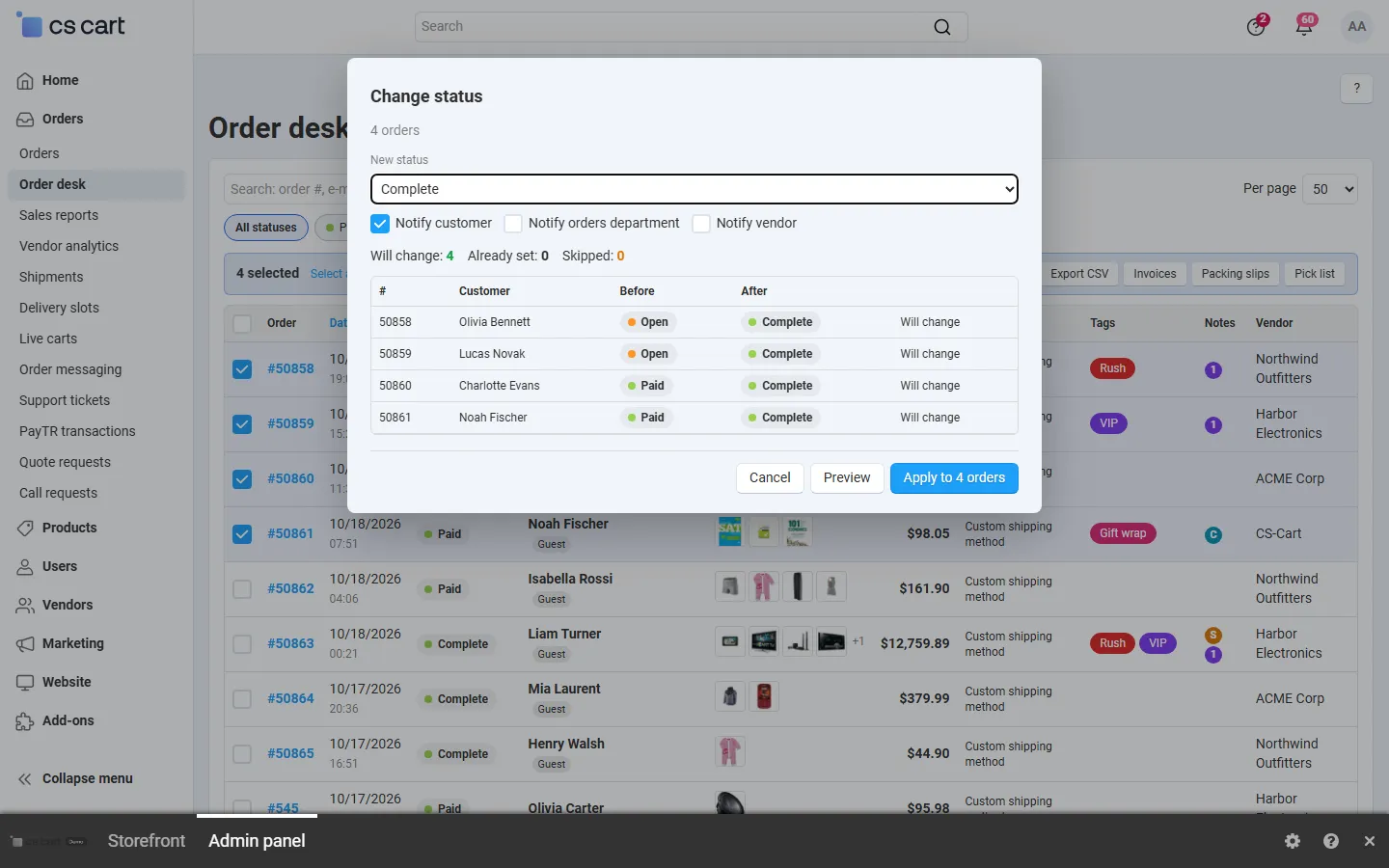
| Change status | Core status change for each order, with the notification options you tick. Stock, invoices, e-mails and other add-ons behave as on the core orders page. |
| Add tag / Remove tag | Adds or removes one tag. |
| Send e-mail | Sends a message to the customers of the orders. Pick a saved template or write a new message; placeholders are filled per order. Save it as a template for next time. |
| Export CSV | Downloads a CSV (UTF-8) with the columns you choose: order data, items, SKUs, quantities, tags, addresses, notes, invoice number. |
| Invoices / Packing slips | Opens one print view with the core invoice or packing slip of every selected order. |
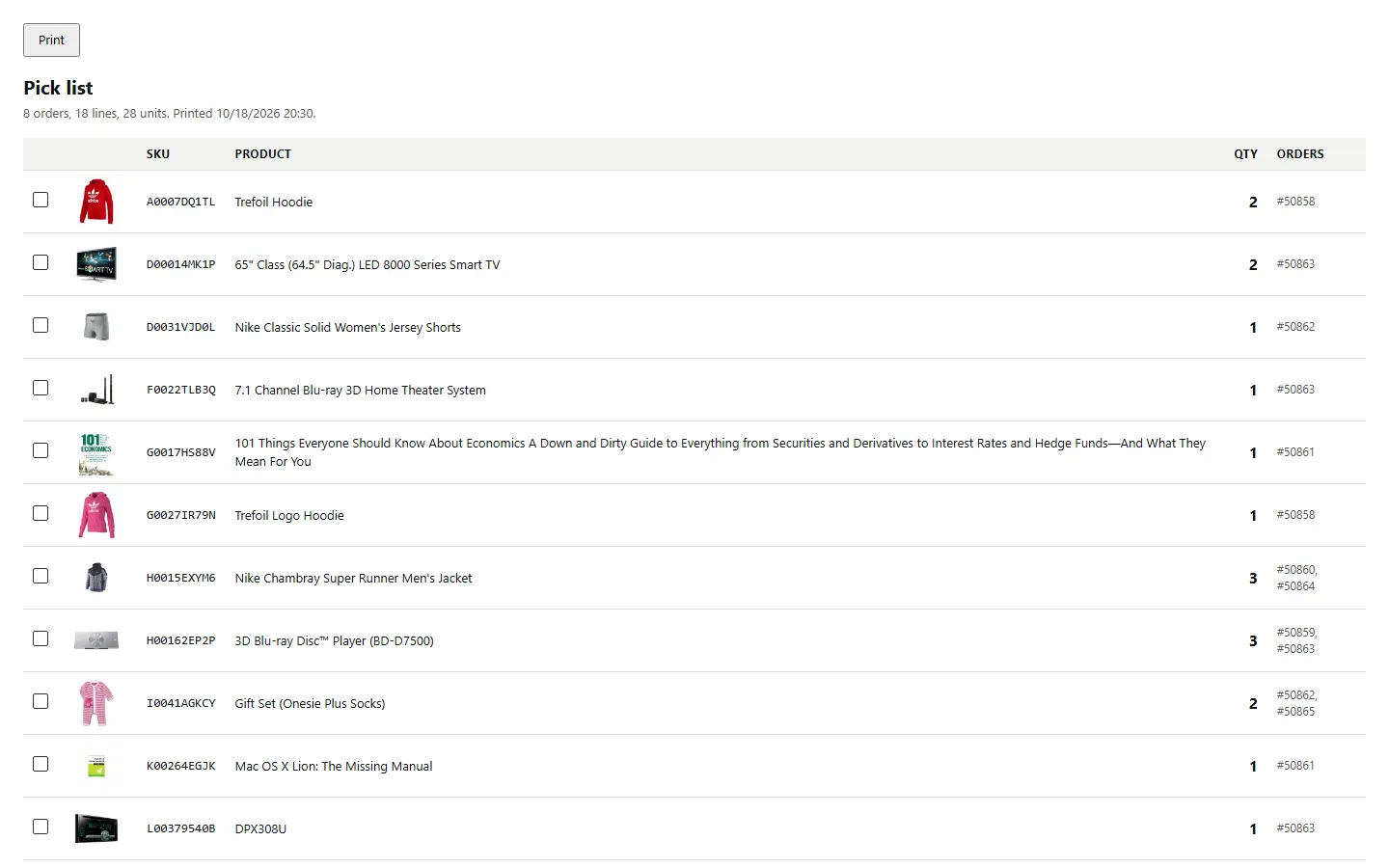
| Pick list | Opens a printable list that adds up the items of the selected orders by SKU and options: quantity, image and the orders that contain each line, with check boxes for picking. |
Status, tag and e-mail actions show a preview first: how many orders will change, are already set, or are skipped (for example orders without a valid e-mail), the first 50 orders with before and after, and for e-mails a rendered sample. Apply to N orders then runs the action in short steps with a progress bar. Keep the page open until it is done; if it is interrupted, the orders processed so far keep their changes.
Keyboard shortcuts
Section titled “Keyboard shortcuts”| Key | Action |
|---|---|
j / ↓ |
Next order |
k / ↑ |
Previous order |
Enter / o |
Open the quick view |
x |
Select the order |
/ |
Search |
s |
Change status (quick view) |
t |
Tags (quick view) |
n |
Add a note (quick view) |
e |
Edit the order (quick view) |
Esc |
Close |
? |
Show the help |
Shortcuts work when no input field has the focus. They can be switched off in the settings.
Multi-Vendor vendors
Section titled “Multi-Vendor vendors”Vendors open Orders → Order desk in the vendor panel. They see only their own orders, their own tags and message templates, and their own notes plus the status changes in the timeline. The Vendor column and filter and the core order editor buttons are not shown.
In the customer panel, a vendor sees only orders of its own: order counts, totals, refund rate and the order list leave out other vendors, even for the same customer. Vendor notes are visible to that vendor’s team and to the marketplace administrators. A vendor never sees administrators’ notes or other vendors’ notes.
CS-Cart Ultimate
Section titled “CS-Cart Ultimate”With a storefront selected in the admin panel, the desk lists that storefront’s orders; with All storefronts it lists all orders. Tags, views and templates are shared by all administrators.
The customer panel stays inside the storefront of the order: orders and notes of the same customer on another storefront are not shown.