

Configuration
Open Add-ons > Manage add-ons > Mandatory Product Warnings. On Ultimate every storefront has its own values.
Add-on settings
Section titled “Add-on settings”General
Section titled “General”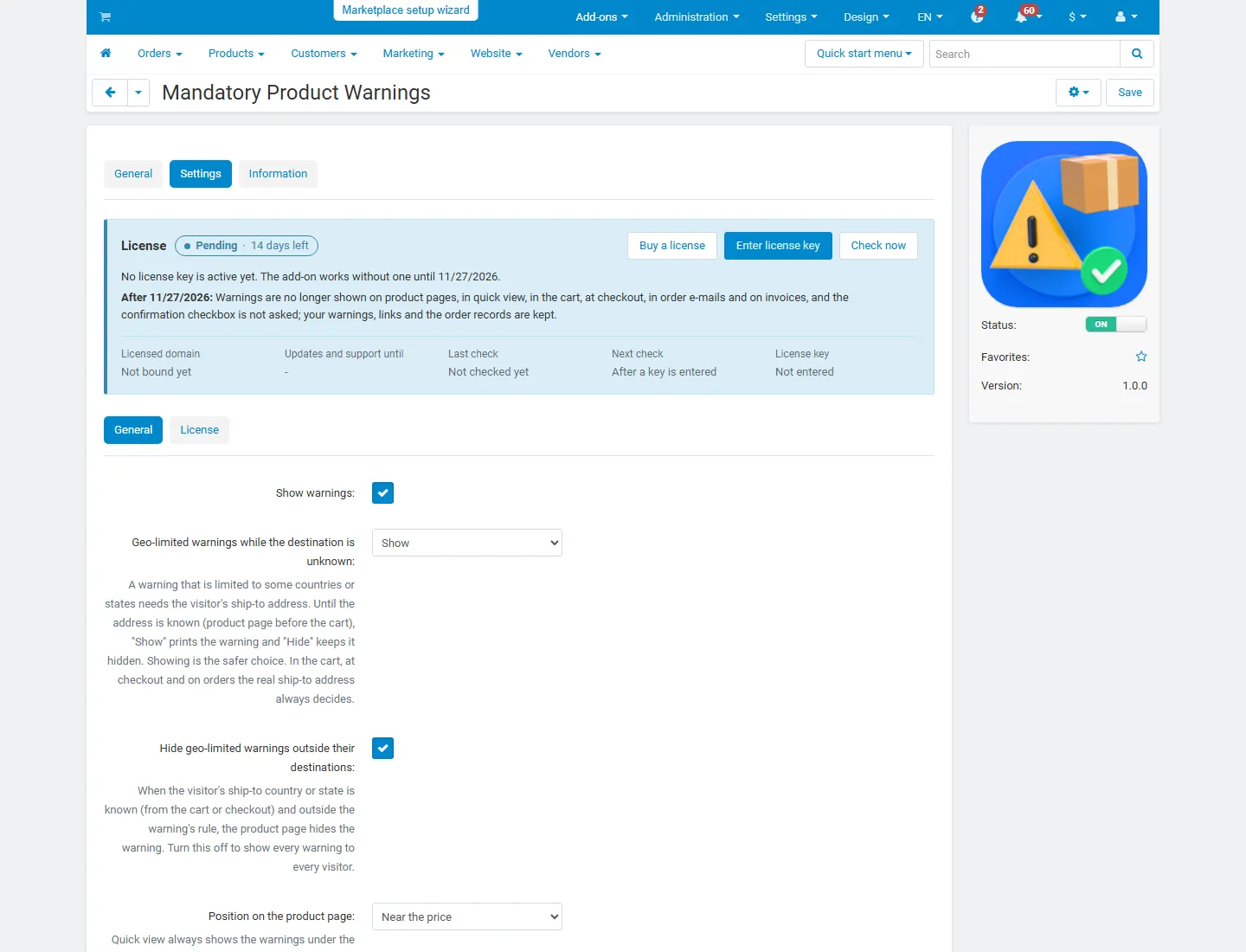
| Setting | What it does |
|---|---|
| Show warnings | Master switch. Off: no card on the storefront, no checkbox at checkout, nothing on invoices and e-mails. Your warnings and records are kept. |
| Geo-limited warnings while the destination is unknown | A warning limited to some countries or states needs the visitor’s ship-to address. Until it is known (a product page before the cart), Show prints the warning and Hide keeps it hidden. Showing is the safer choice. In the cart, at checkout and on orders the real ship-to address always decides. |
| Hide geo-limited warnings outside their destinations | When the destination is known from the cart or checkout and is outside the rule, the product page hides the warning. Off: every warning shows to every visitor. |
| Position on the product page | Near the price (under the product block, above the buy box in most themes) or Below the buy box. Quick view always uses the title block. |
| Show pictograms | The symbol next to the text. For Prop 65 it is the yellow triangle with a black exclamation point. |
| Show the legal source under each warning | Prints the source name and link you entered. |
| Print warnings on the invoice and in order e-mails | Adds the warnings that applied to the order after the products table of the order invoice and of the order summary used by the e-mails. |
| Keep a record on every order | Stores which warnings applied, the exact wording and the confirmation. Needed for the order page card, the log and the documents. |
| Vendors manage their own warnings (Multi-Vendor) | Vendors can add and edit warnings for their own products. |
| Vendor warnings need approval (Multi-Vendor) | New vendor warnings and every edit of a live vendor warning wait for you. The live wording stays until you approve. |
| Permanently delete all warnings and order records on uninstall | Off by default: see Installation. |
The warning editor
Section titled “The warning editor”Products > Product warnings > Add warning (or edit a warning from the list).
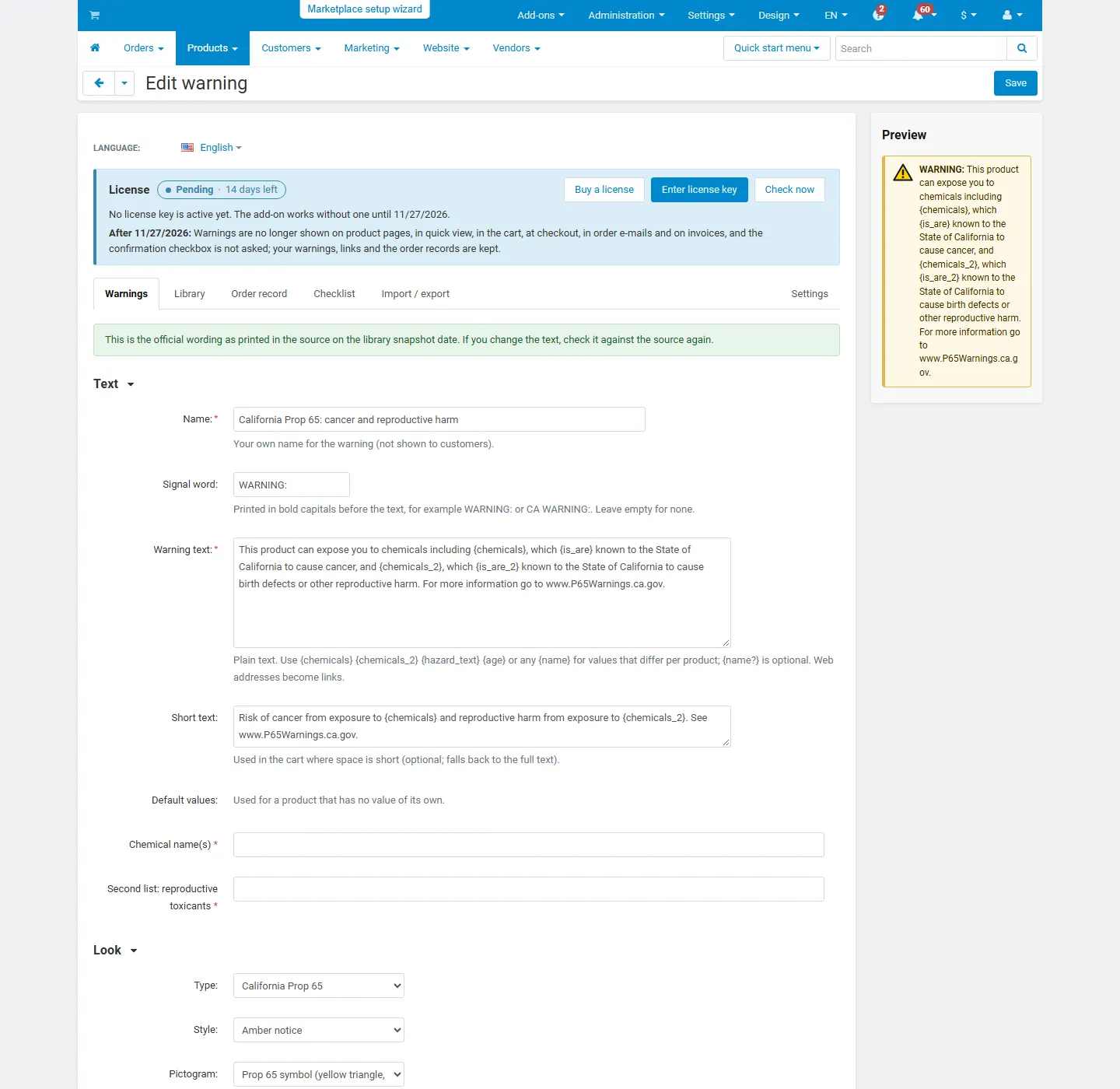
- Text: the name (for you), the signal word (printed in bold capitals, for example
WARNING:), the text and an optional short text for the cart. Plain text only: tags are removed, web addresses become links. - Values:
{chemicals},{chemicals_2},{hazard_text},{age}or any{name}stand for values that differ per product.{name?}is optional.{chemicals_including}and{is_are}follow the number of chemicals (“chemicals including A and B, which are known” or “A, which is known”). Several chemicals are separated by commas, semicolons or new lines (commas inside brackets stay together). - Look: type, style (amber, red, high contrast, grey), pictogram and position in the list.
- Where it is shown: product page, quick view, cart, checkout, order e-mails, invoice.
- Confirmation: display only or checkbox at checkout.
- Ship-to country and state: every destination, only these, or every destination except these. Write country codes (
DE), a country and state (US-CA) or the groupsEUandEEA, separated by commas. - Products it applies to: all products, categories (and their subcategories) and products. Values per product are set on the product’s Warnings tab or through the product import.
- Source and status: the source name and link you want to keep with the warning, and Live / Disabled.
Multi-Vendor
Section titled “Multi-Vendor”Vendors see Products > Product warnings in the vendor panel with their own warnings only. A vendor can add a warning from the library or write one, link it to the vendor’s own products, and disable it at once. With approval on, a new or re-enabled vendor warning waits as Waiting for approval and is not shown; an edit of a live warning is kept as a draft while the live wording stays. You approve or reject in Product warnings (filter Waiting for approval). Vendors cannot approve, run the checklist or import files.
Cart, checkout and e-mails
Section titled “Cart, checkout and e-mails”No further setup. The checkbox appears above the Place order button for the warnings set to checkbox at checkout that apply to the cart’s ship-to destination. Customers without a ship-to address yet (a one-page checkout before the address) follow the setting for an unknown destination.
License
Section titled “License”The add-on is domain-bound. Enter the Kavio Labs key (KAVIO-...) on the License tab, or leave it empty when you entered your CS-Cart Marketplace license number in Add-ons > Manage add-ons. The card on the add-on page shows the status. Without a valid licence the warnings stop showing on the storefront, the checkbox is not asked and the documents lose them; your warnings, links and order records are kept.