

Configuration
The payment method (your creditor)
Section titled “The payment method (your creditor)”Administration > Payment methods > Add payment method: name it (for example “SEPA Direct Debit”), choose the processor SEPA Direct Debit, then open the Configure tab.
| Field | Description |
|---|---|
| Creditor name | Your legal name as the customer’s bank shows it, at most 70 characters. Characters outside the SEPA character set are replaced (for example ü becomes ue). |
| Creditor identifier | Your SEPA creditor identifier, for example DE98ZZZ09999999999 (country, two check digits, three-character business code, national part). Apply for it at the national body (in Germany the Deutsche Bundesbank). The check digits are verified when you save. |
| Creditor IBAN | The euro account that receives the collections. |
| Creditor BIC | Optional. Leave it empty unless your bank asks for it; the file then carries NOTPROVIDED, which the EPC rulebook allows. |
One payment method holds one creditor. Create several methods for several creditors; every bank file is for one creditor. If the data is incomplete or invalid, you get a warning when you save, and the method is hidden at checkout until it is correct. On Multi-Vendor, a vendor with own payment methods (Direct payments) fills in the vendor’s creditor data on the vendor’s own method; on Ultimate, every storefront has its own payment methods.
Settings
Section titled “Settings”Open Add-ons > Manage add-ons > SEPA Direct Debit Mandates & Bank Export.
General
Section titled “General”| Setting | Default | Description |
|---|---|---|
| Order status after the order is placed | Open | The status of an order paid by direct debit until the bank collects the money. |
| Order status when the debit is collected | Processed | Set when you mark a debit collected (or the bank statement matcher books it). |
| Order status when the debit is returned | Failed | Set when you mark a debit returned, refunded or rejected. |
| Show “SEPA mandates” in the My account menu | Yes | A link for signed-in customers. |
| Delete mandate and debit data on uninstall | No | Off: uninstalling keeps mandates, debits, bank file records and the audit log (account numbers stay encrypted). On: the next uninstall deletes them for good. |
| Text on the customer’s bank statement | Order [order_id] |
The unstructured remittance information, at most 140 SEPA characters. [order_id] and [mandate] are replaced. |
Mandate
Section titled “Mandate”| Setting | Default | Description |
|---|---|---|
| Mandate type | Customer chooses | Customer chooses: a signed-in customer ticks “Save this mandate for my future orders” (recurrent), everyone else signs a one-off mandate. One-off for every order: a new mandate for every order. Recurrent for signed-in customers: always recurrent when the customer has an account. |
| Mandate reference template | SDD-{YYYY}-{id} |
At most 35 characters. {YYYY}, {YY}, {MM}, {id} (the mandate number, six digits) and {user_id} are replaced. A template without {id} gets the number appended, so a reference is never used twice for one creditor. |
| Mandate text | The EPC SEPA Core wording | Shown at checkout and printed on the mandate PDF. [creditor_name], [creditor_id] and [days] are replaced. Change the wording only with the approval of your bank or lawyer. |
| Accepted IBAN countries | The EU / EEA, CH, GB, MC, SM, VA, AD | Two-letter codes separated by commas. The list of SEPA scheme participants is kept by the EPC; check it before adding a country. |
| Require the BIC | No | Since 1 February 2016 the IBAN is enough inside SEPA. |
Pre-notification and collection
Section titled “Pre-notification and collection”| Setting | Default | Description |
|---|---|---|
| Pre-notification days | 14 | Calendar days between the order and the earliest collection. The SEPA Core rule is a notice of 14 days unless a shorter period is agreed with the customer; if you shorten it, say so in the mandate text. |
| Pre-notification text | Amount, account, date, mandate, creditor identifier | Printed on the thank-you page, the order page, the invoice and the order e-mails. Tokens: [amount], [iban] (masked), [date], [mandate], [creditor_id], [creditor]. |
| Print the SEPA block on invoices and order e-mails | Yes | Adds reference, creditor identifier, masked account and the text below the product table of the order documents. |
| Earliest collection date | Order date + pre-notification days | Or the due date of the net-terms invoice when B2B Net Terms & Credit Limits is installed (never earlier than the pre-notification period). |
| Business days between the file and the collection date | 1 | The creditor submits a Core file at least one TARGET business day before the collection date. Raise it if your bank needs more. |
| Mark the first collection of a mandate as FRST | Yes | Off: every recurrent collection is sent as RCUR, which the EPC rulebook has allowed since November 2016. One-off mandates are always OOFF. |
Personal data
Section titled “Personal data”| Setting | Default | Description |
|---|---|---|
| Erase mandate data after (months) | 0 (off) | Used by the Erase old mandate data button on the Mandates page. Must be 14 or more: the EPC rulebook asks the creditor to keep mandate evidence for 14 months after the last collection. |
The IBAN is encrypted in the database with the store’s encryption key, masked in the admin (DE02 **** **** **** **20 51), never printed in full on pages, invoices, e-mails or PDFs, and written in full only to the bank file. Show full IBAN on a mandate is logged. Back up the store’s encryption key (crypt_key in config.php) together with the database: without it the stored accounts cannot be read.
License
Section titled “License”The license status is shown in a License card at the top of the add-on page, above the tabs, so you see it on every tab. The License tab holds the key itself. The key is stored once for the whole installation.
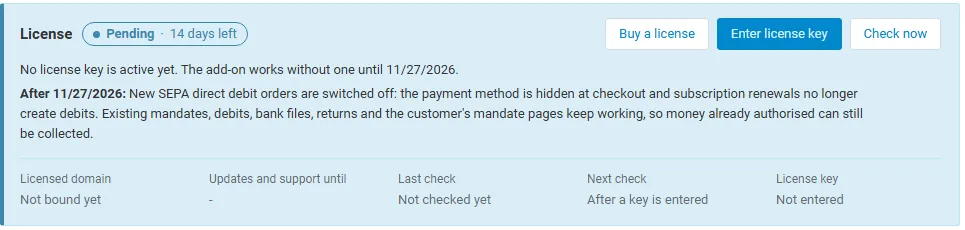
The License card shows the status in color, in plain words what the status means and what stops, the licensed domain, every storefront with its result, the end of the updates and support period, the last and the next check, and the key in use (masked), with the actions Enter license key, Check now and Manage license.
In Add-ons > Manage add-ons the add-on’s row shows a small license badge next to its name. The add-on’s own admin pages (Orders > SEPA direct debit) show the license status in a bar at the top.
| Setting | Description |
|---|---|
| License key | Your Kavio Labs license key (KAVIO-XXXX-XXXX-XXXX-XXXX, from My licenses on cs-cart.kaviolabs.com) or your CS-Cart Marketplace license number. If you entered the Marketplace license number in Add-ons > Manage add-ons, leave this empty. |
| License status | Points to the License card and explains what the check sends. |
What the license covers. A license is bound to the base domain you entered at purchase and covers every subdomain of it. Local development hosts (localhost, private IP addresses, *.local, *.test) are always allowed. A store on a different base domain needs its own license.
When the add-on checks. When you save the key, and then once a day, in the admin panel (on a page you open) or from cron, never while customers browse the storefront or place orders. A cron job keeps the license verified even when nobody opens the admin panel:
php /home/yourstore/public_html/admin.php --dispatch=kv_sepa_direct_debit_license.checkWhat is sent. The license key, the add-on ID and version, the host names of your storefronts, your CS-Cart version and edition, and a random one-time value, to https://cs-cart.kaviolabs.com and nothing else. No customer, order, mandate or account data is sent. The server answers with a digitally signed result.
Without a valid license, new SEPA orders are switched off: the payment method is hidden at checkout and subscription renewals no longer create debits. Existing mandates, debits, bank files, returns and the customer’s mandate pages keep working, so money your customers already authorised can still be collected.