

Configuration
Add-ons → Manage add-ons → Urgency & Social Proof Kit → Settings. In CS-Cart Ultimate every storefront has its own settings.
Every text setting can stay empty: the add-on then uses its default text, which you can translate or change in Administration → Languages (search for kv_urgency_social_proof). A text you enter in the settings replaces the default in every language. Placeholders: [n] = the number, [period] = the period of the recent sales counter.
General
Section titled “General”| Setting | Default | Description |
|---|---|---|
| Enable | On | Switches all storefront messages on or off. |
| Product page position | In the price area | In the price area (below the price in Nova, just above it in Responsive) or Below the add to cart buttons. |
| Order statuses that count as purchases | Open, Processed, Complete | Only orders in these statuses count as sales and appear as recent purchases. Failed, declined, canceled and incomplete orders never count. |
| Badge position in product lists | Bottom right | Corner of the product image for the list badge. Choose a corner your other image labels do not use. |
| Excluded categories | – | Category IDs separated by commas; their subcategories are excluded too. |
| Excluded products | – | Product IDs separated by commas. |
| Accent colour | #c2410c |
Hex colour of the icons, the countdown, the stock bar and the stock badge. |
| Animations | On | Slide-in toasts and a per-second countdown. Shoppers who ask their device to reduce motion always get the calm version (no slide, countdown per minute). |
Recent sales
Section titled “Recent sales”| Setting | Default | Description |
|---|---|---|
| Show recent sales | On | “[n] people bought this in the last [period]”: distinct customers (by order e-mail) of orders in the selected statuses. A customer who ordered twice counts once. |
| Period | 24 hours | 24 hours, 48 hours, 3 days, 7 days or 30 days. |
| Minimum to show | 3 | Smaller numbers are hidden. |
| Badge in product lists | On | “[n] bought in [period]” on the product image, when the product has no low-stock badge. |
| Text on the product page | – | Your own wording, for example [n] customers ordered this in the last [period]. |
Low stock
Section titled “Low stock”| Setting | Default | Description |
|---|---|---|
| Show low stock | On | “Only [n] left in stock” for products with inventory tracking, when the stock is above 0 and at or below the threshold. |
| Show when stock is at or below | 10 | The threshold. |
| Stock bar | On | A bar of the stock left compared with the threshold. |
| Badge in product lists | On | “Only [n] left” on the product image. |
| Note in the cart | On | The same note under the item in the cart. |
| Text | – | Your own wording. |
Viewers now
Section titled “Viewers now”| Setting | Default | Description |
|---|---|---|
| Show viewers now | On | “[n] other shoppers are viewing this now” on the product page. |
| Counted period (minutes) | 5 | 2, 5, 10 or 15 minutes. |
| Minimum to show | 2 | Smaller numbers are hidden. |
| Text | – | Your own wording. |
Promotion countdown
Section titled “Promotion countdown”| Setting | Default | Description |
|---|---|---|
| Show promotion countdown | On | Counts down to the end date of a catalog promotion that CS-Cart applies to the product for this shopper (user group and other conditions included). |
| Show when the promotion ends within (days) | 3 | A promotion that ends later shows no countdown yet. |
| Countdown in the cart | On | “[promotion name] ends in …” above the cart for promotions applied to the shopper’s cart. |
| Text | – | Your own wording instead of “Sale ends in”. |
Recent-purchase toasts
Section titled “Recent-purchase toasts”| Setting | Default | Description |
|---|---|---|
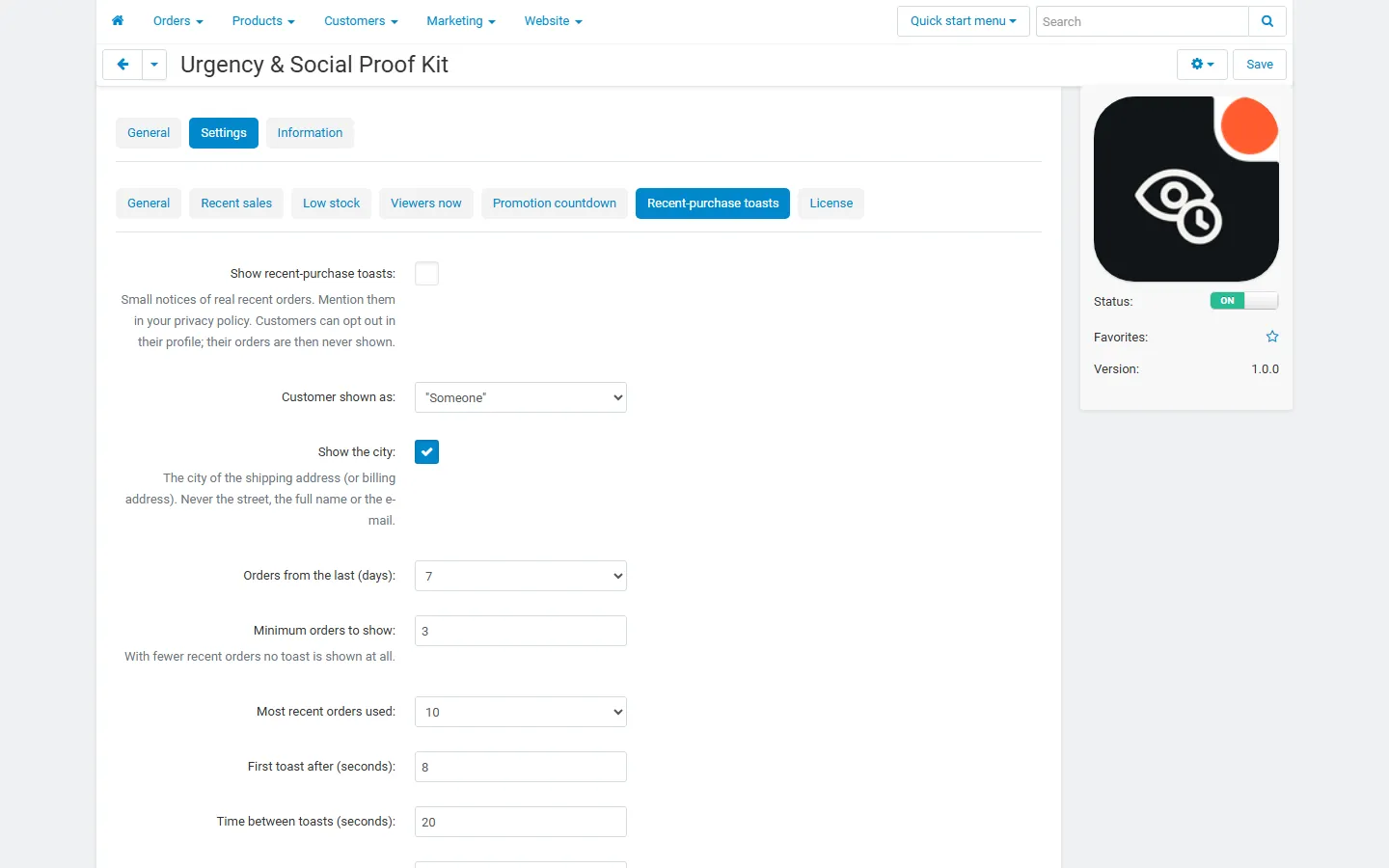
| Show recent-purchase toasts | Off | Small notices of real recent orders. Mention them in your privacy policy. While they are on, customers see an opt-out checkbox in their profile. |
| Customer shown as | “Someone” | “Someone” or the first initial (“J.”). Never a full name or e-mail. |
| Show the city | On | City of the shipping address (or billing address). Never the street. |
| Orders from the last (days) | 7 | 1, 3, 7, 14 or 30 days. |
| Minimum orders to show | 3 | With fewer recent orders no toast is shown at all. |
| Most recent orders used | 10 | 5, 10 or 20. |
| First toast after / Time between toasts / Toast visible for (seconds) | 8 / 20 / 6 | Timing. |
| Toasts per page view | 3 | After this many the toasts stop until the next page. |
| Position | Bottom left | Bottom left or bottom right on computers; on phones toasts appear at the top, clear of bottom navigation bars. |
| Pages | All pages | All pages, or only the home, category, product and search pages. Never on the cart, checkout, order and account pages. |
| Show on phones | On | |
| Style | Light | Light or dark card. |
License
Section titled “License”The license status is shown in a License card at the top of the add-on page, above the tabs, so you see it on every tab. The License tab holds the key itself. The key is stored once for the whole installation.
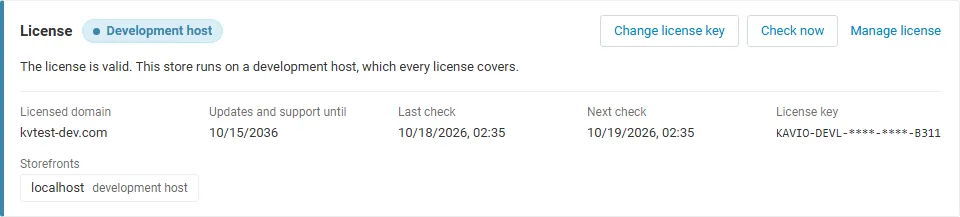
The License card shows:
- the status in color: green when valid, blue for a development host or the 14-day period before a key is required (with the days left), amber when the license server could not be reached (with the days left) or a Marketplace number is still being verified, red when the add-on is switched off;
- in plain words what the status means and, when the add-on is (or will be) switched off, what stops: all urgency and social proof messages are hidden and viewer pings are no longer recorded; your settings and your customers’ opt-outs are kept;
- the licensed domain, every storefront with its result (covered, development host, not covered), the end of the updates and support period, the last and the next check, and the key in use (masked);
- the actions Enter license key / Change license key (opens the License tab), Check now (verifies at once and stays on the page), Manage license (your licenses on cs-cart.kaviolabs.com) and, without a valid license, Buy a license.
In Add-ons → Manage add-ons the add-on’s row shows a small license badge next to its name, for example License: Valid or License: Pending · 9 days left.
| Setting | Description |
|---|---|
| License key | Your Kavio Labs license key (KAVIO-XXXX-XXXX-XXXX-XXXX, from My licenses on cs-cart.kaviolabs.com) or your CS-Cart Marketplace license number. If you entered the Marketplace license number in Add-ons → Manage add-ons (the add-on’s license field), leave this empty: the add-on uses that number. |
| License status | Points to the License card and explains what the check sends. |
What the license covers. A license is bound to the base domain you entered at purchase (for example example.com) and covers every subdomain of it (www.example.com, shop.example.com, staging.example.com). Local development hosts are always allowed: localhost, 127.0.0.1 and other private IP addresses, and host names ending in .localhost, .test, .local, .example or .invalid. A store on a different base domain needs its own license. If you move your store to a new domain, contact support.
When the add-on checks. When you save the key, and then once a day. The check runs only in the admin panel (on a page you open) or from cron, never while customers browse the storefront or check out, and takes a few seconds at most. A cron job keeps the license verified even when nobody opens the admin panel:
php /path/to/store/admin.php --dispatch=kv_urgency_social_proof_license.checkWhat is sent. The check sends this to https://cs-cart.kaviolabs.com and nothing else: the license key, the add-on ID and version, the host names of your storefronts, your CS-Cart version and edition, and a random one-time value. No customer, order or personal data is sent. The server answers with a digitally signed result, so a forged answer is ignored.
Statuses.
| Status (card) | Color | What happens |
|---|---|---|
| Valid | Green | The license is valid for this domain. Everything works. |
| Development host | Blue | The store runs on a local development host, which every license covers. Everything works. |
| Pending verification | Amber | A CS-Cart Marketplace license number was accepted, but the Marketplace has not confirmed it yet. Everything works. |
| Pending · N days left | Blue | No verified key yet (a new installation). Everything works for 14 days. |
| Grace period · N days left | Amber | The last checks failed (for example a network problem). The add-on keeps working for 14 days after the first failed check. |
| Not activated, Invalid key, Revoked, Domain mismatch, Not verified | Red | All urgency and social proof messages are hidden and viewer pings are no longer recorded. Your settings and your customers’ opt-outs are kept. Domain mismatch shows the licensed domain next to the domain your store runs on. |
When your updates and support period ends, the add-on keeps working. Only updates and support stop.
License information appears in the admin panel only, and only for administrators who may manage add-ons; vendors and customers never see it.