

Configuration
Open Add-ons → Manage add-ons → Vendor Coupons & Automatic Sales → Settings. The settings apply to the whole marketplace.
General
Section titled “General”Rules for vendors
Section titled “Rules for vendors”| Setting | Default | Description |
|---|---|---|
| Vendors who can create coupons | All active vendors | All active vendors or Vendors on the plans selected below. Coupons of vendors outside the rule stop working at checkout at once and the vendor sees a notice on the coupon page. |
| Allowed vendor plans | – | The vendor plans (bundled Vendor plans add-on) whose vendors may create coupons, used with the second option above. |
| New and changed coupons need administrator approval | Off | When on, a new coupon works only after you approve it in Marketing → Vendor coupons. A vendor change to the code, discount, minimum, dates or limits sends the coupon back for approval; renaming or disabling does not. |
| Maximum discount (% of the vendor’s items) | 50 | A percent coupon cannot be saved above this value. At checkout every coupon is capped at this share of the vendor’s items in the cart, so a fixed amount can never take more either. Lowering the value caps existing coupons at once. |
| Maximum number of coupons per vendor | 50 | 0 = no limit. |
| Vendors can offer free shipping | On | Allows free-shipping coupons (alone or together with a discount). Free shipping removes the shipping charge of the vendor’s own shipment only. |
| Setting | Default | Description |
|---|---|---|
| Who pays the discount | The vendor | See Who funds the discount. |
| Marketplace share of the discount, % | 50 | Used only with the Split by a share rule. 30 means the marketplace pays 30% of each discount and the vendor pays 70%. |
| Allow coupons on items already on sale | On | When on, a coupon works on top of a storefront sale or cart deal, and all of them together stay inside the maximum discount. When off, a coupon skips those items. |
| Combine with marketplace promotions | On | When off, a vendor coupon skips items that already have a marketplace cart discount and is not applied while the cart has a marketplace order discount. Marketplace promotions with Stop other rules always block vendor coupons, whatever this setting says. |
Who funds the discount
Section titled “Who funds the discount”A coupon lowers the order total. In CS-Cart Multi-Vendor the marketplace commission is a percentage of the order total, so by default the discount would be shared between vendor and marketplace in the ratio of the commission. The setting decides who pays it:
| Option | Commission of the vendor order | Example: 10% commission, $100 of the vendor’s items, $10 coupon |
|---|---|---|
| The vendor (default) | Calculated on the price before the coupon. The vendor pays the whole discount. | Commission $10.00 (of $100), vendor earns $80.00 |
| Shared | Calculated on the discounted price, the standard CS-Cart behaviour. | Commission $9.00 (of $90), vendor earns $81.00 |
| The marketplace | The commission without the coupon minus the discount. The vendor earns as much as without the coupon. The commission of a single order can become negative (the marketplace pays the vendor the difference). | Commission $0.00, vendor earns $90.00 |
| Split by a share | The commission without the discount minus the marketplace share. | With a 30% share: commission $7.00, vendor earns $83.00 |
How it is done: when the vendor order is placed, the add-on runs the core commission calculation a second time as if the coupon did not exist and corrects the commission of the order’s payout in core vendor accounting. Every commission source is respected: the vendor plan percentage and fixed fee, Vendor plans: commissions by category, our Advanced Commission Rules add-on and any other add-on that uses the core commission hooks. The adjustment is shown in the usage report and is part of the vendor’s balance on the core Accounting page, so our Vendor Payouts Automation add-on and every core payout pays the right amount without further setup.
Notes:
- The funding rule that was active when the order was placed is used for that order; changing the setting later does not change placed orders.
- Free shipping is not adjusted: the shipping charge is simply not paid, and no commission is taken on it.
- Without the bundled Vendor plans add-on there is no commission, so there is nothing to adjust; all options behave like Shared.
- An administrator can set another rule on one offer (section Who pays in the offer editor), for example a campaign the marketplace pays for. An order with several offers applies each offer’s rule to its own part.
- A refund through RMA gives back the share of the correction that belongs to the refunded part, so a full refund ends at zero commission.
- Orders edited later in the admin panel are handled by core on the difference to the original order; the original correction stays. Check the funding of an order after you change its discount by hand.
Plan limits
Section titled “Plan limits”Marketing → Vendor coupons & sales → Plan limits has one row per vendor plan. It needs the bundled Vendor plans add-on.
| Column | Empty | Description |
|---|---|---|
| Automatic sales | Allowed | Off: vendors on this plan keep coupons but cannot run sales or deals. Their live offers stop at once. |
| Maximum discount | The add-on setting | Replaces Maximum discount for this plan, for coupons too. |
| Live offers | No limit | Sales and deals of one vendor that are running or scheduled. Coupons have their own limit in the settings. |
| Days per offer | No limit | Longest run of one sale or deal. With a value here, vendors must set an end date. |
Limits are checked when a vendor saves or enables an offer. Administrators can save outside them. Maximum discount and the right to run sales also apply at checkout, so a vendor who moves to a lower plan is limited at once.
Privileges
Section titled “Privileges”| Privilege | Section | Gives |
|---|---|---|
| Vendor coupons: Can view | Marketing | The offer lists, the editor (read), the usage and funding reports and the CSV export |
| Vendor coupons: Can manage | Marketing | Create, edit, enable, disable and delete offers; approve and reject and Plan limits (administrators only) |
Administrators and vendor administrators without user groups have both. Approve and reject are available to marketplace administrators only; vendors always work with their own coupons only.
License
Section titled “License”The license status is shown in a License card at the top of the add-on page, above the tabs, so you see it on every tab. The License tab holds the key itself. The key is stored once for the whole installation.
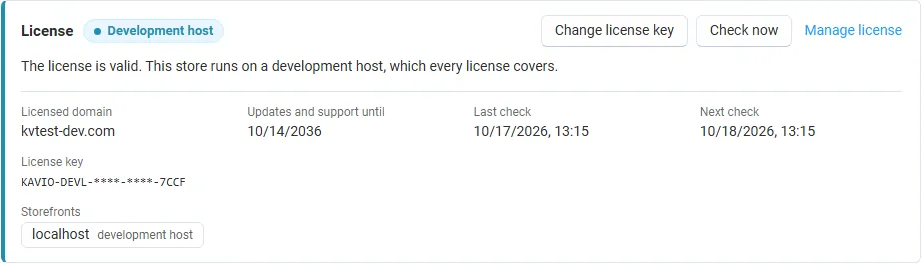
The License card shows:
- the status in color: green when valid, blue for a development host or the 14-day period before a key is required (with the days left), amber when the license server could not be reached (with the days left) or a Marketplace number is still being verified, red when the add-on is switched off;
- in plain words what the status means and, when the add-on is (or will be) switched off, what stops: vendor coupons can no longer be added to carts and vendors cannot create or edit coupons; coupons already applied to a cart, placed orders, funding adjustments and usage reports keep working;
- the licensed domain, every storefront with its result (covered, development host, not covered), the end of the updates and support period, the last and the next check, and the key in use (masked);
- the actions Enter license key / Change license key (opens the License tab), Check now (verifies at once and stays on the page), Manage license (your licenses on cs-cart.kaviolabs.com) and, without a valid license, Buy a license.
In Add-ons → Manage add-ons the add-on’s row shows a small license badge next to its name, for example License: Valid or License: Pending · 9 days left.
The add-on’s own admin pages show the license status in a bar at the top: a small green chip when the license is valid, or a banner with the status, what is switched off and the same actions as the card. Vendors never see license information.
| Setting | Description |
|---|---|
| License key | Your Kavio Labs license key (KAVIO-XXXX-XXXX-XXXX-XXXX) or your CS-Cart Marketplace license number. If you entered the Marketplace license number in Add-ons → Manage add-ons, you can leave this empty. |
| License status | Status, licensed domain, last check and the Check now button. |