

Configuration
Open Add-ons → Manage add-ons → Vendor Storefront Pro → Settings. The settings apply to the whole marketplace.
General
Section titled “General”| Setting | Default | Description |
|---|---|---|
| Show vendor profiles on the storefront | On | Off hides every profile on the storefront (standard vendor pages). Vendors and administrators can still edit profiles. |
| Placement on vendor pages | Automatic | Automatic: the announcement, the header and the featured products appear at the top of the vendor store page (companies.products); on the vendor’s About page (companies.view) the About sections follow. No layout change is needed. Block Manager only: nothing is added automatically; place the Vendor storefront block where you want it (see Usage). |
| Replace the core vendor logo and description blocks | On | On vendor pages of vendors with a published profile, the core Vendor logo and Vendor information blocks (top row of the Vendor store layout) are hidden, because the profile header shows the logo, name and description. The vendor search block stays. On the About page the core logo is hidden and the core page title is kept for search engines only. Automatic placement only. |
| Vendor facts in the header | Rating and reviews, Number of products, Year the vendor joined | Facts are shown only when the data exists: the rating needs approved vendor reviews (Comments and reviews add-on with vendor reviews switched on). The number of products counts the vendor’s active products. |
| Use the profile as the page meta description | On | Vendor pages get a meta description built from the tagline and the start of the story (up to 160 characters). |
Vendors
Section titled “Vendors”| Setting | Default | Description |
|---|---|---|
| Vendors edit their own profile | On | Adds Storefront profile to the vendor panel. Off: only administrators edit profiles. With the Vendor privileges add-on, vendor user groups need the Manage storefront profiles privilege. |
| Approval of vendor changes | Publish vendor changes immediately | Administrator approves vendor changes: vendors save drafts and submit them for review; the storefront shows the last approved version until an administrator approves. Vendors marked Trusted vendor (on their profile in the admin panel) publish directly. Administrators always publish directly. |
| E-mail the administrator about profiles to review | On | E-mail to the store’s site administrator address when a vendor submits changes, with the changed sections and a link to the review page. Template: Design → E-mail templates → Storefront profile: changes to review. |
| E-mail vendors the review result | On | E-mail to the vendor’s company e-mail when changes are approved or rejected (with the reason). Template: Storefront profile: review result. |
| Maximum banner file size (MB) | 5 | Larger files are refused. Banners are always checked and saved again (see Usage). |
| Featured products per vendor | 8 | Default limit for every vendor. Vendor plans can set their own limit. 0 turns featured products off. |
| Features per vendor plan | Link to the plan features page (with the Vendor plans add-on). |
Features per vendor plan
Section titled “Features per vendor plan”With the bundled Vendor plans add-on active, open Vendors → Storefront profiles → gear → Profile features per plan. For each plan, tick the sections its vendors can use and, optionally, the maximum of featured products:
| Section | What it includes |
|---|---|
| Banner | Banner image and its focus |
| Accent colour | The vendor’s own colour for the header band, icons and links |
| Announcement | The announcement bar |
| About | Story and highlights |
| Policies | Shipping, returns and two custom policies |
| Hours and location | Business hours, location display, map link |
| Social links | Website and seven social networks |
| Featured products | The featured products row |
The tagline, the logo and the vendor facts are part of every plan. Plans without saved settings get every section. A section that is switched off is hidden in the vendor’s editor (with a note naming the plan) and never shown on the storefront; its content is kept and comes back when the section is switched on again.
Without the Vendor plans add-on every vendor can use every section.
Privileges
Section titled “Privileges”Two privileges in the Vendors group (Customers → User groups → Privileges, and vendor user groups with the Vendor privileges add-on):
| Privilege | Allows |
|---|---|
| View storefront profiles | Opening the profile list and editor (GET) |
| Manage storefront profiles | Saving, approving, rejecting, taking profiles offline, plan features (POST) |
Vendors can only open their own profile: the vendor is always taken from the logged-in vendor user, and the list, review and plan pages are administrator-only.
License
Section titled “License”The license status is shown in a License card at the top of the add-on page, above the tabs, so you see it on every tab. The License tab holds the key itself. The key is stored once for the whole installation.
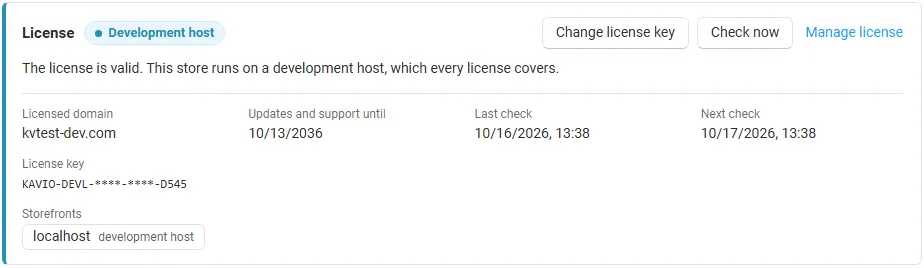
The License card shows:
- the status in color: green when valid, blue for a development host or the 14-day period before a key is required (with the days left), amber when the license server could not be reached (with the days left) or a Marketplace number is still being verified, red when the add-on is switched off;
- in plain words what the status means and, when the add-on is (or will be) switched off, what stops: vendor pages show the standard CS-Cart look: no banner, profile sections, announcement or featured products; vendors and administrators can still edit and review profiles, and all profile data is kept;
- the licensed domain, every storefront with its result (covered, development host, not covered), the end of the updates and support period, the last and the next check, and the key in use (masked);
- the actions Enter license key / Change license key (opens the License tab), Check now (verifies at once and stays on the page), Manage license (your licenses on cs-cart.kaviolabs.com) and, without a valid license, Buy a license.
In Add-ons → Manage add-ons the add-on’s row shows a small license badge next to its name, for example License: Valid or License: Pending · 9 days left.
The add-on’s own admin pages (Storefront profiles, a profile, Profile features per plan) show the license status in a bar at the top: a small green chip when the license is valid, or a banner with the status, what is switched off and the same actions as the card. Vendors never see license information.
| Setting | Description |
|---|---|
| License key | Your Kavio Labs license key (KAVIO-XXXX-XXXX-XXXX-XXXX, from My licenses on cs-cart.kaviolabs.com) or your CS-Cart Marketplace license number. If you entered the Marketplace license number in Add-ons → Manage add-ons (the add-on’s license field), leave this empty: the add-on uses that number. |
| License status | Points to the License card and explains what the check sends. |
What the license covers. A license is bound to the base domain you entered at purchase (for example example.com) and covers every subdomain of it (www.example.com, shop.example.com, staging.example.com). Local development hosts are always allowed: localhost, 127.0.0.1 and other private IP addresses, and host names ending in .localhost, .test, .local, .example or .invalid. A marketplace on a different base domain needs its own license. If you move your marketplace to a new domain, contact support.
When the add-on checks. When you save the key, and then once a day. The check runs only in the admin panel (on a page you open) or from cron, never while customers browse the storefront or place orders, and takes a few seconds at most. A cron job keeps the license verified even when nobody opens the admin panel:
php /path/to/store/admin.php --dispatch=kv_vendor_storefront_pro_license.checkWhat is sent. The check sends this to https://cs-cart.kaviolabs.com and nothing else: the license key, the add-on ID and version, the host names of your storefronts, your CS-Cart version and edition, and a random one-time value. No customer, vendor, order or personal data is sent. The server answers with a digitally signed result, so a forged answer is ignored.
Statuses.
| Status (card) | Color | What happens |
|---|---|---|
| Valid | Green | The license is valid for this domain. Everything works. |
| Development host | Blue | The store runs on a local development host, which every license covers. Everything works. |
| Pending verification | Amber | A CS-Cart Marketplace license number was accepted, but the Marketplace has not confirmed it yet. Everything works. |
| Pending · N days left | Blue | No verified key yet (a new installation). Everything works for 14 days. |
| Grace period · N days left | Amber | The last checks failed (for example a network problem). The add-on keeps working for 14 days after the first failed check. |
| Not activated, Invalid key, Revoked, Domain mismatch, Not verified | Red | Vendor pages show the standard CS-Cart look (no banner, sections, announcement or featured products, core vendor blocks back), the Block Manager block shows nothing and draft previews answer “page not found”. The editor, the approval workflow and the plan features keep working, and all profiles and banners are kept. Domain mismatch shows the licensed domain next to the domain your store runs on. |
When your updates and support period ends, the add-on keeps working. Only updates and support stop.
License information appears in the admin panel only, and only for administrators who may manage add-ons; vendors and customers never see it. When the add-on is switched off, other admin pages also show a notice once per session with a link to the add-on page; the add-on page and the add-on’s own pages show the card or the status bar instead.