

Installation and setup
Requirements
Section titled “Requirements”- CS-Cart or Multi-Vendor 4.17.2 or later (any edition), PHP 7.4 to 8.3 with
openssl,curl,dom,mbstring. - Euro amounts: either EUR is the primary currency, or the EUR currency exists in Administration > Currencies (receipts are delivered in euros).
- Your fiscal data: OIB, the business premises mark you registered with the tax administration (ePorezna), a device number, and the application certificate (
.p12/.pfx, issued by FINA or another trust service provider, containing your OIB). For tests: a DEMO certificate with its OIB. - Outgoing HTTPS to port 8449 (
cistest.apis-it.hr,cis.porezna-uprava.hr) and TLS 1.2 or newer. A cron job (step 6).
Install
Section titled “Install”- Download
kv_croatia_fiscalization-<version>.zip. In Add-ons > Manage add-ons click the gear, Manual installation, upload it. - Make sure the add-on is Active and enter your license key under Settings > License, then Check now.
Connect
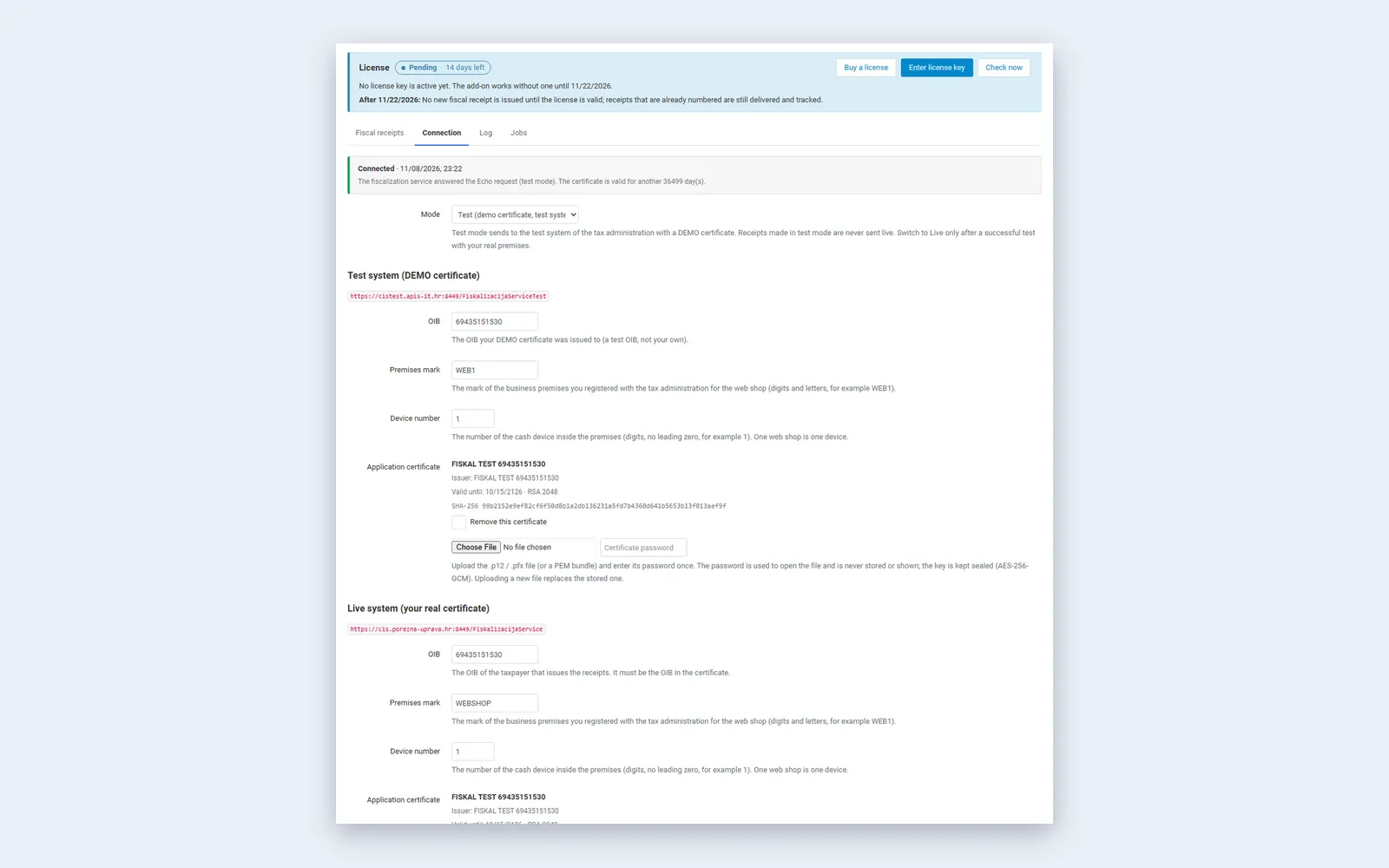
Section titled “Connect”- Open Orders > Fiscal receipts > Connection.
- Test system: enter the OIB of your DEMO certificate, a premises mark and a device number, upload the DEMO certificate and type its password once. Save and click Test connection (Echo request).
- Optional: paste the CA chain (FINA DEMO CA for test, FINA RDC CA for live) under TLS trust if your server does not trust it.
- Check the payment method table: cash on delivery is code G by default, everything else O. Set bank transfer to T, cards to K, or “Do not fiscalize” where it applies.
- Place a test order, set it to the fiscal status (default Processed or Complete) and check the Fiscal receipt tab: status “Fiscalized (JIR)”.
- Add the cron job from Settings > Cron, every minute is fine.
- Go live: enter your real OIB, premises and certificate under Live system, switch Mode to Live, run Test connection. Receipts made in test mode are never sent live.
Multi-Vendor
Section titled “Multi-Vendor”By default the marketplace owner is the seller of record (Marketplace owner mode on): one OIB, premises and certificate; vendors only look. Switch it off and each vendor connects their own OIB, premises and certificate in the vendor panel and fiscalizes their own orders.
Update
Section titled “Update”Upload the new package the same way. Settings, certificate, receipts and numbering are kept; missing tables and settings are added by themselves on the first admin request.
Uninstall
Section titled “Uninstall”Uninstalling keeps the fiscal receipts, ZKI / JIR, signed messages, number series, connection (the certificate stays sealed) and settings, and installing again continues the numbering. To delete everything on the next uninstall switch on Permanently delete all fiscal data on uninstall first. Customers of an earlier build must upgrade by uploading over the add-on, not by uninstalling.