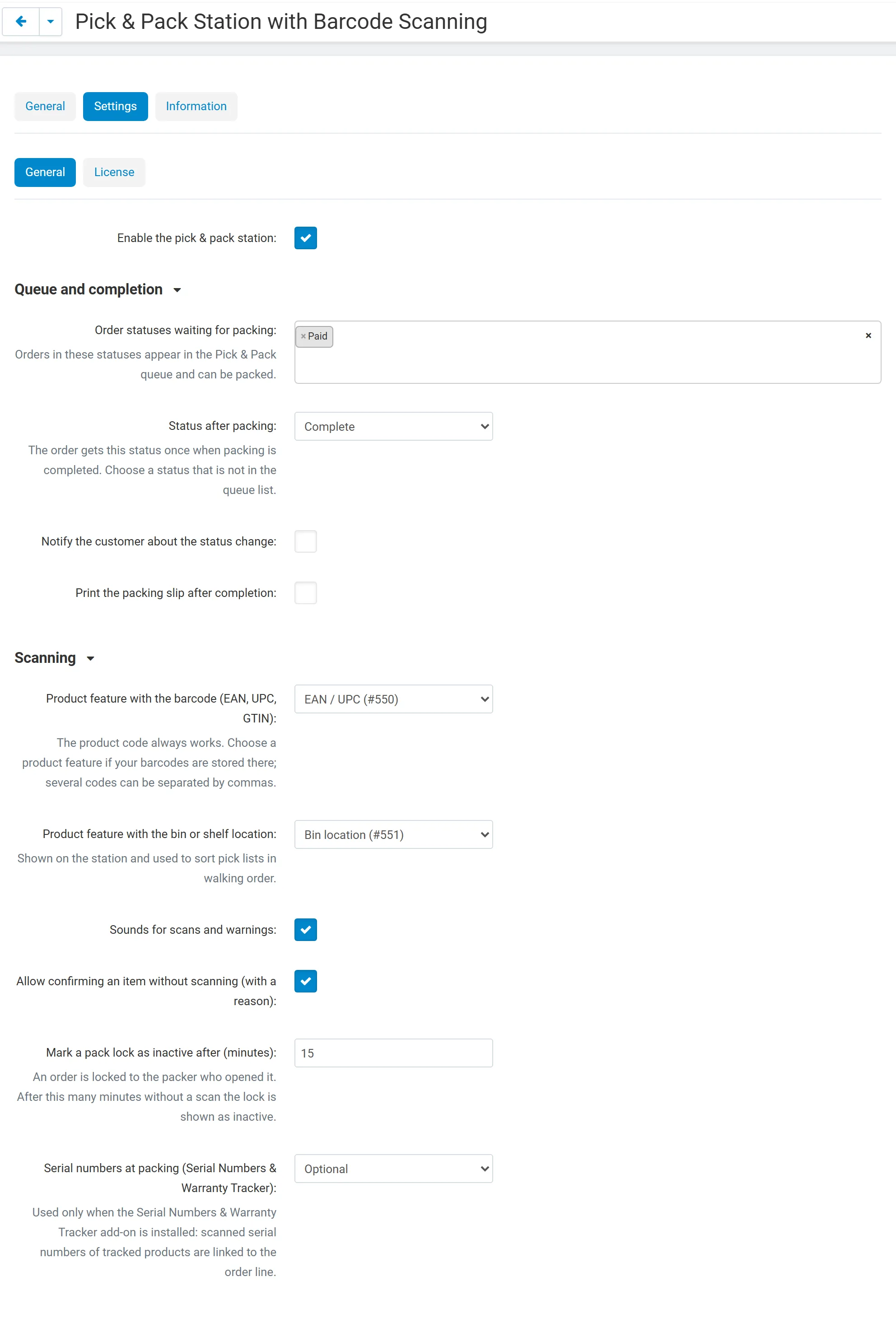
Open Add-ons → Manage add-ons → Pick & Pack Station with Barcode Scanning → Settings. On CS-Cart Ultimate the settings can differ per storefront; every order uses the settings of its own storefront.
| Setting |
Default |
What it does |
| Enable the pick & pack station |
On |
Switches the queue, the station and the order page tab on or off without uninstalling. |
| Setting |
Default |
What it does |
| Order statuses waiting for packing |
Processed |
Orders in these statuses appear in the queue and can be opened at the station. Choose the statuses an order has when it is paid and ready to ship. |
| Status after packing |
Complete |
The status the order gets when packing is completed. Choose a status that is not in the waiting list (for example Complete, or your own “Packed” or “Shipped” status). Keep the current status completes the pack without a status change; the order then shows as “Packed before” in the queue and can only be packed again on purpose. |
| Notify the customer about the status change |
On |
On: the customer gets the usual CS-Cart status e-mail if the new status is set up to send one. Off: no e-mail to the customer for the status change. Administrator and vendor e-mails always follow the settings of the order status, as for any status change. |
| Print the packing slip after completion |
On |
Opens the core packing slip in the browser print dialog right after completion. It can always be printed again from the completion screen. |
| Setting |
Default |
What it does |
| Product feature with the barcode (EAN, UPC, GTIN) |
None |
The product code always matches. If your barcodes are stored in a product feature (a text, number or select feature), choose it here. A feature value can hold several codes separated by commas, semicolons or new lines (spaces inside a code are ignored). Numeric retail codes compare without leading zeros, so UPC-A 012345678905 matches EAN-13 0012345678905. |
| Product feature with the bin or shelf location |
None |
Shown on the station next to each line and used to sort pick lists in walking order (natural order: A-2 before A-10). |
| Sounds for scans and warnings |
On |
A short beep for a good scan, a buzz for a wrong item, a tone for one too many. Turn it off for silent stations. |
| Allow confirming an item without scanning (with a reason) |
On |
Shows the Confirm button on each line. A reason is always required and logged. Turn it off to force a scan for every unit. |
| Mark a pack lock as inactive after (minutes) |
15 |
An order is locked to the packer who opened it. After this many minutes without a scan the lock shows as inactive in the queue and on the station. Taking over always needs a click; an active lock asks for confirmation first. |
| Serial numbers at packing |
Optional |
Only used when the Serial Numbers & Warranty Tracker add-on is installed. Off: serial numbers are not asked. Optional: serial numbers scanned at the table are linked to the order line. Required for every unit: a line of a serial-tracked product is done only when every unit has a serial number. |
| Setting |
Default |
What it does |
| Vendors can pack their own orders |
On |
Shows Orders → Pick & Pack in the vendor panel. Vendors see and pack only orders of their own store; the queue, pick lists, the station and the pack log are all limited to them. |
The License tab shows the license status, the licensed domain and a Check now button. Without a valid license the queue and the pack log stay visible, but orders can no longer be scanned, packed or completed at the station and pick lists cannot be printed. Your pack history is kept.
| Workflow |
Waiting for packing |
Status after packing |
| Ship when paid |
Processed |
Complete |
| Own “Packed” status before the carrier picks up |
Processed |
Packed (your own status) |
| Cash on delivery or bank transfer packed before payment |
Open, Processed |
your own “Ready to ship” status |

