

Usage
1. The queue
Section titled “1. The queue”Open Orders → Pick & Pack. The queue lists every order in a waiting status, oldest first, with the number of units, the total, the status and who is packing it right now.
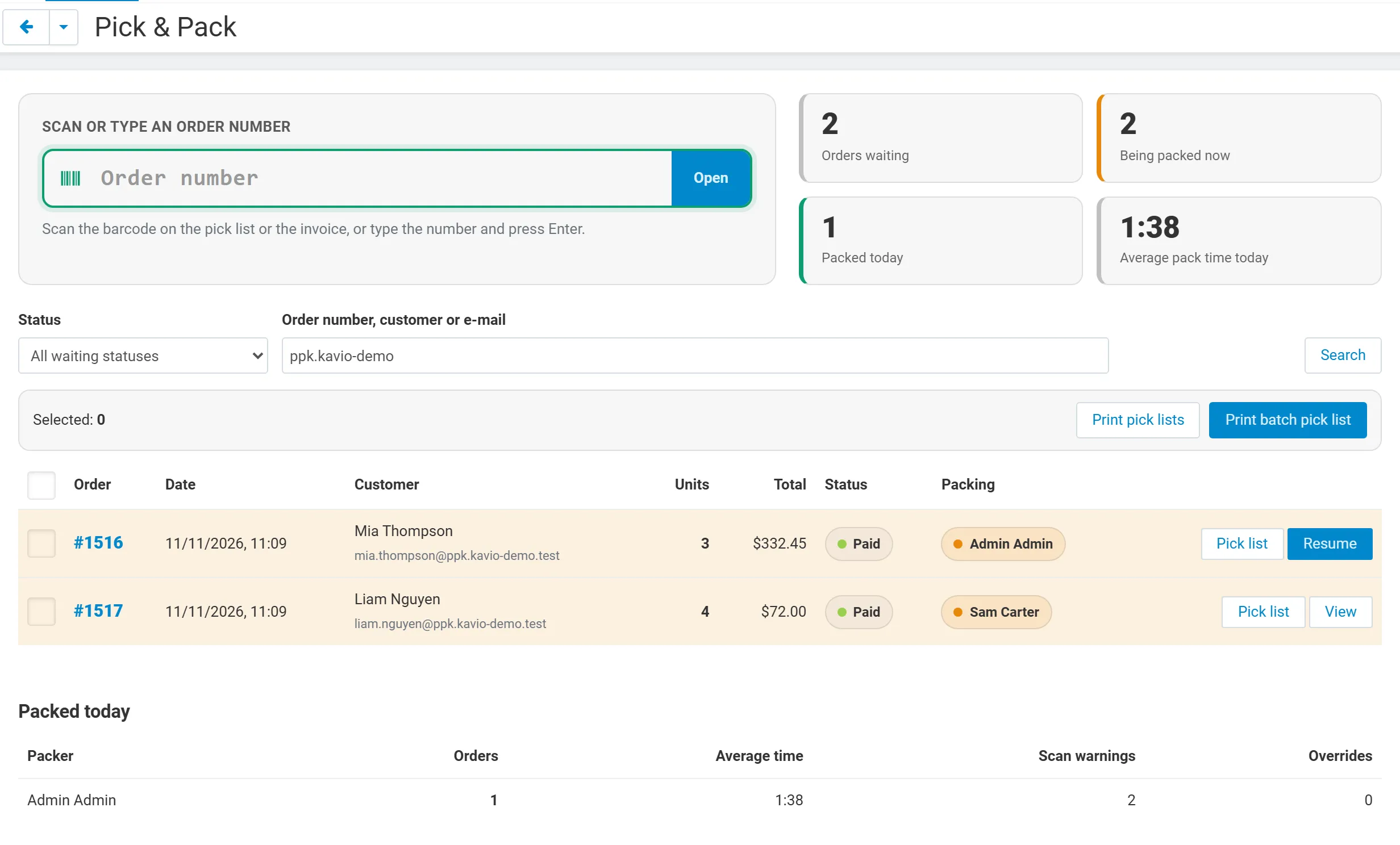
- The big field at the top takes an order number: scan the barcode on the pick list or the invoice (the core Barcode add-on code is understood too), or type the number and press Enter.
- The tiles show orders waiting, orders being packed now, orders packed today and the average pack time today.
- Filter by status or search by order number, customer name or e-mail.
- Pack opens the station for that order; Resume continues your own unfinished order.
- Packed today at the bottom lists each packer with orders, average time, scan warnings and overrides.
2. Pick lists
Section titled “2. Pick lists”Select orders with the checkboxes and click:
- Print pick lists: one page per order with the order barcode, customer, shipping method, customer notes and the lines in bin order (location, product, options, product code, barcode, quantity and a tick box).
- Print batch pick list: one line per product (and option combination) with the total quantity and the split per order (“#1443 ×3, #1444 ×1”), sorted by bin location, followed by the page of each order. Pick each product once, then sort the items into the orders.
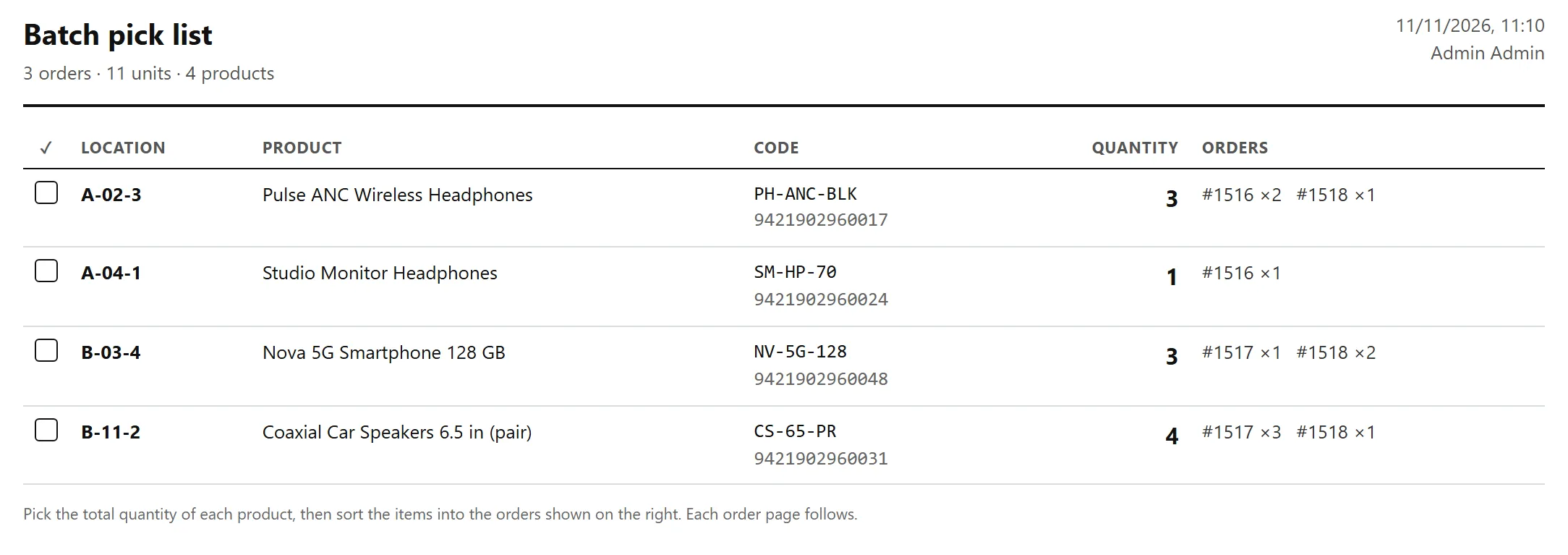
Each queue row also has a Pick list button for that single order. Pick lists open in a new tab with the print dialog; any printer or “Save as PDF” works.
3. Packing an order
Section titled “3. Packing an order”Scan the order number. The station shows the order (customer, date, shipping method, the status it will get, customer notes) and one card per line with the product image, name and options, product code, barcode, bin location and the quantity: 0 / 2.
Scan each item. Every good scan:
- counts one unit on the matching line, with a short beep and a green message;
- flashes the line and fills the progress bar;
- turns the line green when all its units are packed.
Type 5*PH-ANC-BLK (quantity, star, code) to pack five units of a line at once; the scan is refused if the line needs fewer.
When the same product is on two lines with different options (for example Size M and Size L of one shirt), both lines have the same codes, because CS-Cart keeps codes per product, not per option. The station then does not guess: the message says “Same code on several lines with different options”, the matching lines are highlighted and get a This one button. Look at the item in your hand and tap its line; the unit is counted there and logged as “Scanned (option chosen)”. When only one of those lines still needs units, the scan is counted directly. Variations (product variations add-on) are separate products with their own codes and are always checked automatically.
Scanners that send Code 39 start and stop characters (*CODE*) work as well: the stars are removed when the code is not found with them.
Warnings
Section titled “Warnings”| Message | Why | What to do |
|---|---|---|
| Wrong item: … is not in this order | The code is not on any line. If it is a product of your catalogue, its name is shown. | Put the item back and pick the right one. |
| Too many: … needs only N | The line is complete already, or 5*CODE is more than the line needs. Nothing is counted. |
Take the extra unit out of the box. |
| Serial number … was scanned already | The same serial number twice in this order. | Scan the next unit’s serial. |
| Serial number … is not available | The serial number belongs to this product but is sold to another order, returned or void. | Use another unit. |
Every warning plays a sound (if switched on) and is written to the pack log.
Fixing a mistake
Section titled “Fixing a mistake”- −1 on a line takes one unit off (and the last serial number scanned in this session).
- Confirm on a line marks it as packed without a scan, for an item without a readable barcode. Choose a reason (damaged barcode, no barcode, checked by eye) and add details if needed. The line shows “Confirmed without scan” with the reason, and the override is logged with your name and the time.
Completing
Section titled “Completing”When every line is green, click Complete packing (or press Enter on the empty scan field). The station:
- links scanned serial numbers to the order (see section 5); if this fails, nothing else changes and the message says why;
- closes the pack session and changes the order status once to the status from the settings;
- shows the completion screen with the new status and opens the packing slip in the print dialog (if switched on);
- puts the cursor in Scan the next order.
A second click, a double scan of Enter or the same order completed in a second tab does not change the status again; the answer is “This order was completed already; nothing changed”.
Leaving an order
Section titled “Leaving an order”Leave order closes your session without completing it. The scanned units are not kept and the order stays in the queue for anyone to pack.
4. Two packers, one order
Section titled “4. Two packers, one order”An order is locked to the packer who opened it. Another packer who scans the same order sees “Sam Carter is packing this order” with the time of the last scan.
- If the lock is active (a scan within the minutes set in the settings), Take over asks for confirmation first.
- If it is inactive, Take over opens the order directly.
The first packer’s screen stops at the next scan with “… took over this order”. The takeover is logged on the order.
If the order’s status is changed by someone else while it is being packed (for example cancelled), the station stops with “The order status changed to … meanwhile”.
5. Serial numbers (with Serial Numbers & Warranty Tracker)
Section titled “5. Serial numbers (with Serial Numbers & Warranty Tracker)”With the Kavio Labs Serial Numbers & Warranty Tracker add-on installed and serial capture switched on, lines of serial-tracked products show Serial numbers under the product.
- Scan the product barcode, then the serial number of that unit; or scan only the serial number: a valid serial of the product counts the unit by itself.
- With Required for every unit, the line turns green only when every unit has a serial number.
- On completion the serial numbers are linked to the order line, exactly as if they had been entered on that add-on’s order tab (warranty start, customer and history included). Serial numbers linked earlier stay linked.
- Kit products (one serial number per component) are linked on the Serial numbers tab of the order, not at the station.
6. The pack log
Section titled “6. The pack log”Every order that was packed, or is waiting, has a Pick & Pack tab on its admin page.
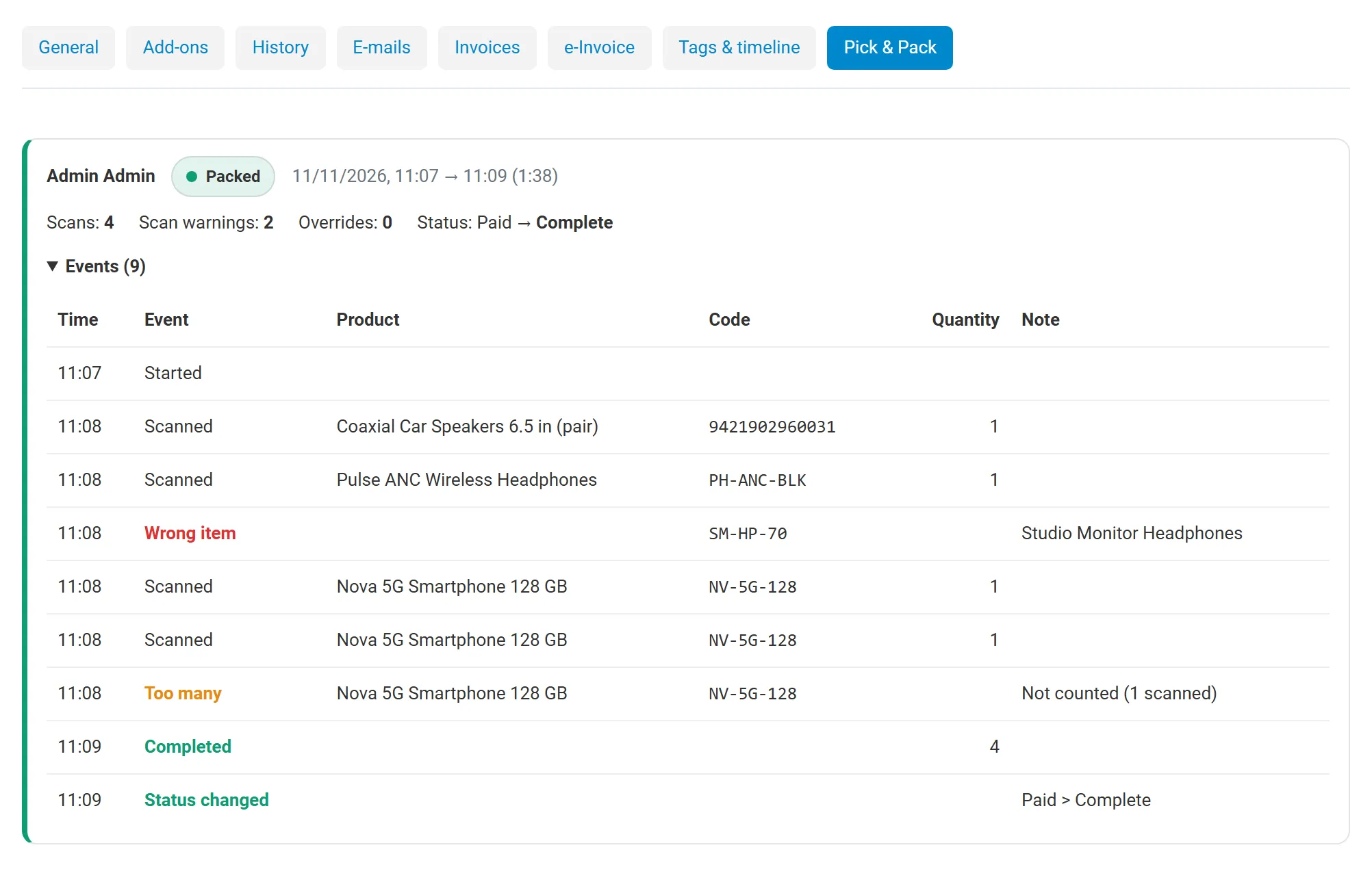
Each pack session shows the packer, start and end time, duration, number of scans, warnings and overrides, the status change, and the events: started, scanned, wrong item, too many, unit removed, confirmed without scan (with the reason), taken over, completed. A waiting order has an Open the pack station button.
7. Packing an order again
Section titled “7. Packing an order again”An order that was packed before (with “Keep the current status”, or after its status was set back) shows “This order was packed by … on …”. Pack again starts a new session that is logged as a repack.
8. Multi-Vendor
Section titled “8. Multi-Vendor”With Vendors can pack their own orders on, vendors find Orders → Pick & Pack in their panel. Everything works the same, limited to the vendor’s own orders: the queue, pick lists (other vendors’ orders are left out), the station, the tiles and the pack log. Parent orders of a multi-vendor checkout are never packed; each vendor packs its own part.