

Configuration
Overview · Installation · Usage · Developer notes · FAQ
Open Add-ons → Manage add-ons → Automated Review Requests → Settings. In CS-Cart Ultimate, the settings of the General, Review reward and Privacy tabs can differ per storefront (choose the storefront at the top of the admin panel first); the Sending and License tabs apply to the whole installation.
General
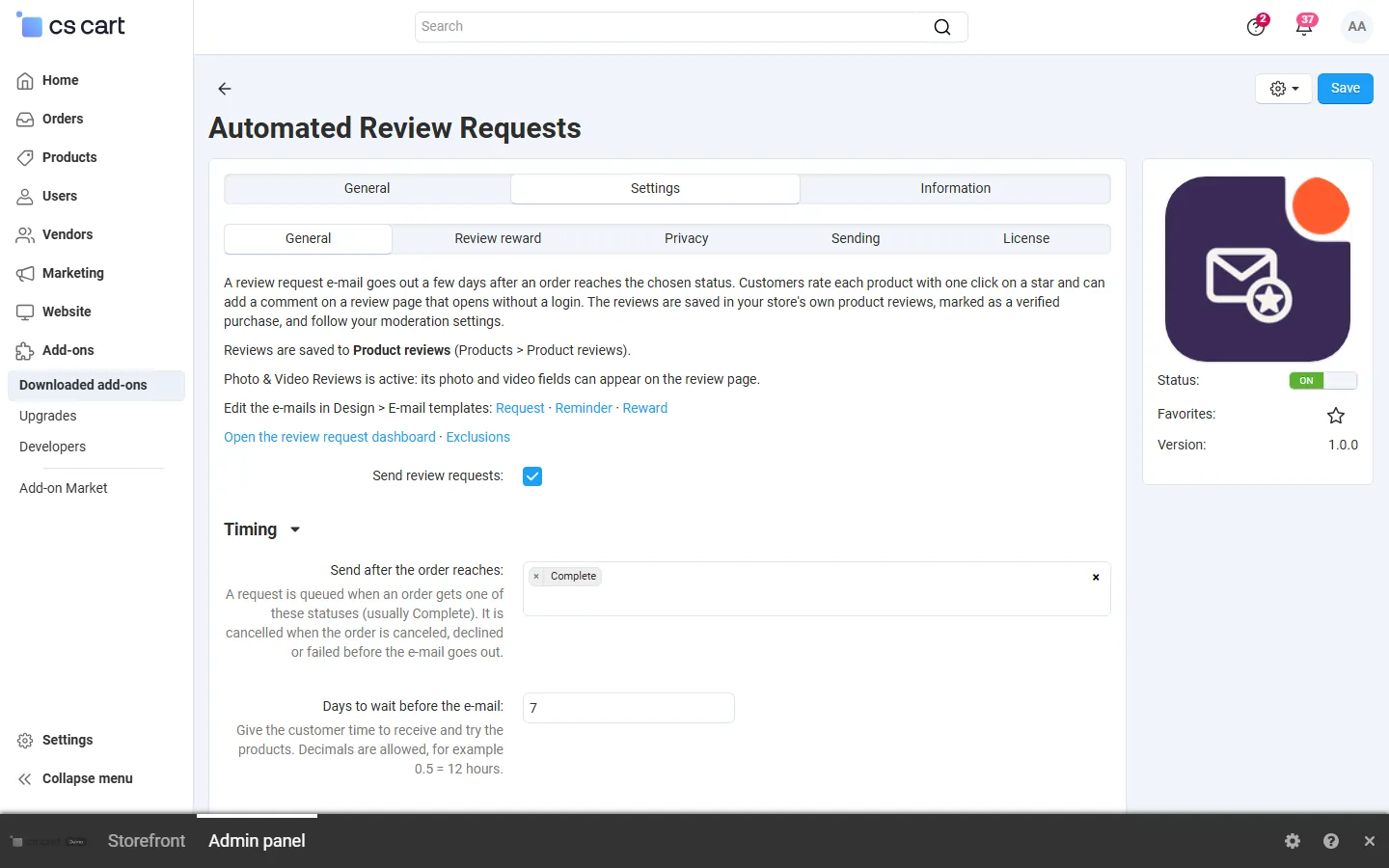
Section titled “General”The top of the tab shows which review system receives the reviews (Product reviews or Comments and reviews), links to the three e-mail templates and, when Photo & Video Reviews is active, a note that its fields can appear on the review page.
| Setting | Default | Description |
|---|---|---|
| Send review requests | On | Switches the add-on’s queue on or off. While off, no orders are queued and nothing is sent; review links of e-mails already sent keep working. |
| Send after the order reaches | Complete | One or more order statuses. When an order gets one of them, a request is queued. If the order is later canceled, declined or failed before the e-mail goes out, the request is cancelled. In Multi-Vendor, vendor orders are queued, never the parent order. |
| Days to wait before the e-mail | 7 | Time between the status change and the e-mail. Decimals are allowed (0.5 = 12 hours). |
| Send one reminder | On | One reminder when nothing was reviewed yet. |
| Days after the first e-mail | 5 | When the reminder goes out. No reminder is sent when the review link would expire within a day. |
| E-mails per order | One e-mail with all products | Or one e-mail per product, one day apart. |
| Maximum products per order | 6 | Further products of a large order are not asked about. |
| Review form | Review page, no login | The review page opens from the e-mail without a login and saves the reviews as verified purchases. Choose Reviews tab of the product page to send customers to the product page instead (the page may ask them to log in, depending on your review settings); clicks are still counted. |
| Review links stay valid for (days) | 60 | After that the review page explains that the link has expired and points to the product pages. |
| Skip products the customer has already reviewed | On | Registered customers: any review of that product; guests: a review written from an earlier request. |
| At most one request per customer every (days) | 30 | A customer who got a request for another order within this time is skipped. 0 = no limit. |
| Minimum order total | 0 | Orders below this total get no request. |
| Vendors see the review requests of their orders | On | Multi-Vendor: a read-only page in the vendor panel (Marketing → Review requests) with the requests and statistics of the vendor’s own orders. |
Review reward
Section titled “Review reward”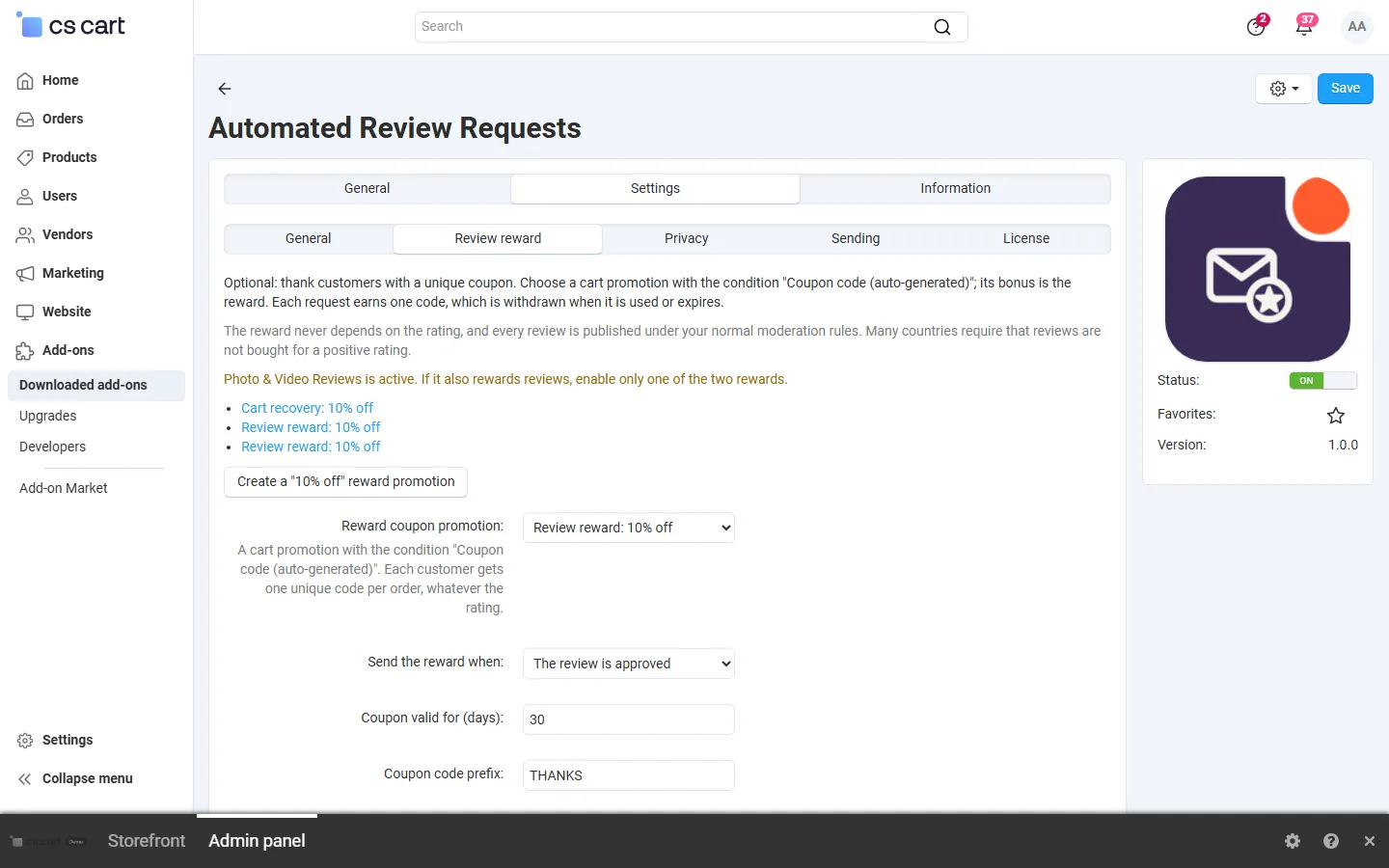
The reward is a unique coupon code from a cart promotion with the condition “Coupon code (auto-generated)”. The promotion’s bonus (for example 10% off) is the reward; you edit it in Marketing → Promotions like any promotion. Click Create a “10% off” reward promotion to get a ready-made one.
| Setting | Default | Description |
|---|---|---|
| Reward coupon promotion | No reward | The promotion that holds the codes. No reward switches rewards off. |
| Send the reward when | The review is approved | Or The review is submitted (sent right away). With approval, pending reviews are checked by every queue run. |
| Coupon valid for (days) | 30 | The code is removed from the promotion when it expires. |
| Coupon code prefix | THANKS | Codes look like THANKS7KQ2M9XA. |
| Mention the reward in the request e-mail | On | Adds “Write a review and get a thank-you coupon: …” to the e-mail and the review page. |
Each request earns one code (one per order, not per product), whatever the rating. A code is withdrawn from the promotion as soon as an order uses it. Many countries require that reviews are not rewarded for a positive rating; this add-on never looks at the rating when it rewards. If Photo & Video Reviews also rewards reviews in your store, enable only one of the two rewards.
Privacy
Section titled “Privacy”| Setting | Default | Description |
|---|---|---|
| Who gets review requests | All customers | All customers: every customer gets requests; every e-mail has an unsubscribe link. Customers who keep a ticked checkbox at checkout: a ticked checkbox “Ask me to review my purchase by e-mail” is shown at checkout; unticking it stops requests for that e-mail address. Only customers who tick the checkbox at checkout: the checkbox starts unticked and only customers who tick it get requests (orders created in the admin panel get none). |
| Count e-mail opens | On | Adds an invisible tracking image to request and reminder e-mails. Switch it off if your privacy policy does not allow open tracking; clicks and reviews are still counted (the open rate then shows only opens implied by a click). |
| Delete request data after (days) | 365 | Requests, opens and clicks older than this are deleted. The reviews are never deleted. |
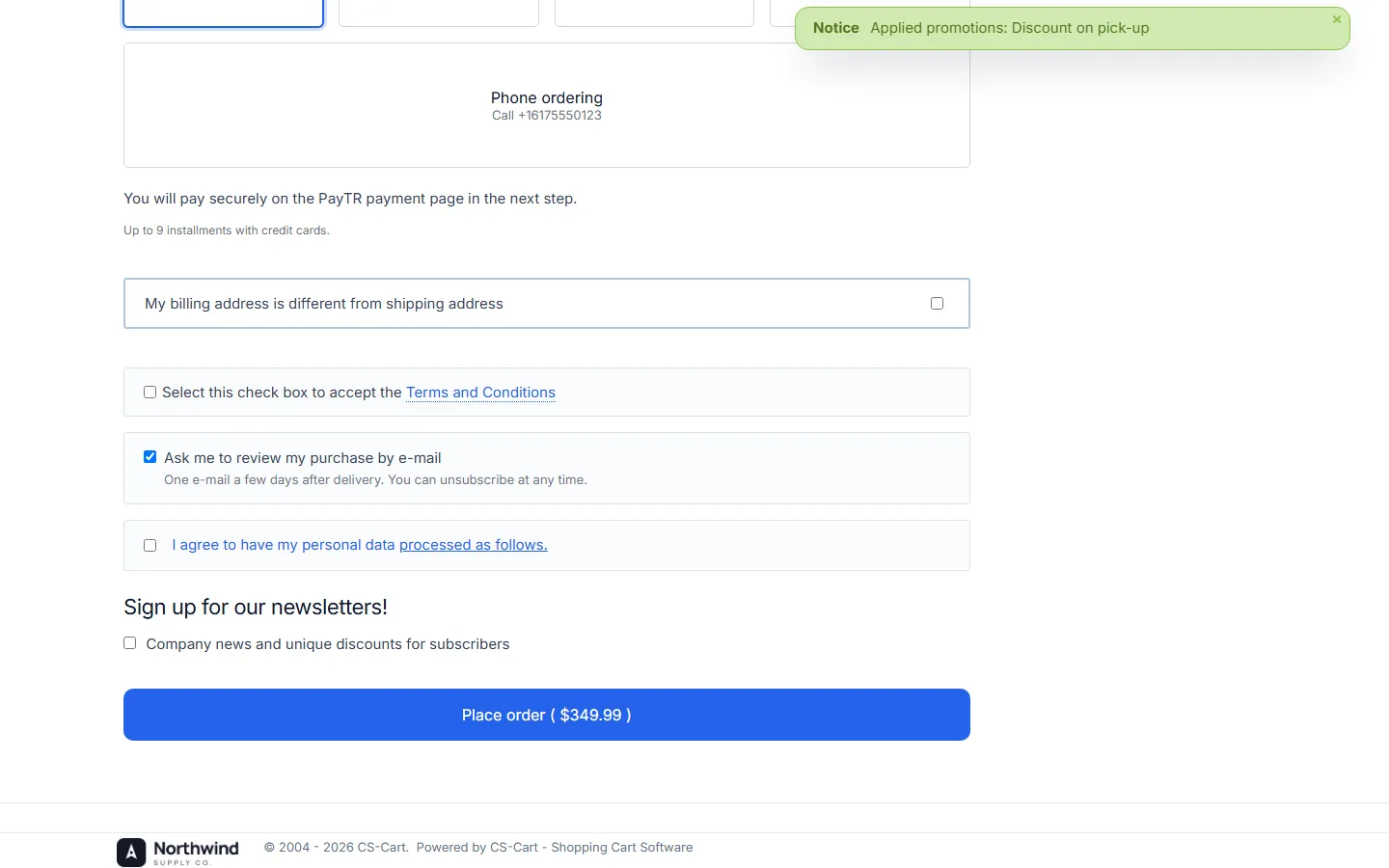
An unsubscribe always wins: a customer who unsubscribed gets no requests in any mode until they subscribe again from the same page. The core GDPR add-on can export and anonymize a customer’s requests.
Sending
Section titled “Sending”| Setting | Default | Description |
|---|---|---|
| E-mails per run | 50 | Maximum request and reminder e-mails per queue run. |
| Also send while administrators use the admin panel | On | Without a cron job, due e-mails are sent at most every 10 minutes after an admin page has loaded. |
| Cron URL key | generated | Secret part of the cron URL. Change it if the URL was disclosed. |
| Cron job | The console command and the URL for your server, and the result of the last run. |
Exclusions
Section titled “Exclusions”Marketing → Review requests → ⚙ → Exclusions (or the link on the General tab).
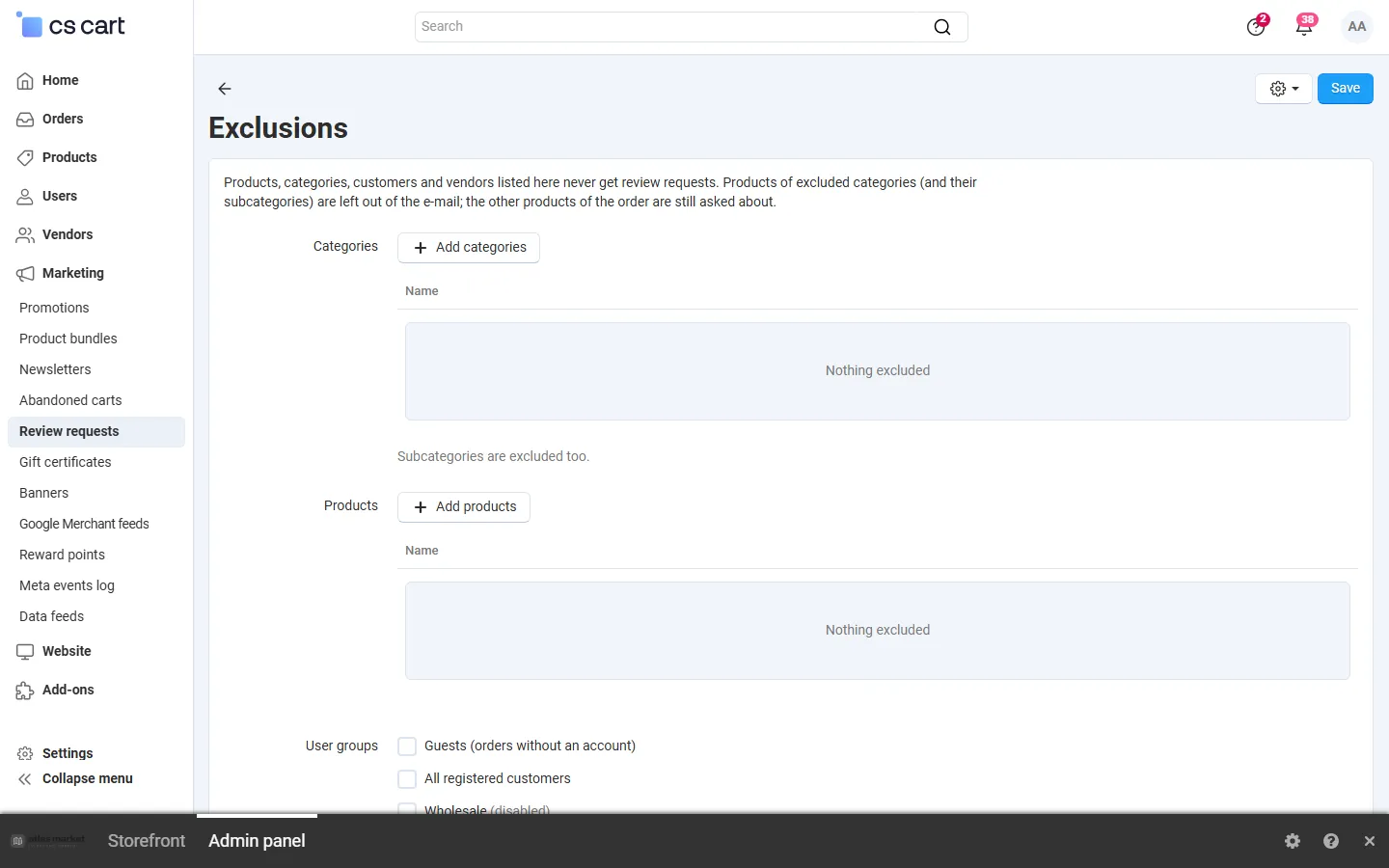
- Categories: products of these categories and their subcategories are left out of the e-mail; the other products of the order are still asked about.
- Products: single products, for example gift cards or samples.
- User groups: customers in a ticked group get no requests. Guests covers orders without an account, All registered customers every customer account.
- Vendors (Multi-Vendor): orders of these vendors get no requests.
In CS-Cart Ultimate, exclusions saved while All storefronts is selected apply to every storefront; exclusions saved for one storefront add to them.
E-mail templates
Section titled “E-mail templates”Design → E-mail templates lists three templates: Review request, Review request reminder and Review reward coupon. They use the store’s e-mail header and footer and can be edited like any core template (Twig). Available variables:
| Variable | Templates | Content |
|---|---|---|
firstname, lastname |
all | Customer name from the order |
order_id |
all | Order number |
company_name |
all | Store (Ultimate: storefront) name |
products |
request, reminder | List of name, image_url, review_url and stars (5 × url, title) |
review_url |
request, reminder | Review page with all products |
unsubscribe_url |
request, reminder | Unsubscribe page |
reward_text |
request, reminder | Reward sentence, empty without a reward |
coupon_code, coupon_description, coupon_expires, shop_url |
reward | The reward coupon |
The open-tracking image is added automatically when the e-mail is sent (setting Count e-mail opens); it is not part of the template.
Privileges
Section titled “Privileges”Administrators need the core privileges View orders (to see the pages) and Edit orders (to run the queue, send, cancel or delete requests). Saving exclusions needs Manage settings; the “create promotion” button needs Manage promotions. Vendors only get the read-only page when Vendors see the review requests of their orders is on.
License
Section titled “License”The license status is shown in a License card at the top of the add-on page, above the tabs, so you see it on every tab. The License tab holds the key itself. The key is stored once for the whole installation.
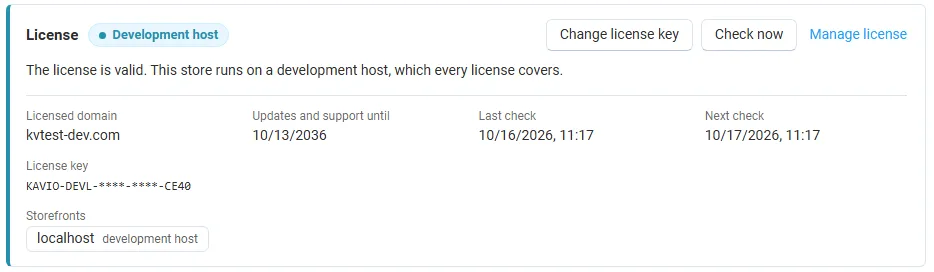
The License card shows:
- the status in color: green when valid, blue for a development host or the 14-day period before a key is required (with the days left), amber when the license server could not be reached (with the days left) or a Marketplace number is still being verified, red when the add-on is switched off;
- in plain words what the status means and, when the add-on is (or will be) switched off, what stops: no new review requests are queued and no request or reminder e-mails are sent; review links in e-mails already sent, unsubscribe links, earned rewards and all existing reviews keep working;
- the licensed domain, every storefront with its result (covered, development host, not covered), the end of the updates and support period, the last and the next check, and the key in use (masked);
- the actions Enter license key / Change license key (opens the License tab), Check now (verifies at once and stays on the page), Manage license (your licenses on cs-cart.kaviolabs.com) and, without a valid license, Buy a license.
In Add-ons → Manage add-ons the add-on’s row shows a small license badge next to its name, for example License: Valid or License: Pending · 9 days left.
The add-on’s own admin pages (dashboard, request log, request page, exclusions) show the license status in a bar at the top: a small green chip when the license is valid, or a banner with the status, what is switched off and the same actions as the card. Vendors never see license information.
| Setting | Description |
|---|---|
| License key | Your Kavio Labs license key (KAVIO-XXXX-XXXX-XXXX-XXXX, from My licenses on cs-cart.kaviolabs.com) or your CS-Cart Marketplace license number. If you entered the Marketplace license number in Add-ons → Manage add-ons (the add-on’s license field), leave this empty: the add-on uses that number. |
| License status | Points to the License card and explains what the check sends. |
What the license covers. A license is bound to the base domain you entered at purchase (for example example.com) and covers every subdomain of it (www.example.com, shop.example.com, staging.example.com). Local development hosts are always allowed: localhost, 127.0.0.1 and other private IP addresses, and host names ending in .localhost, .test, .local, .example or .invalid. A store on a different base domain needs its own license. If you move your store to a new domain, contact support.
When the add-on checks. When you save the key, and then once a day. The check runs only in the admin panel (on a page you open) or from cron, never while customers browse the storefront or place orders, and takes a few seconds at most. A cron job keeps the license verified even when nobody opens the admin panel:
php /path/to/store/admin.php --dispatch=kv_review_request_emails_license.checkWhat is sent. The check sends this to https://cs-cart.kaviolabs.com and nothing else: the license key, the add-on ID and version, the host names of your storefronts, your CS-Cart version and edition, and a random one-time value. No customer, vendor, order, review or personal data is sent. The server answers with a digitally signed result, so a forged answer is ignored.
Statuses.
| Status (card) | Color | What happens |
|---|---|---|
| Valid | Green | The license is valid for this domain. Everything works. |
| Development host | Blue | The store runs on a local development host, which every license covers. Everything works. |
| Pending verification | Amber | A CS-Cart Marketplace license number was accepted, but the Marketplace has not confirmed it yet. Everything works. |
| Pending · N days left | Blue | No verified key yet (a new installation). Everything works for 14 days. |
| Grace period · N days left | Amber | The last checks failed (for example a network problem). The add-on keeps working for 14 days after the first failed check. |
| Not activated, Invalid key, Revoked, Domain mismatch, Not verified | Red | No new orders are queued, no request or reminder e-mails are sent (queued requests wait), the checkout checkbox is hidden and test e-mails are refused. Orders, checkout and the store e-mails keep working. Review links in e-mails already sent, unsubscribe links, rewards customers already earned and all reviews keep working; requests, statistics and settings are kept. Domain mismatch shows the licensed domain next to the domain your store runs on. |
When your updates and support period ends, the add-on keeps working. Only updates and support stop.
License information appears in the admin panel only, and only for administrators who may manage add-ons; vendors and customers never see it. When the add-on is switched off, other admin pages also show a notice once per session with a link to the add-on page; the add-on page and the add-on’s own pages show the card or the status bar instead.