

Usage
Statuses
Section titled “Statuses”Products → Stock statuses → Statuses lists every status with a live preview, its lead time, the feed value and how many products show it.
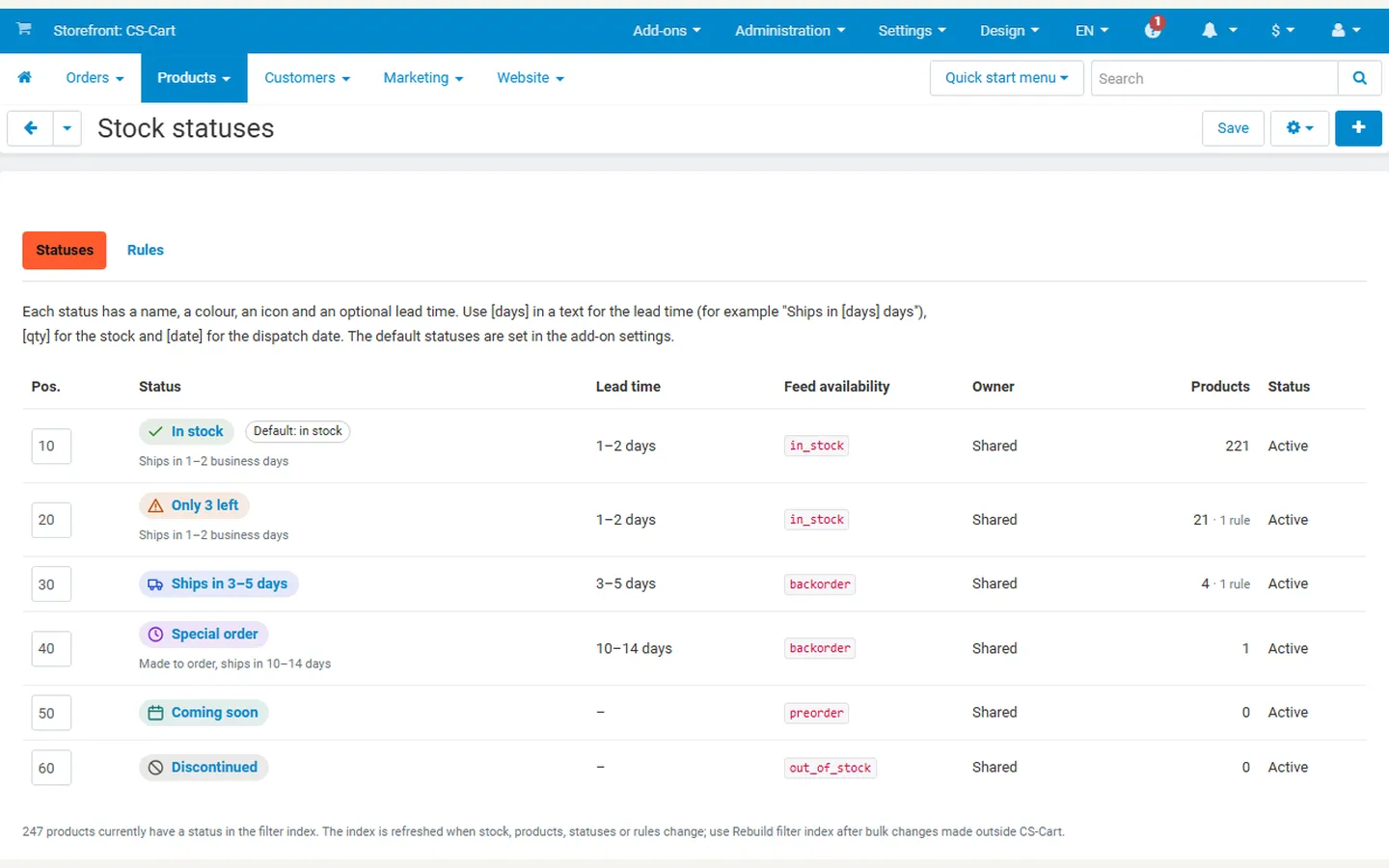
Click a status to edit it, or + to add one:
| Field | Notes |
|---|---|
| Name | What shoppers see. Tokens: [days] lead time (“3–5”), [qty] stock, [date] dispatch date. |
| Second line | Optional, shown under the name on the product page, for example “Made to order in our workshop”. Tokens work here too. |
| Colour | The colour of the icon and a light tint behind the status. The text keeps your theme’s text colour, so it stays readable on light and dark themes. |
| Icon | Check, truck, clock, box, calendar, not available, alert or dot. |
| Lead time | From–to in days. Leave empty when the status has no lead time. |
| Show dispatch date | Adds a “Dispatches by” line with the date under the status on the product page (today plus the longest lead time). |
| Feed availability | The value product feeds send for products with this status: in_stock, out_of_stock, backorder, preorder, or Automatic (the feed decides from the stock). |
| Filter label | The name in the storefront filter; empty = the name without [qty] and [date]. |
| Position, Status | Order in the lists; a disabled status is never shown. |
Texts are saved in the language you are editing (the language selector of the admin panel); a new status starts with the same text in every language.
Deleting a status also deletes the rules that set it; products that used it go back to their rules.
How a product gets its status
Section titled “How a product gets its status”For every product the add-on checks, in this order:
- Pre-orders: a product in pre-order mode of the Kavio Labs Pre-Orders & Deposits add-on (before its release date or while out of stock) shows the pre-order label of that add-on and no status.
- Product setting: the status chosen in the product editor for “in stock” or “out of stock”.
- Rules: the first active rule that matches, by position. On Multi-Vendor, the vendor’s own rules come before shared rules.
- Defaults from the settings.
- Nothing matched: the standard CS-Cart stock text.
A product counts as in stock when its stock is above 0, or when it does not track stock.
Products → Stock statuses → Rules
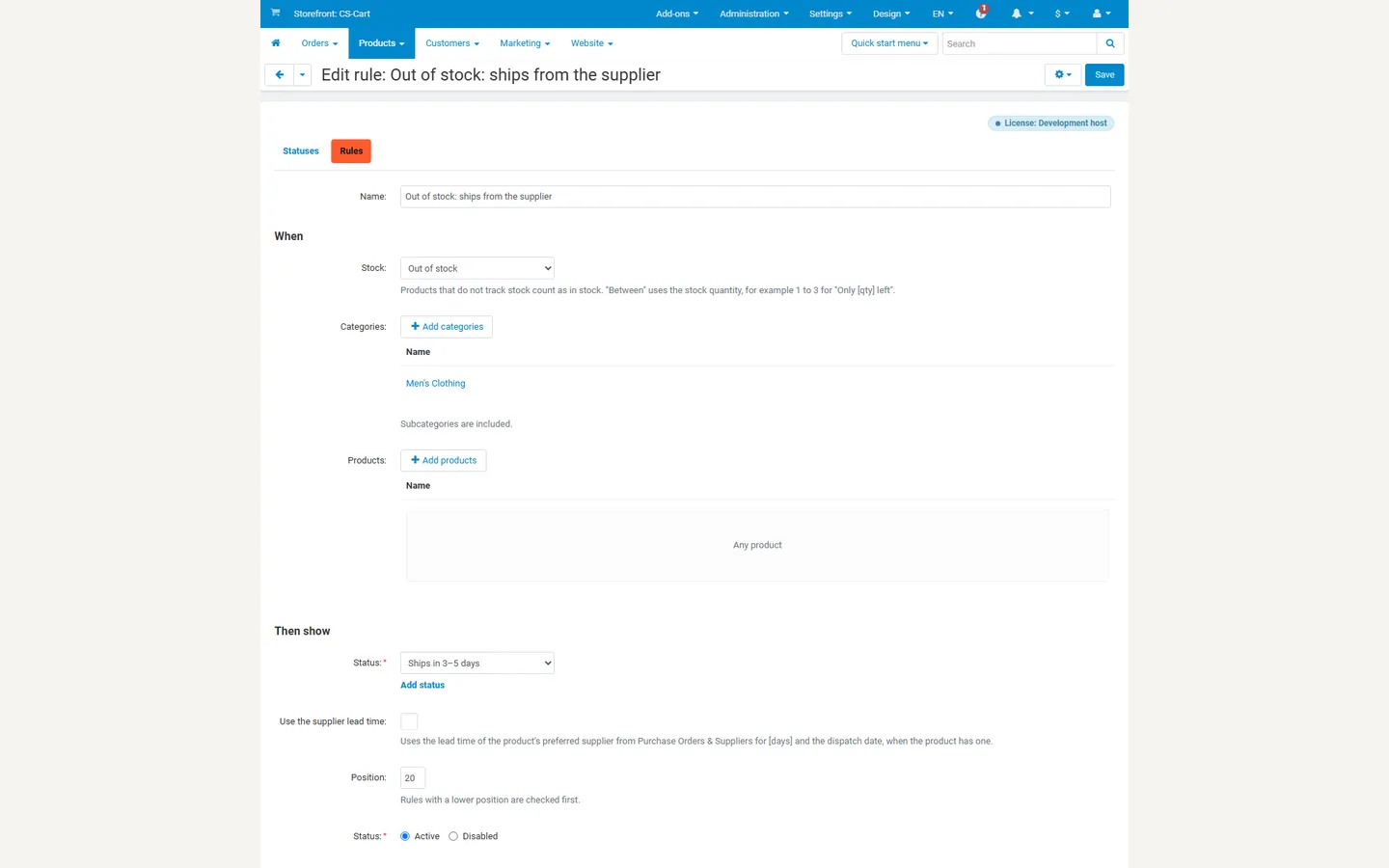
| Field | Notes |
|---|---|
| Stock | Any stock level, In stock, Out of stock, or Stock between (for example 1 to 3; leave “to” empty for no upper limit). |
| Stock in | With the core Warehouses add-on: the stock of one warehouse or store instead of the total, for example “Not in the main warehouse: Ships in [days] days”. |
| Categories | Products in these categories or their subcategories. Empty = any category. |
| Products | Only these products. Empty = any product. |
| Vendors | Multi-Vendor administrators: only products of these vendors. |
| Then show | The status. |
| Use the supplier lead time | With Purchase Orders & Suppliers: [days] and the dispatch date use the lead time of the product’s preferred supplier. |
| Position | Lower positions are checked first. |
Examples:
| Rule | Shows |
|---|---|
| Stock between 1 and 3 | Only 2 left |
| Out of stock, category Furniture | Ships in 3–5 days |
| Out of stock, category Clearance | Discontinued |
| Any stock, product “Custom sofa” | Special order |
Product settings
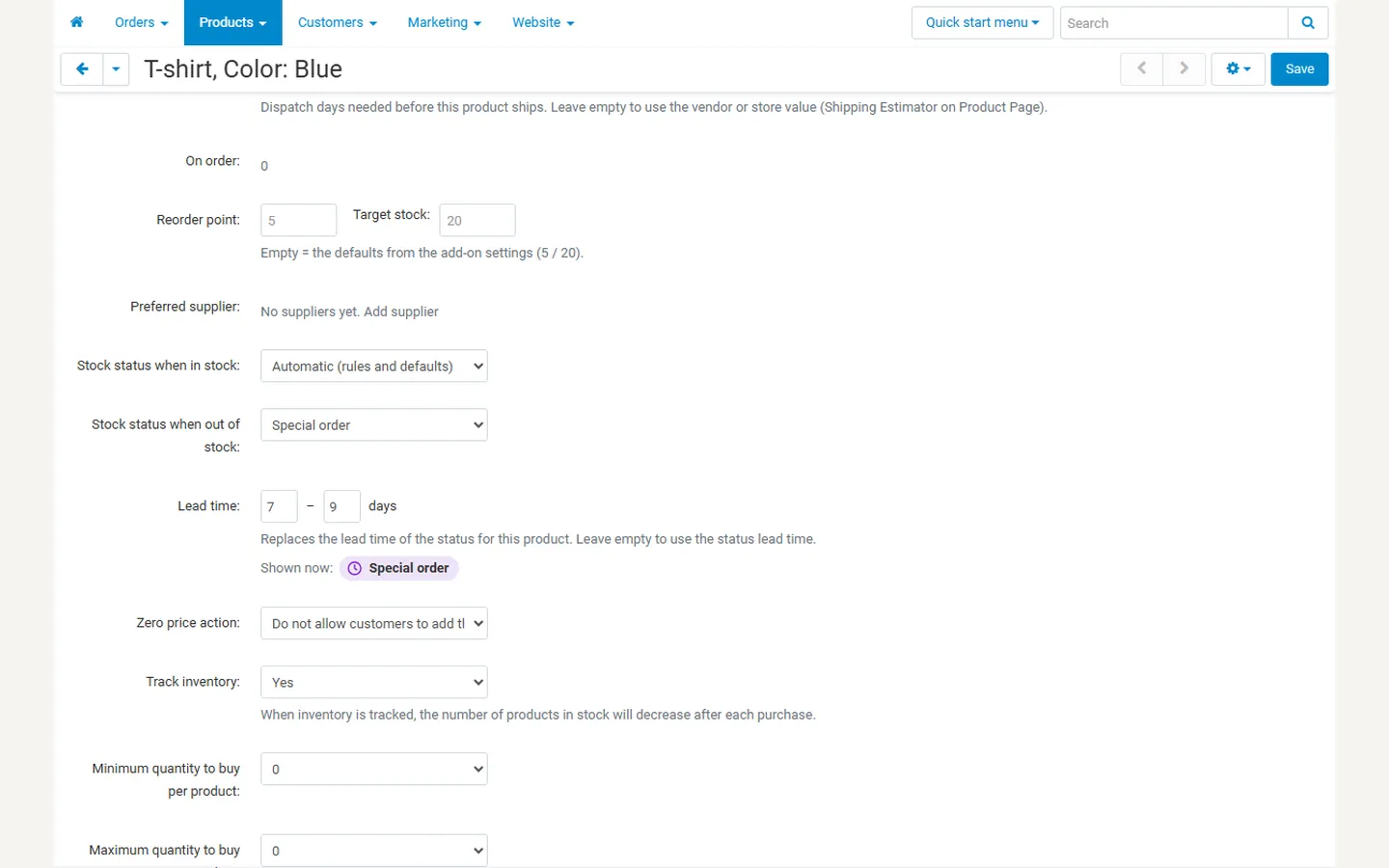
Section titled “Product settings”In the product editor, under In stock:
- Stock status when in stock and Stock status when out of stock: Automatic (rules and defaults) or a fixed status.
- Lead time: replaces the lead time of the status for this product.
- Shown now: the status the storefront shows at the moment.
Each variation is a product, so variations can have their own settings.
Storefront
Section titled “Storefront”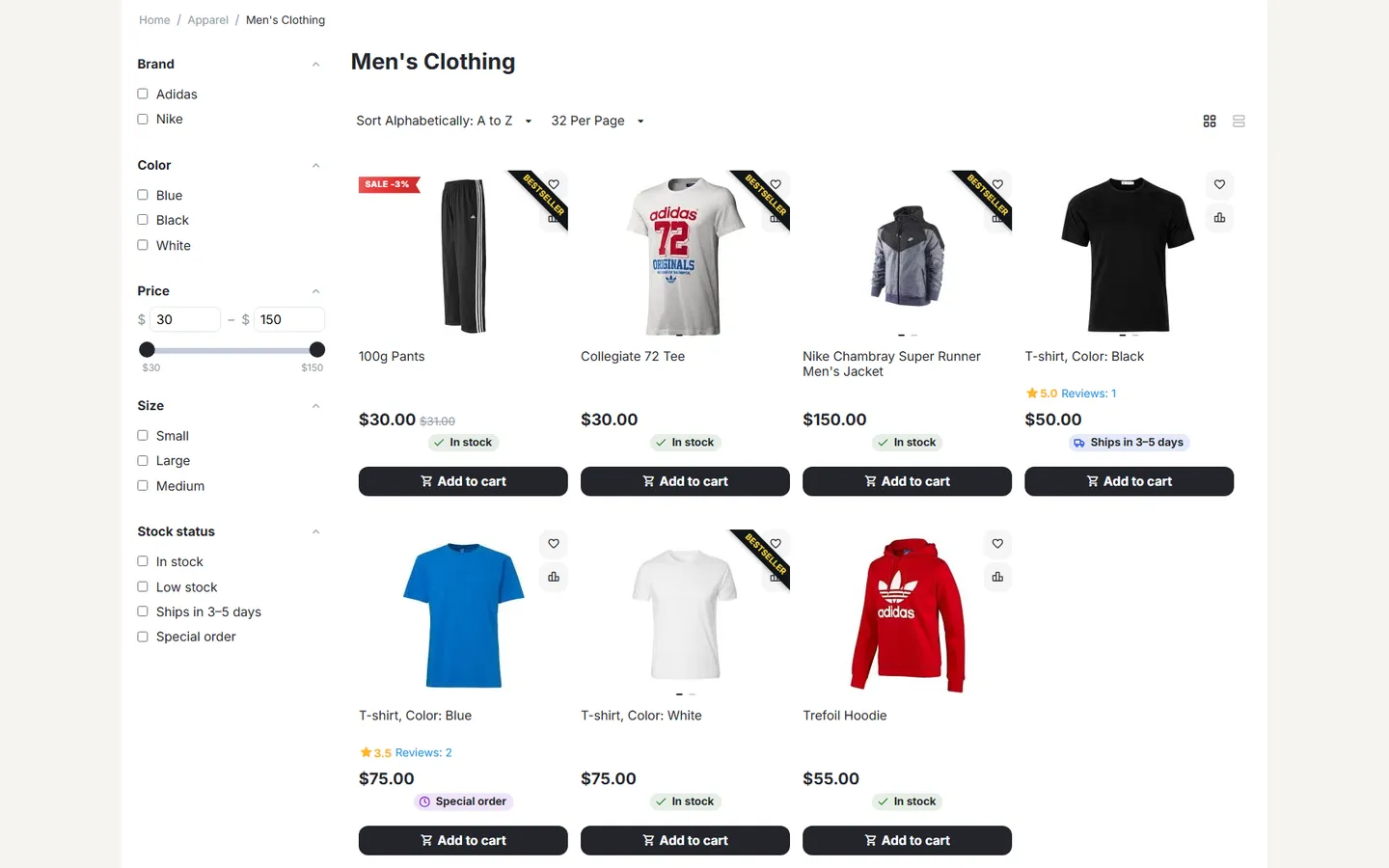
- Product page and quick view: the status in the Availability line, with the second line and the dispatch date. When options or variations change, the status follows.
- Lists: a compact status under the price.
- Cart: each line shows its status.
Themes with their own availability row
Section titled “Themes with their own availability row”Some themes print an availability line of their own under the price in the product grid (“In stock”, “Out of stock”). With Theme availability row in lists on Automatic (the default) the add-on reads, for each list layout (grid, compact list, small items), the template of the active theme and the templates it includes (the standard CS-Cart themes are never counted) and leaves its compact status out of that layout when it finds a stock line the theme prints itself (the language variables in stock, out of stock or availability, stock CSS classes, a test of the product amount), so shoppers never see two. The product page, the quick view and the cart still show the full status. The check is repeated every hour and whenever a theme template changes. A theme that only passes the core stock block through is not counted: when that block holds a visible stock line the status is left out for that product, otherwise it is shown. If the status is missing after the update, or the check guesses wrong for your theme, choose Always show (or switch off Show in product lists).
In the list view the compact status is never added when the stock block of the item already shows the status (replace and below mode); with the standard stock text only, the compact status is added as before.
Badge shape
Section titled “Badge shape”Settings → Appearance → Badge shape switches the badge between pill, rounded corners and square corners; with rounded corners the Corner radius is yours (0 to 40 px). Set it to the radius of your theme’s buttons and the badges match without custom CSS. The classes .kv-ssm, .kv-ssm--compact, .kv-ssm__icon, .kv-ssm__body, .kv-ssm__name and .kv-ssm__note do not change, so existing custom CSS keeps working.
Out-of-stock products last
Section titled “Out-of-stock products last”Switch on Settings → Catalog behaviour → Out-of-stock products last and category pages, search results and vendor store pages list the products in stock first. The chosen sorting still decides the order inside each group, and it works with pagination and the standard filters (tested on CS-Cart Ultimate and Multi-Vendor). It adds one sort key to the product query (no extra query and no join; on listings that group variations a group counts as in stock when any variation is), and it never depends on the visitor, so full page cache stays valid. Products that do not track stock count as in stock. The sort uses the stock of the product itself: with Warehouses stock splitting or vendor offers of common products it can differ from the amount a shopper sees, and in ungrouped listings a variation group is placed by its main product. It has not been measured on very large catalogs yet.
Out-of-stock variations
Section titled “Out-of-stock variations”For products with variations, Out-of-stock variations removes the sold-out variations from the picker (Hide them) or leaves them visible but disabled (Show them disabled). It works for the dropdown, the label buttons and the image swatches of the core Product Variations add-on, on the product page, the quick view and the category cards. The variation the shopper is looking at stays selectable, and variations that can be ordered in advance (or with negative stock) are not treated as sold out.
Storefront filter
Section titled “Storefront filter”- Open Products → Filters and click +.
- Choose Filter by: Stock status, set the categories where it appears and save.
- Shoppers can now filter a category by status, for example only “In stock” and “Ships in 3–5 days”.
The filter uses an index that is refreshed when stock, products, statuses, rules or defaults change, and after product imports. After bulk changes made outside CS-Cart (for example directly in the database), use Rebuild filter index in the gear menu of the Statuses page.
Orders and e-mails
Section titled “Orders and e-mails”When an order is placed, each line keeps the status it had at that moment. It appears as “Availability: Ships in 3–5 days” in the customer’s order details, the admin order page, notification e-mails and invoices, and it does not change when the status is edited later.
Product feeds
Section titled “Product feeds”Each status has a feed availability value; backorder and preorder come with a date from the lead time. Product Feed Pro for Google Merchant Center (1.1.2 or later) and Multichannel Product Feeds (1.0.1 or later) use it automatically: products with a status that sets a value are sent with that value, and Automatic leaves the value to the feed. Other feed add-ons can read it through the add-on’s API (see Developer notes).
Multi-Vendor
Section titled “Multi-Vendor”- Vendors see Products → Stock statuses when Vendor access allows it. Shared statuses are read-only; vendors create statuses and rules for their own products only.
- In the product editor, vendors choose from the shared statuses and their own.