

Configuration
Overview · Installation · Usage · Developer notes · FAQ
Settings live in Add-ons → Manage add-ons → Real-Time Order Alerts → Settings. They apply to the whole installation (also in CS-Cart Ultimate). Each user then tunes their own alerts on Orders → Order alerts (see Usage).
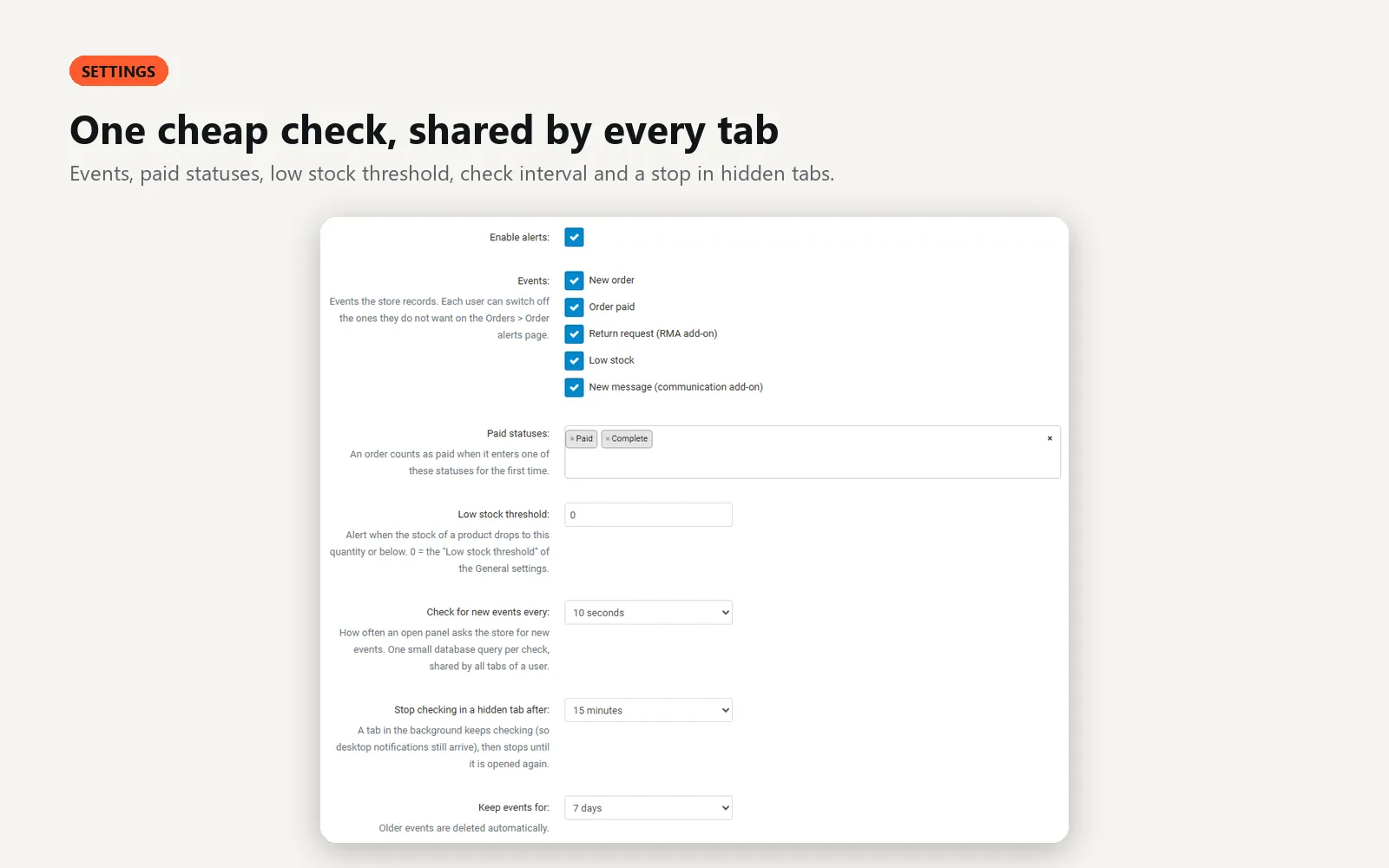
General
Section titled “General”| Setting | Default | What it does |
|---|---|---|
| Enable alerts | On | Off = no bell, no checks, no new events. Stored events and preferences are kept. |
| Events | All five | Events the store records: New order, Order paid, Return request (needs the RMA add-on), Low stock, New message (needs the communication add-on). An event type switched off here is not offered to users. |
| Paid statuses | Paid, Complete | An order counts as paid when it enters one of these statuses for the first time. Later moves between paid statuses do not alert again. |
| Low stock threshold | 0 | Alert when the stock of a product drops to this quantity or below. 0 uses Settings → General → Low stock threshold. Each product alerts once per drop; after a restock it can alert again. |
| Check for new events every | 20 seconds | How often an open panel asks the store for new events (10 seconds to 2 minutes). One indexed database query per check, shared by all tabs of a user. After a failed check the interval doubles, up to 5 minutes. |
| Stop checking in a hidden tab after | 15 minutes | A tab in the background checks at half speed (so desktop notifications still arrive), then stops until it is opened again (5 minutes to 1 hour). Independently, checking pauses when nobody uses the panel for the store’s session lifetime (SESSION_ALIVE_TIME, 2 hours by default) and resumes on the next click or key press, so the automatic sign-out still works. Never keeps it checking. |
| Keep events for | 7 days | Older events are deleted automatically. |
When is an order “new”?
Section titled “When is an order “new”?”An order is announced when it leaves the Incomplete status: at once for offline payment methods, and after the payment for online ones (an abandoned payment page never alerts). In Multi-Vendor, the parent order of a multi-vendor checkout is skipped; each vendor gets the alert for its own order.
Defaults for new users
Section titled “Defaults for new users”The sound, volume, desktop notifications and quiet hours a user starts with before saving their own preferences.
| Setting | Default |
|---|---|
| Sound | Chime (also Bell, Ping, Pop, Register, No sound) |
| Volume | 70% |
| Desktop notifications | On (each user still allows them once in their browser) |
| Quiet hours from / to | Empty (none). Format HH:MM, browser time. |
Privileges
Section titled “Privileges”The privilege View order alerts (group Order alerts) opens the bell and the preferences page. The installer gives it to every usergroup that may view orders. Each alert type also follows the core privileges: order alerts need access to orders, return alerts to returns, low stock alerts to products and message alerts to the message center.
In Multi-Vendor, vendors get alerts for their own company only. With the core Vendor privileges add-on, the View order alerts privilege of a vendor usergroup switches alerts on or off for those vendors.
License
Section titled “License”The add-on checks its license key for your store’s domain once a day from the admin panel (never from the storefront). Development hosts such as localhost always work.
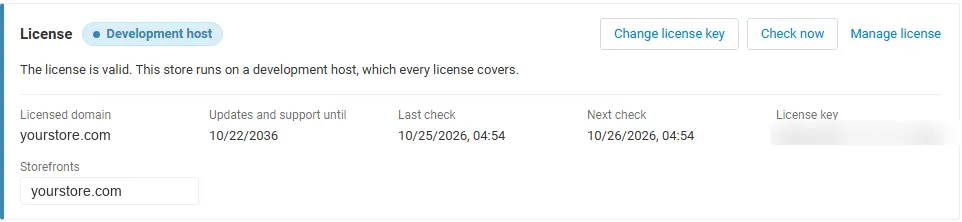
| Key | Enter it in Settings → License, or use the CS-Cart Marketplace license number in Add-ons → Manage add-ons. |
| Check now | The Check now button on the License tab repeats the check at once. |
| Server not reachable | The add-on keeps working during a grace period. |
Without a valid license: the panel stops checking for new events: no sounds, desktop notifications, tab badges or pop-up alerts, and no new events are recorded; your settings and personal preferences are kept.