

Usage
Overview · Installation · Configuration · Developer notes · FAQ
The bell
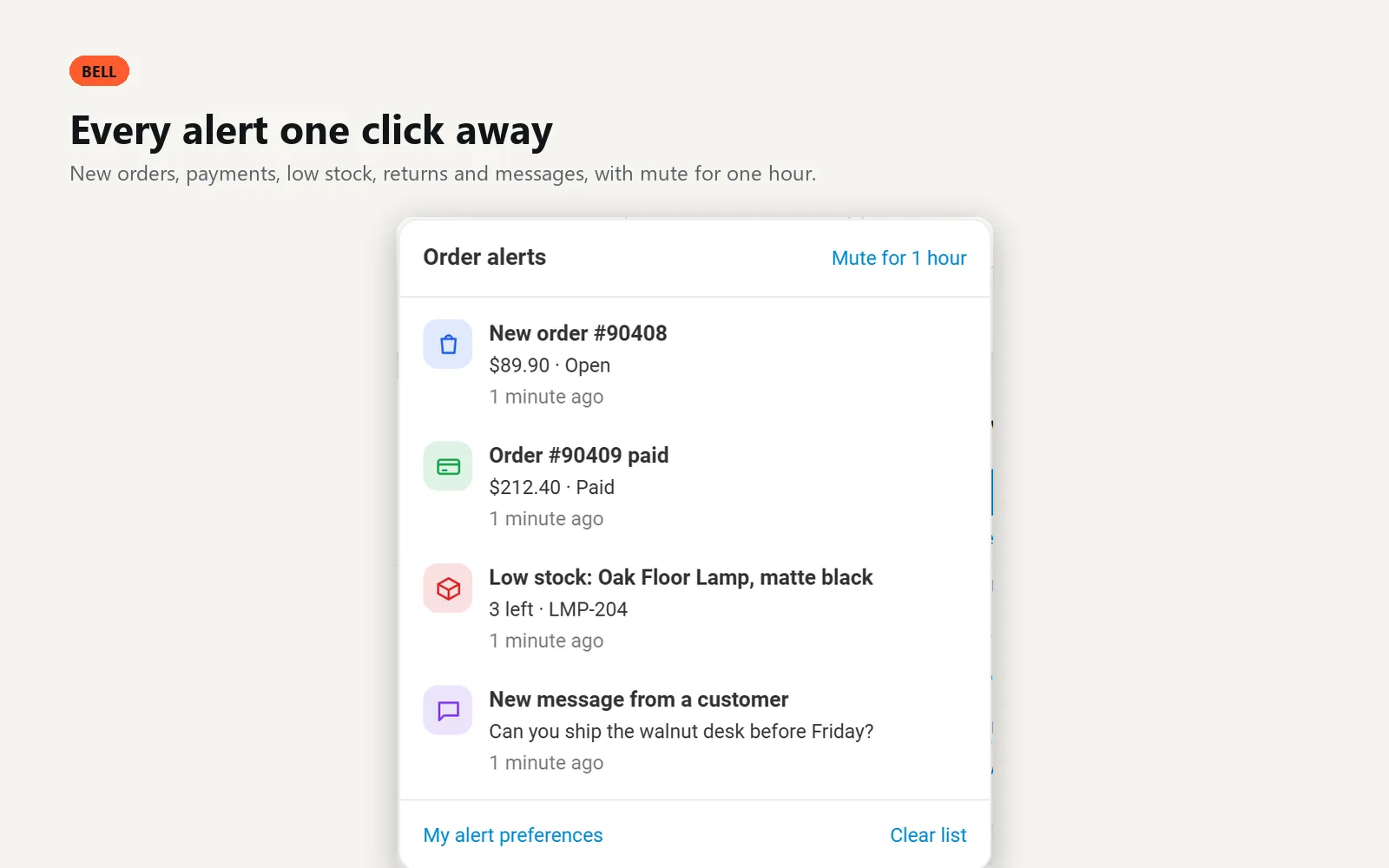
Section titled “The bell”A bell sits next to the notification center at the top of the admin panel and the vendor panel. Its badge counts the alerts you have not seen yet. Click it to open the list of the latest 20 alerts; each line links to the order, return, product or conversation.
The bell also shows what needs your attention:
- Allow desktop notifications: the browser asks for permission only after this click.
- Click anywhere in the panel once: browsers play sounds only after a click or a key press on the page.
- Mute for 1 hour / Unmute: silences sounds and desktop notifications for an hour, in all tabs.
- A note when checking was paused in a hidden tab or when you were signed out.
What happens when an event arrives
Section titled “What happens when an event arrives”| Where you are | What you get |
|---|---|
| Panel tab in front | Sound and a pop-up at the bottom right with a link. |
| Panel tab in the background | Sound, a desktop notification (click it to open the item) and the count in the tab title, e.g. (2) Orders. |
| Several panel tabs open | One tab checks the store for all of them; every visible tab shows the pop-up and the count, the sound plays once. |
| More than three events at once | One summary pop-up; the bell lists them all. |
The count in the tab title clears as soon as you come back to the tab. On the Orders Admin Pro desk, the pop-up of a new order also offers Quick view.
My alert preferences
Section titled “My alert preferences”Orders → Order alerts belongs to the signed-in user: every administrator and vendor staff member has their own.
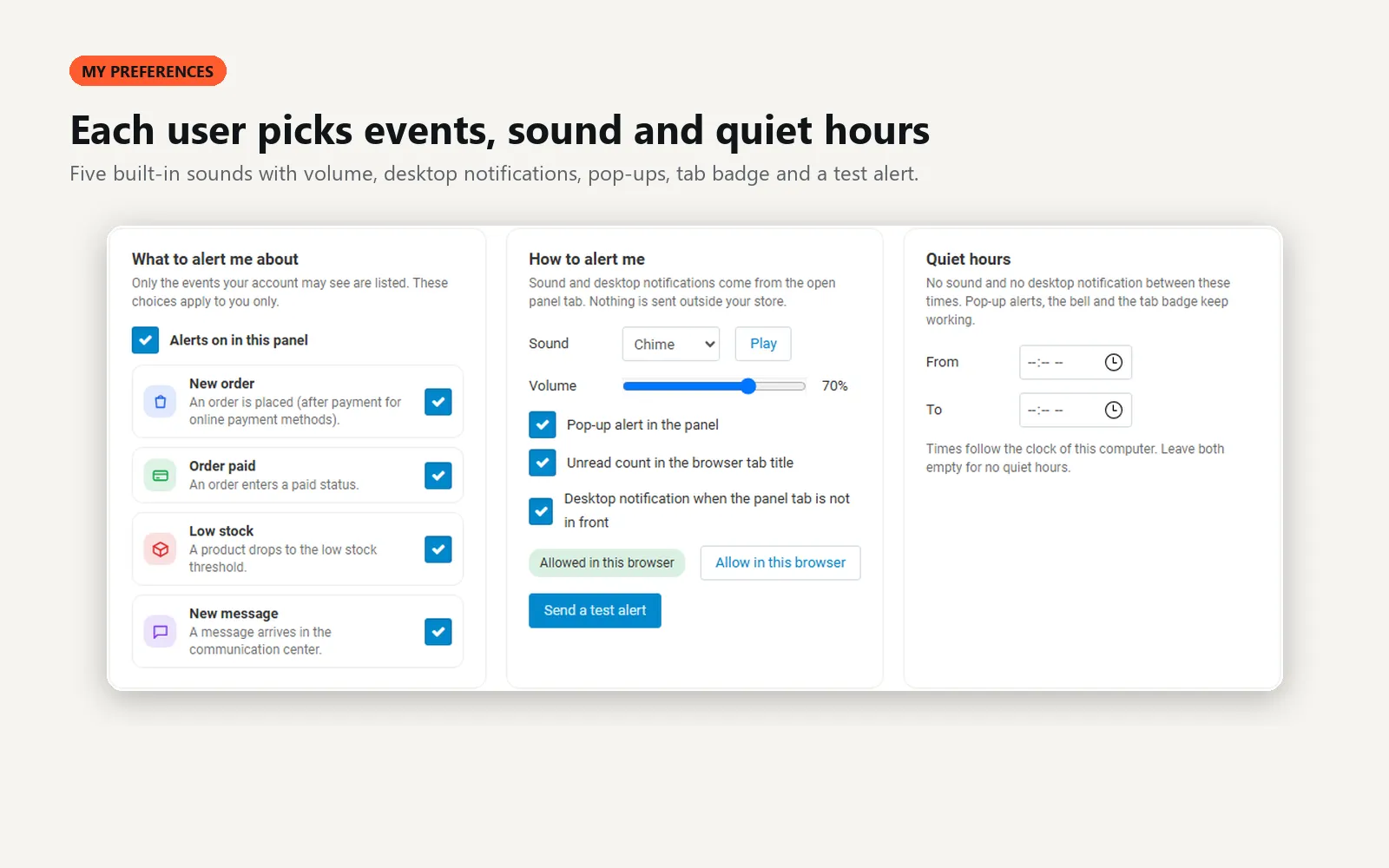
- What to alert me about: the events your account may see; switch off the ones you do not want, or switch off alerts in this panel completely.
- How to alert me: sound and volume with a Play button, pop-ups, the count in the tab title, desktop notifications with the current browser permission and an Allow in this browser button, and Send a test alert.
- Quiet hours: no sound and no desktop notification between two times (the clock of your computer); pop-ups, the bell and the tab count keep working. A range such as 22:00 – 07:00 crosses midnight.
- Recent alerts: the latest 50 events your panel can see, with a link to each.
Vendors (Multi-Vendor)
Section titled “Vendors (Multi-Vendor)”Vendors and their staff see the same bell and preferences page in the vendor panel. They are alerted about their own orders, payments, returns, low stock and customer or administrator messages only; the store never sends them events of other vendors. The marketplace owner sees all vendors’ orders, with the vendor name in every alert, and the messages vendors send to the administrator.
Storefronts (CS-Cart Ultimate)
Section titled “Storefronts (CS-Cart Ultimate)”With a storefront picked in the panel, alerts are limited to that storefront. On All storefronts every storefront’s events arrive, with the storefront name in each alert.