

Configuration
Open Add-ons → Manage add-ons → Vendor KYC & Verification. The settings have five tabs. The document types themselves are managed on Vendors → Vendor verification → Document types (see Usage).
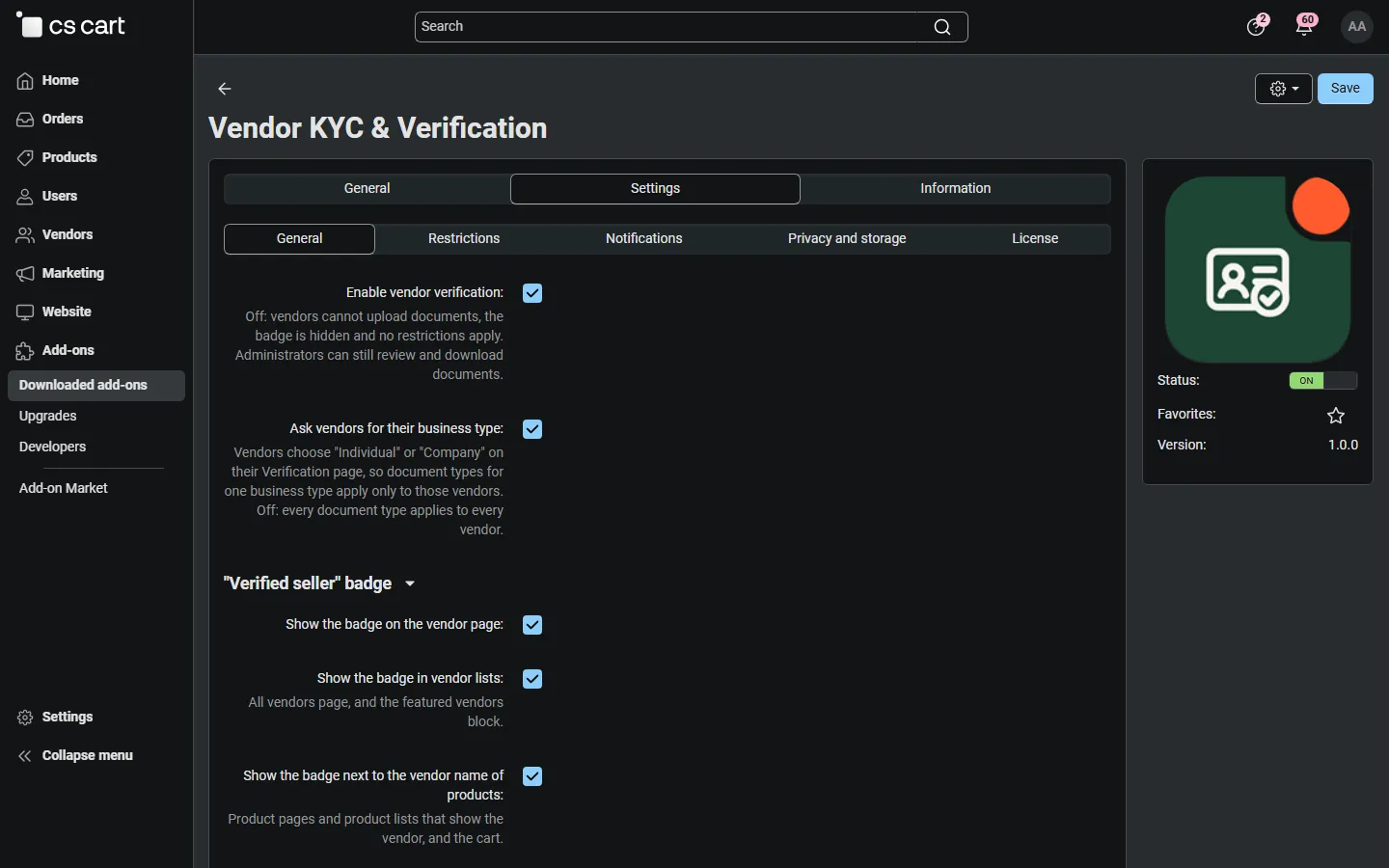
General
Section titled “General”| Setting | Default | Description |
|---|---|---|
| Enable vendor verification | On | Off: vendors cannot upload documents, the badge is hidden and no restrictions apply. Administrators can still review and download documents. |
| Ask vendors for their business type | On | Vendors choose Individual / sole trader or Company on their Verification page, so document types for one business type (for example Business registration for companies) apply only to those vendors. Off: every document type applies to every vendor. |
| Show the badge on the vendor page | On | A “Verified seller” strip above the vendor’s products and on the vendor’s About page. |
| Show the badge in vendor lists | On | The All vendors page and the featured vendors block. |
| Show the badge next to the vendor name of products | On | Product pages, product lists that show the vendor, and the cart. |
Restrictions
Section titled “Restrictions”All restrictions are off after installation. They apply to vendors whose level is Unverified, Pending review or Expired, once the grace period has passed. Vendors with the level Verified or Not required and vendors you marked as exempt are never restricted.
| Setting | Default | Description |
|---|---|---|
| Hold payouts until the vendor is verified | Off | Vendors cannot request withdrawals in Accounting, and administrators cannot complete (approve) their payouts or withdrawals; declining stays possible. With Vendor Payouts Automation, their payout requests stay pending and cannot be approved (requests approved before the hold can still be marked as paid). |
| Hide the products of unverified vendors on the storefront | Off | The products disappear from the catalog, search results, blocks and product pages. The vendor page itself stays visible. Nothing changes in the admin or vendor panel. |
| Prevent unverified vendors from creating products | Off | The Add product page and imports refuse new products from the vendor panel; existing products can still be edited. Administrators can still create products for the vendor. |
| Grace period (days) | 14 | Counted from the first time documents were required from the vendor (after installation, or when the vendor signs up). 0 = restrictions start at once. |
| Lift the restrictions while all documents are waiting for review | Off | On: a vendor who uploaded every required document is not restricted while you review. |
Notifications
Section titled “Notifications”| Setting | Default | Description |
|---|---|---|
| E-mail vendors about review results | On | One e-mail per approved, rejected or “new upload requested” document, with your reason and the vendor’s new level. |
| Expiry reminders (days before) | 30,7 | Comma-separated. Vendors get one e-mail per stage listing the documents that expire, and one when a document expired. No reminder while a new version waits for review. |
| E-mail administrators about new documents | On | When a vendor uploads a document. |
| Send new-document e-mails to | empty | Comma-separated addresses. Empty: the Help/Support department e-mail of the marketplace. |
The e-mail texts are in Design → E-mail templates (Vendor verification: review result, documents expire and new document).
Scheduled task. Levels change by themselves when documents expire or a grace period ends. The add-on runs its scheduled task at most once an hour when an administrator or a vendor opens the admin or vendor panel. For exact timing, add a daily cron job:
php /path/to/store/admin.php --dispatch=kv_vendor_kyc_verification.cronor call the URL shown in the settings (it uses the cron password from Settings → Security). Vendors → Vendor verification → ⚙ → Run scheduled tasks now runs it at once.
Privacy and storage
Section titled “Privacy and storage”| Setting | Default | Description |
|---|---|---|
| Encrypt stored documents | On | AES-256-GCM with a key derived from your store’s secret key (crypt_key in config.local.php). Applies to new uploads. Needs OpenSSL and the local file storage; the settings page tells you whether encryption is available. Keep the secret key when you move the store, otherwise encrypted documents cannot be opened. |
| Delete files of replaced and rejected documents after (days) | 90 | The files of uploads that were replaced by a newer version or rejected are deleted after this period; the record stays in the history and the audit log. Approved documents are never deleted automatically. 0 = keep. |
Documents are stored in var/custom_files/kv_vendor_kyc_verification/<vendor id>/ under random names. The var folder is not public, and the add-on adds its own deny rule as a second line of defense. Files are only sent by the add-on after a permission check.
DAC7 seller report
Section titled “DAC7 seller report”Add-ons → Vendor KYC & Verification → DAC7 seller report.
| Setting | Default | Description |
|---|---|---|
| Enable the DAC7 seller report | On | Shows the Tax details (DAC7) tab in the vendor panel and the DAC7 tab under Vendors → Vendor verification. |
| Legal name, TIN, Member State where you file, VAT number, business registration number, street, postcode, city | empty | Your company as the platform operator. Legal name, TIN, Member State and city are needed before a file can be built. Keep them identical in every file of a year. |
| Platform business names | empty | The names of your marketplace websites, separated by commas. |
| Link to the Member State (Nexus) | Resident | Why you report in that Member State (resident, incorporated, managed, permanent establishment, or outside the EU and registered there). |
| Contact for the tax authority | empty | Optional contact text in the file header. |
| Count of relevant activities | One per order | One activity per vendor order, or one per order line. Check the guidance of your tax authority. |
| Hold payouts of sellers who do not send their tax details | Off | After the request, two reminders and at least 60 days, while data is still missing, the seller’s payouts are held with the same mechanism as the verification restrictions. National law decides what applies to you. |
| Send requests and statements by e-mail too | Off | Off: sellers see requests and statements in their vendor panel only. On: your store sends its own notification e-mails (templates in Design → E-mail templates). |
The EUR rate for the threshold test (stores whose primary currency is not EUR) is entered per year on the DAC7 page itself.
INFORM Consumers Act
Section titled “INFORM Consumers Act”Add-ons → Vendor KYC & Verification → INFORM Consumers Act. Off by default: whether the Act applies to your marketplace is for you and your counsel to decide.
| Setting | Default | Description |
|---|---|---|
| Enable INFORM mode | Off | Adds the INFORM tab under Vendors → Vendor verification and the Seller data (INFORM) tab in the vendor panel, and starts the sales counter with the scheduled task. |
| Count sales to these countries | US | Two-letter country codes separated by commas. The shipping country counts; when it is empty the billing country. Empty = every country. |
| Order statuses that count as a completed sale | C | Status codes separated by commas (C = Complete). The order date is used. |
| Gross revenue is | Order total | The order total (goods, shipping, taxes) or the goods subtotal only. |
| Send the notice automatically when a seller qualifies | On | The notice starts the 10-day period. Off: press Send notice now on the seller page. |
| Send e-mails to sellers | On | Notice and certification reminders by e-mail. Off: sellers see the request in the vendor panel only. |
| Remind about the yearly certification (days before) | 30,7 | Days before the certification falls due. |
| Suspension after the 10 days | Administrator confirms | Administrator confirms: the seller is listed as “Suspension due” and you confirm each suspension. Automatic: the scheduled task suspends sellers whose notice period ended without data. |
| Show the seller information on the product page | On | For flagged sellers with USD 20,000 or more in the last 12 months, after verification. |
| Show how to report suspicious activity | On | On the product page of every flagged seller. |
| Reporting phone number | empty | The Act asks for an electronic and a telephonic way to report. The reporting line appears only when the phone number and a link or e-mail address are set. |
| Reporting page (link) / Reporting e-mail address | empty | Full address starting with https://, or an e-mail address when no page is set. |
| Erase collected data after the seller is no longer high-volume (days) | 0 | 0 keeps the data. The Act sets no retention period; decide with your counsel. |
The thresholds themselves (200 sales, USD 5,000, USD 20,000, 10 days, 12 months) are fixed, as in the statute. See Usage: INFORM Consumers Act mode for what each rule does.
License
Section titled “License”The license status is shown in a License card at the top of the add-on page, above the tabs, so you see it on every tab. The License tab holds the key itself. The key is stored once for the whole installation.
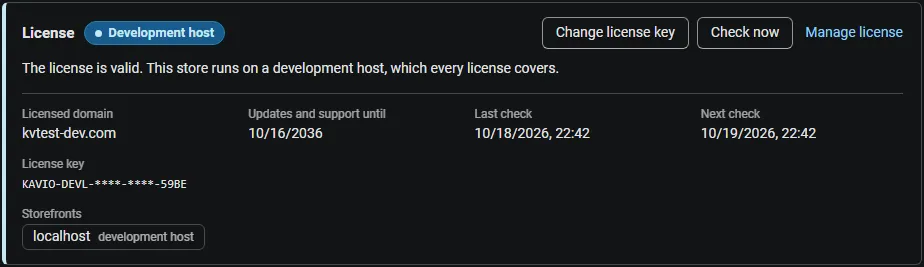
The License card shows:
- the status in color: green when valid, blue for a development host or the 14-day period before a key is required (with the days left), amber when the license server could not be reached (with the days left) or a Marketplace number is still being verified, red when the add-on is switched off;
- in plain words what the status means and, when the add-on is (or will be) switched off, what stops: vendors cannot upload new documents, the Verified seller badge is hidden, the restrictions (payout hold, hidden products, blocked product creation) are lifted and no reminders are sent; stored documents, reviews and the audit log stay available to administrators;
- the licensed domain, every storefront with its result (covered, development host, not covered), the end of the updates and support period, the last and the next check, and the key in use (masked);
- the actions Enter license key / Change license key (opens the License tab), Check now (verifies at once and stays on the page), Manage license (your licenses on cs-cart.kaviolabs.com) and, without a valid license, Buy a license.
In Add-ons → Manage add-ons the add-on’s row shows a small license badge next to its name, for example License: Valid or License: Pending · 9 days left. The Vendor verification pages show the license status in a bar at the top.
| Setting | Description |
|---|---|
| License key | Your Kavio Labs license key (KAVIO-XXXX-XXXX-XXXX-XXXX, from My licenses on cs-cart.kaviolabs.com) or your CS-Cart Marketplace license number. If you entered the Marketplace license number in Add-ons → Manage add-ons (the add-on’s license field), leave this empty: the add-on uses that number. |
| License status | Points to the License card and explains what the check sends. |
What the license covers. A license is bound to the base domain you entered at purchase (for example example.com) and covers every subdomain of it (www.example.com, shop.example.com, staging.example.com). Local development hosts are always allowed: localhost, 127.0.0.1 and other private IP addresses, and host names ending in .localhost, .test, .local, .example or .invalid. A store on a different base domain needs its own license. If you move your store to a new domain, contact support.
When the add-on checks. When you save the key, and then once a day. The check runs only in the admin panel (on a page you open) or from cron, never while visitors browse the storefront, and takes a few seconds at most. A cron job keeps the license verified even when nobody opens the admin panel:
php /path/to/store/admin.php --dispatch=kv_vendor_kyc_verification_license.checkWhat is sent. The check sends this to https://cs-cart.kaviolabs.com and nothing else: the license key, the add-on ID and version, the host names of your storefronts, your CS-Cart version and edition, and a random one-time value. No vendor, document or other personal data is sent. The server answers with a digitally signed result, so a forged answer is ignored.
Statuses.
| Status (card) | Color | What happens |
|---|---|---|
| Valid | Green | The license is valid for this domain. Everything works. |
| Development host | Blue | The store runs on a local development host, which every license covers. Everything works. |
| Pending verification | Amber | A CS-Cart Marketplace license number was accepted, but the Marketplace has not confirmed it yet. Everything works. |
| Pending · N days left | Blue | No verified key yet (a new installation). Everything works for 14 days. |
| Grace period · N days left | Amber | The last checks failed (for example a network problem). The add-on keeps working for 14 days after the first failed check. |
| Not activated, Invalid key, Revoked, Domain mismatch, Not verified | Red | Vendors cannot upload new documents, the Verified seller badge is hidden, restrictions are lifted (payouts, products) and no reminders are sent. Administrators can still review, approve and reject documents, download them and read the audit log. Domain mismatch shows the licensed domain next to the domain your store runs on. |
When your updates and support period ends, the add-on keeps working. Only updates and support stop.
License information appears in the admin panel only, and only for administrators who may manage add-ons; vendors never see it.