

Usage
Document types
Section titled “Document types”Vendors → Vendor verification → Document types lists the verification requirements. Five types are created on installation:
| Type | Required | Expiry | Applies to |
|---|---|---|---|
| Identity document | Yes | Vendor enters the expiry date | All vendors |
| Proof of address | Yes | 12 months after approval | All vendors |
| Business registration | Yes | Does not expire | Companies |
| Tax registration certificate | Optional | Vendor enters the expiry date | Companies |
| Bank account statement | Yes | Does not expire | All vendors |
Click a type to change it, or + to add one:
- Name and Instructions for vendors (shown above the upload form; per language).
- Requirement: Required types decide the vendor’s level. Optional types can be uploaded and reviewed, but a vendor can be verified without them.
- Expiry: Does not expire, Vendor enters the expiry date (the date is required on upload; you can correct it when you approve), or Valid for a number of months after approval.
- Applies to: a business type (Any, Individual / sole trader, Company), vendor plans (with the core Vendor plans add-on) and countries (the country in the vendor profile). Empty = all.
- Files: allowed file types (PDF, JPG, PNG, GIF, WebP, HEIC, TIFF), maximum size and number of files per upload. The content of every file is checked: a renamed script or a file whose content does not match its type is refused.
- Status: a disabled type is no longer required; its documents stay in the vendor’s history.
Changes apply to every vendor at once: levels are recalculated when you save a type.
The vendor’s Verification page
Section titled “The vendor’s Verification page”Vendors open Verification in the vendor panel menu (with the Vendor panel configurator add-on: Seller tools → Verification).
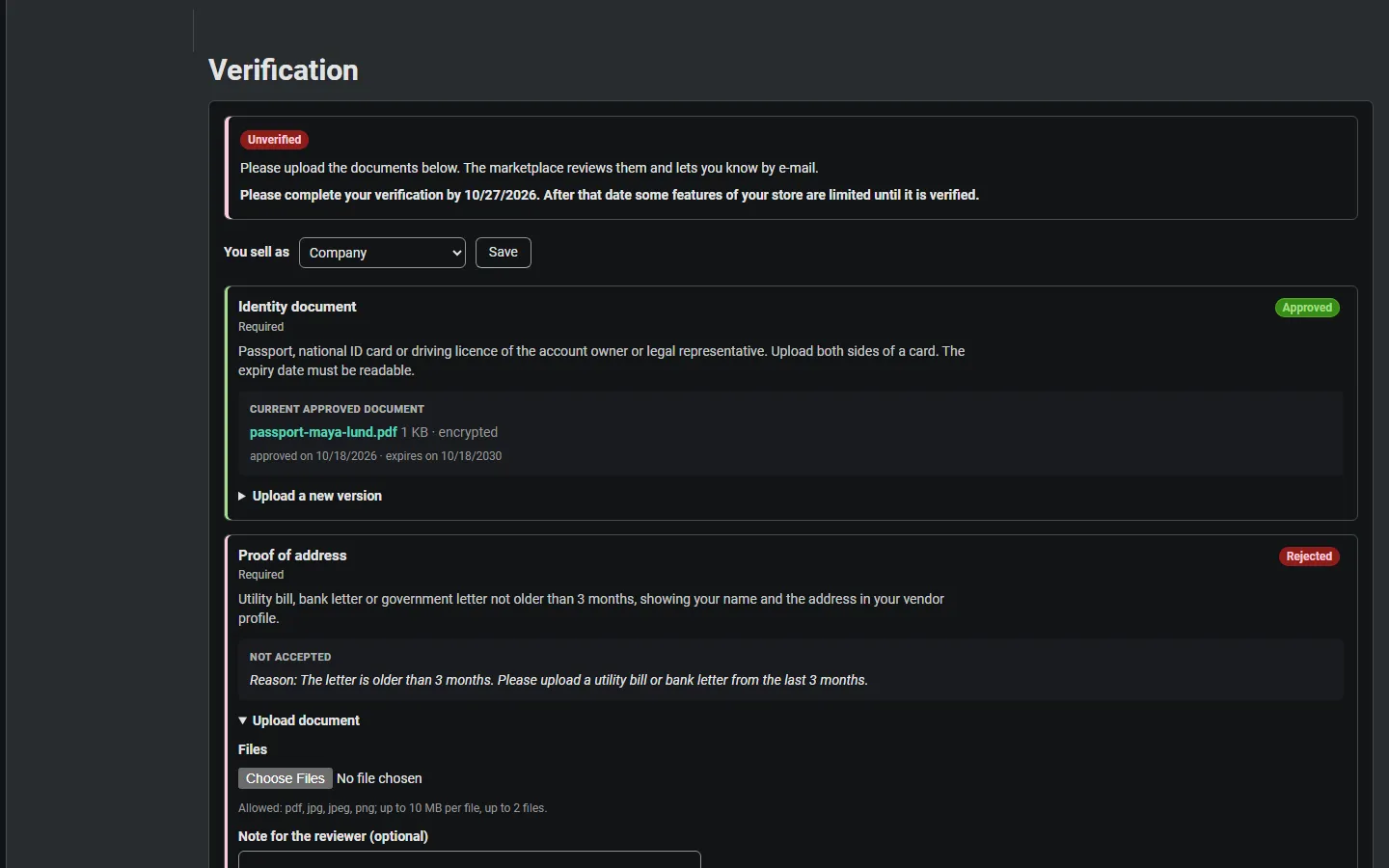
- A status box with the vendor’s level, what it means, and the restrictions that apply or the date they will start.
- You sell as: Individual / sole trader or Company (when you ask for the business type). Company-only documents appear after the vendor chose Company.
- One card per document type with its instructions, status (Missing, In review, Approved, Rejected, Expired), the approved file with its expiry date, the rejection reason, and an upload form: files, expiry date (when the type asks for it) and a note for the reviewer. A new upload of an approved document is a renewal: the approved one stays valid until you approve the new one.
- Vendors can download their own files; they never see other vendors’ documents.
The vendor dashboard shows a notice until the vendor is verified, with a link to the page.
Reviewing documents
Section titled “Reviewing documents”Vendors → Vendor verification opens the Review queue: all documents waiting for review, oldest first, with the vendor’s level, the files and the vendor’s note. Click Review to open the vendor’s verification page.
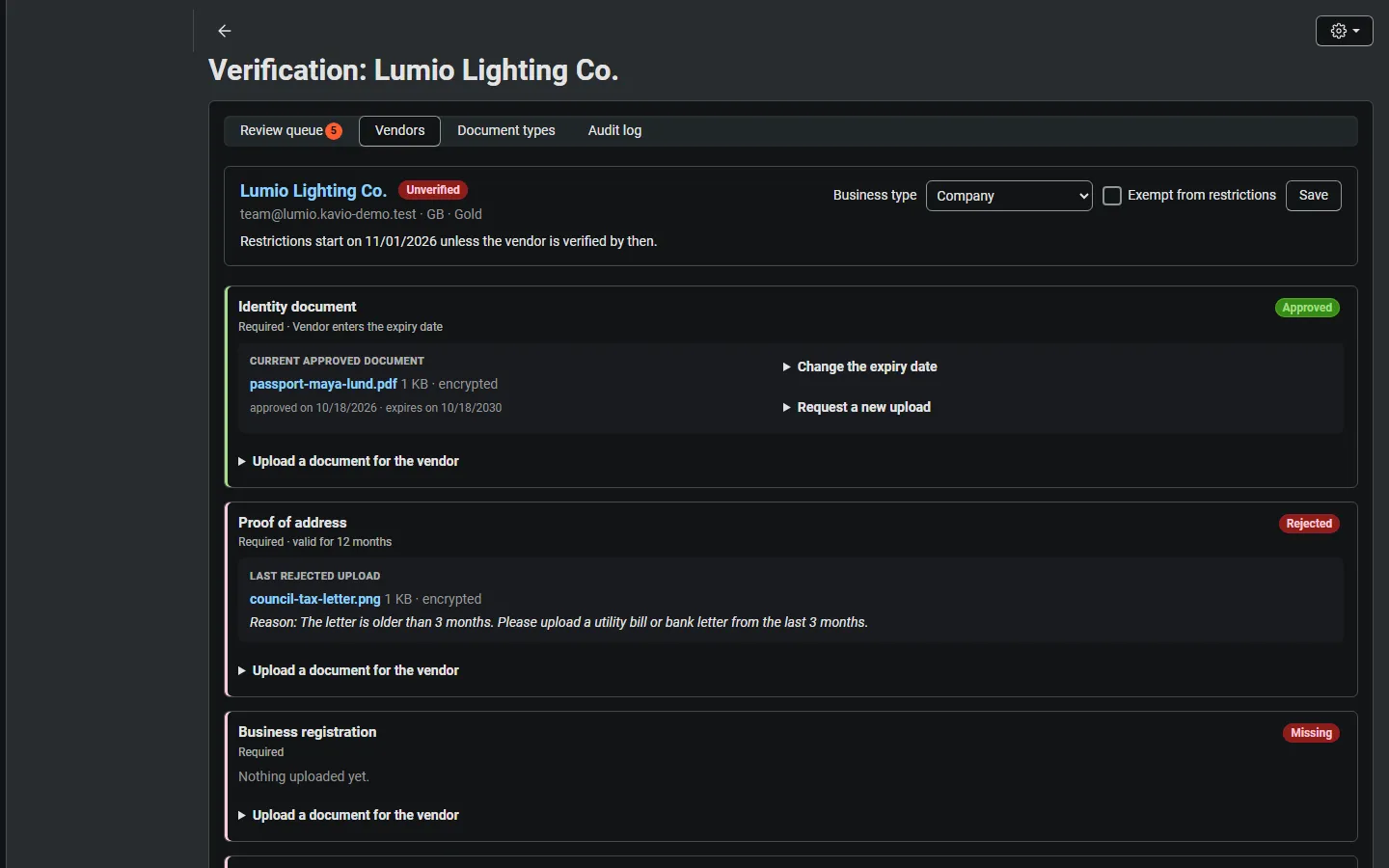
On the vendor’s page you see every required and optional document type with:
- the upload waiting for review: download the files, then Approve (with the expiry date: the vendor’s date or the date computed from the validity months, which you can change) or Reject with a reason that the vendor receives by e-mail;
- the current approved document: Change the expiry date or Request a new upload (for example when the vendor’s address changed). Requesting a new upload makes the document missing again;
- Earlier uploads with their status and reasons;
- Upload a document for the vendor (for documents you received by e-mail or mail);
- the business type and Exempt from restrictions (for trusted vendors) at the top;
- the vendor’s last audit log entries.
Vendors (second tab) lists every vendor with the level, the number of uploads to review, the earliest expiry and whether restrictions apply. Filter by level or show the restricted vendors.
Audit log (fourth tab) lists every upload, review, download, expiry, reminder, blocked action, retention deletion and erasure with the user and IP address.
Levels
Section titled “Levels”| Level | When |
|---|---|
| Unverified | A required document is missing or was rejected. |
| Pending review | Every required document was uploaded and at least one waits for review. |
| Verified | Every required document is approved and not expired. The storefront shows the badge. |
| Expired | An approved required document expired and no new version was uploaded. |
| Not required | No active required document type applies to the vendor. |
Levels are recalculated after every upload and review, when you change a document type, and by the scheduled task (expiry, grace periods).
Expiry and reminders
Section titled “Expiry and reminders”When a document expires, the vendor’s level becomes Expired (or Pending review while a new version waits), the badge disappears and the restrictions apply again. Vendors get reminder e-mails before (default 30 and 7 days) and on the expiry date, and the audit log records the expiry.
Restrictions
Section titled “Restrictions”Switch them on in the Restrictions tab of the settings (see Configuration). When a restricted vendor tries a blocked action, the vendor panel shows why, with a link to the Verification page; the audit log records the blocked action.
Verified seller badge
Section titled “Verified seller badge”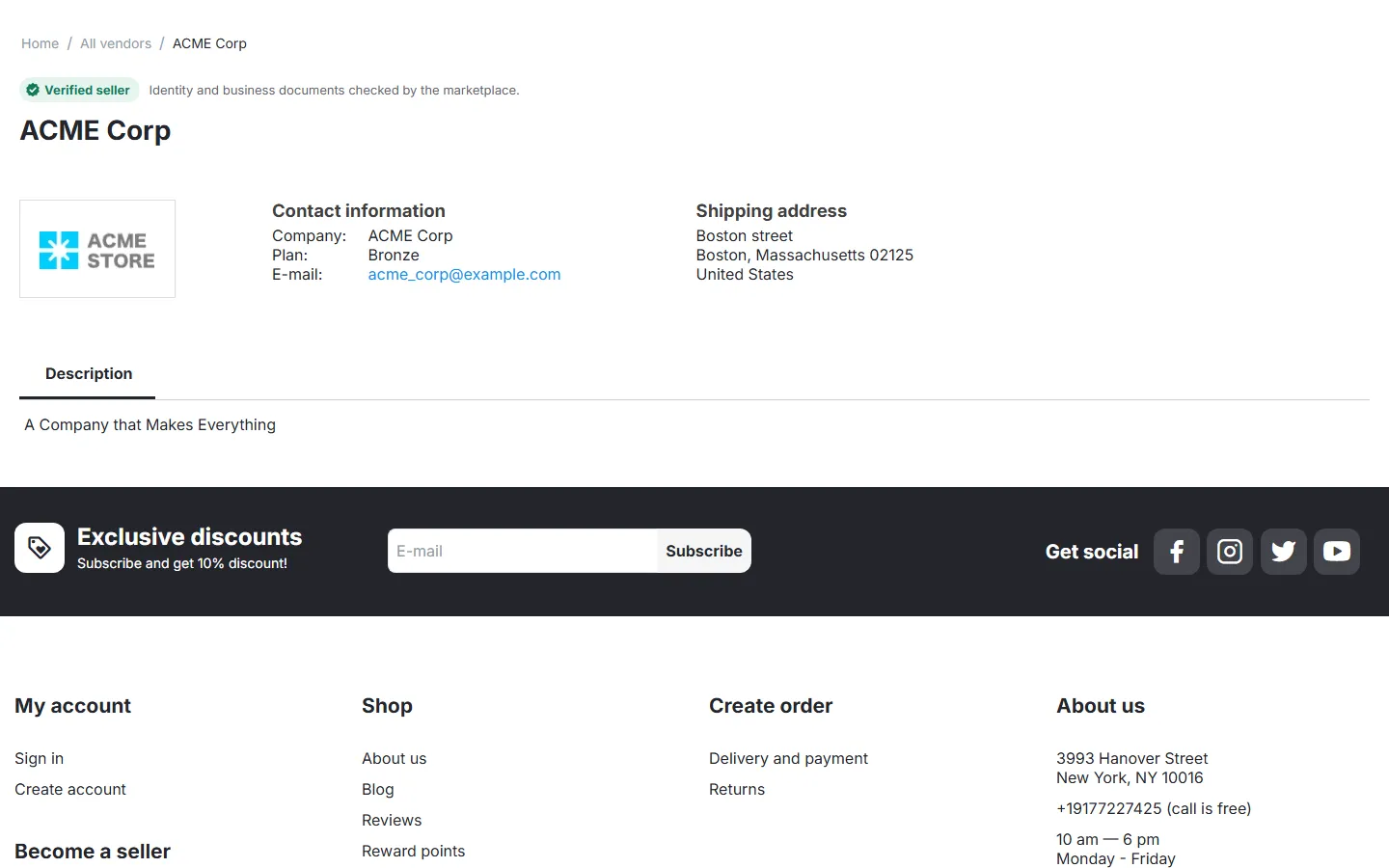
Verified vendors get a green Verified seller badge on their vendor page, in vendor lists and next to their name on product pages. The badge is the same for every visitor; with the full page cache of CS-Cart 4.21 cached pages are refreshed automatically when a vendor’s level changes.
Files from the vendor application
Section titled “Files from the vendor application”With our Vendor Onboarding & Registration Builder, the files a vendor uploaded with the application form appear on the vendor’s review page. Choose a document type under Use as and click Use file: the file is copied into a new upload of that type and waits for your review, so the vendor does not have to upload it again.
DAC7 seller report
Section titled “DAC7 seller report”The DAC7 report is based on Council Directive (EU) 2021/514. Platform operators report, once a year, the sellers who sold goods through the marketplace, with quarterly totals, to the tax authority of their Member State, and give each seller the reported information. The add-on prepares the data and the file; you upload the file on your tax authority’s portal. It does not file for you and is not tax or legal advice. Check the format rules and deadlines of your Member State.
Timeline of a reporting year (calendar year): collect and check seller data until 31 December; upload the file and give sellers their statement by 31 January of the next year. From 1 December the DAC7 page shows a deadline banner until a file of the year is marked as filed.
1. Your company details
Section titled “1. Your company details”Fill in Add-ons → Vendor KYC & Verification → DAC7 seller report (see Configuration).
2. Sellers’ tax details
Section titled “2. Sellers’ tax details”Vendors open Verification → Tax details (DAC7) in their vendor panel. They choose whether they sell as an individual or as a business and enter:
- individuals: first and last name, date of birth (and place of birth when they have no TIN);
- businesses: legal name, business registration number, permanent establishments in other Member States;
- everyone: primary address, tax identification numbers with the issuing country (or the reason why there is none), VAT number if any, the account their payouts are paid to.
The form is prefilled from the vendor account (company name, address, tax number) and, when installed, from the payout method of Vendor Payouts Automation. Vendors confirm that the details are correct. Soft checks (IBAN check digits, VAT prefix, unusual TIN characters) show hints but never block anything. TINs, the date of birth and the account number are stored encrypted; changes are logged without the values.
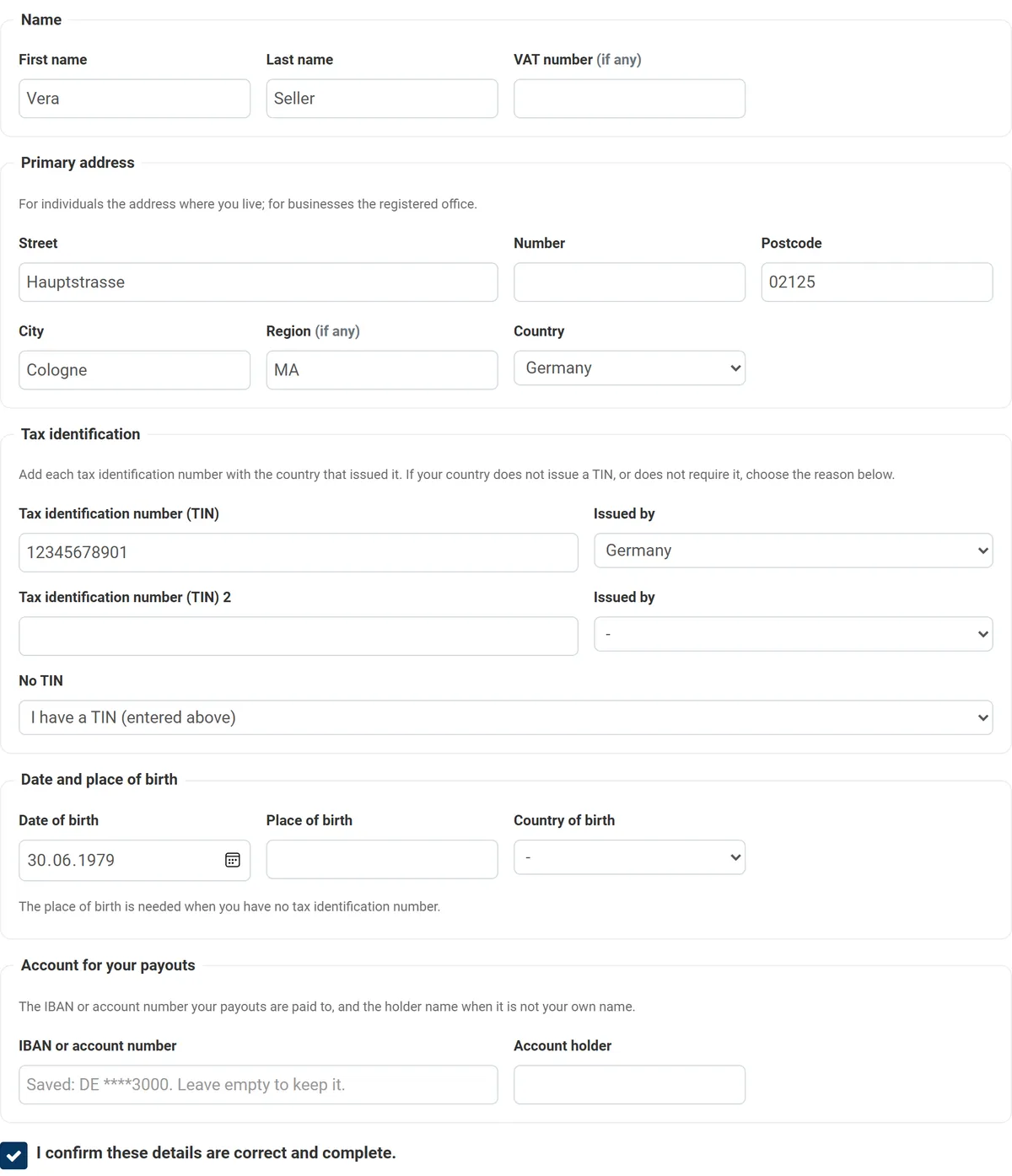
Administrators can edit the same form on the seller’s DAC7 page and mark listed or governmental entities as excluded, with a note of the evidence.
3. The report
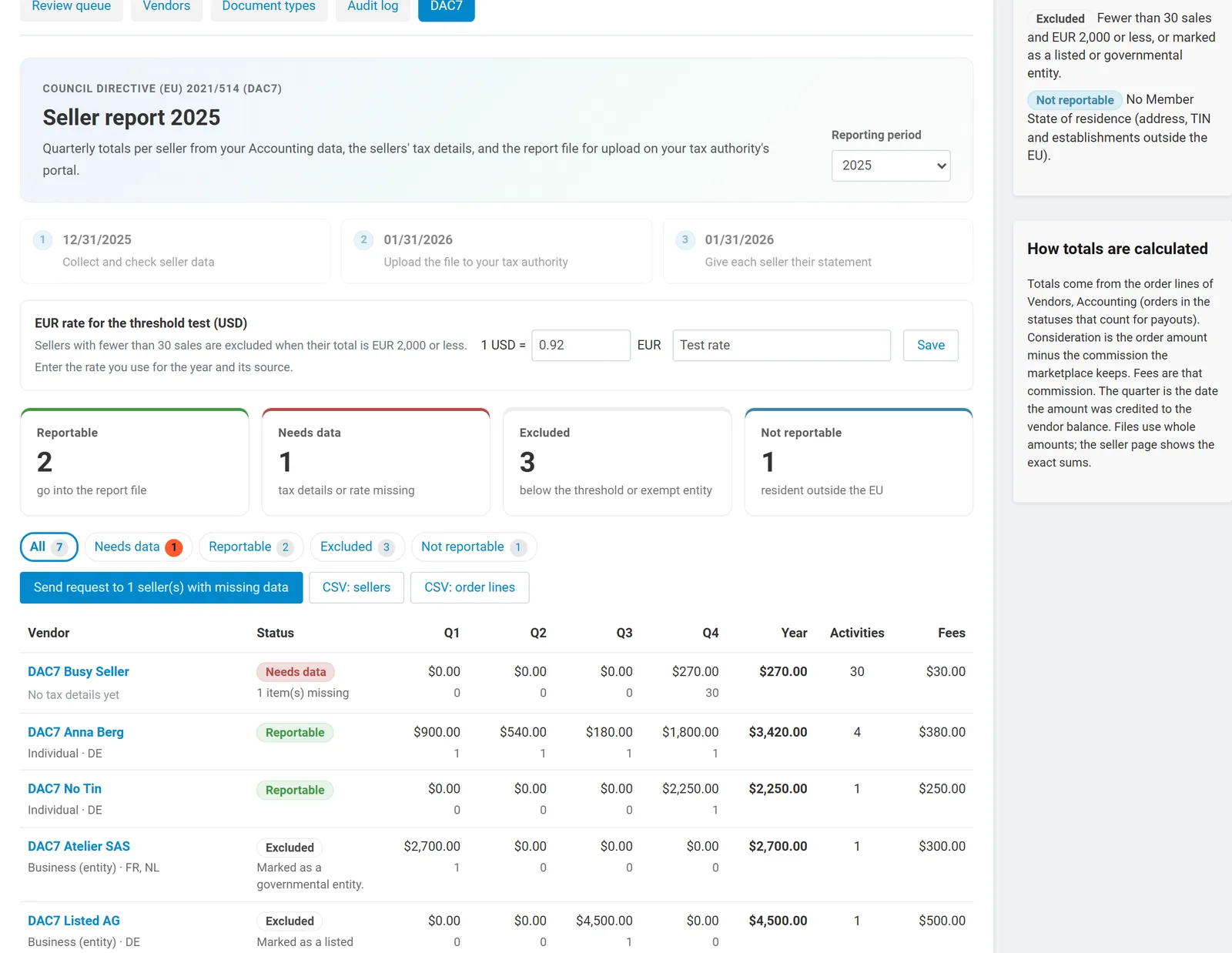
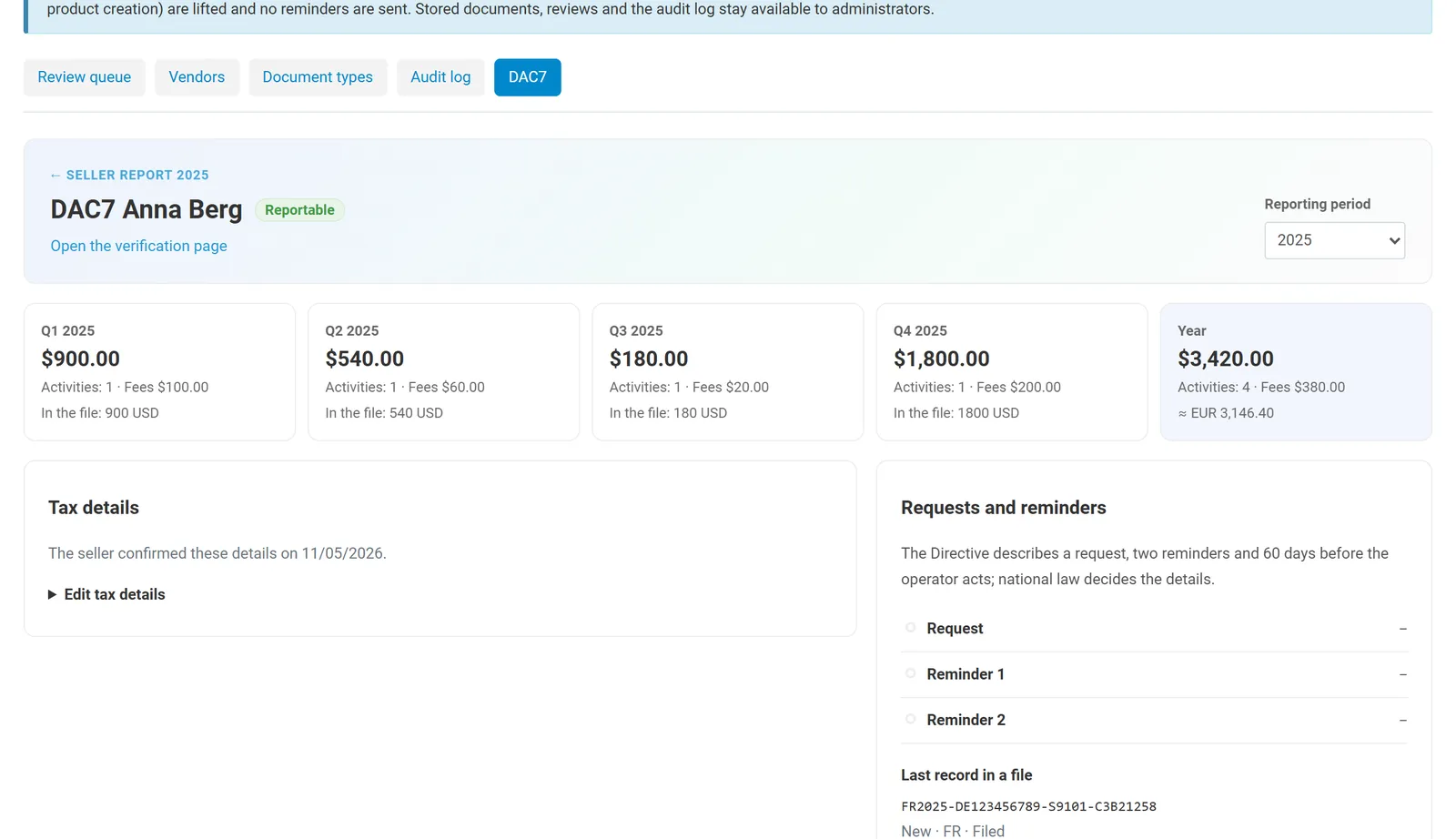
Section titled “3. The report”Vendors → Vendor verification → DAC7 shows the reporting year with four counters and a table of every seller with order amounts in that year:
| Status | Meaning |
|---|---|
| Reportable | Tax details complete, resident in a Member State. Goes into the file. |
| Needs data | Tax details missing or incomplete, or the EUR rate of the year is missing. |
| Excluded | Fewer than 30 sales and EUR 2,000 or less in the year, or marked as a listed or governmental entity. |
| Not reportable | No Member State of residence (address, TIN countries and establishments all outside the EU). |
How the totals are calculated:
- the data comes from the order lines of Vendors → Accounting (orders in the statuses that count for payouts; rows excluded from the balance are left out), so the report matches your accounting;
- consideration = order amount minus the commission the marketplace keeps; order changes and refunds count in the quarter they were credited;
- fees = that commission (from the core Vendor plans add-on);
- the quarter is the date the amount was credited to the vendor balance;
- activities = one per vendor order (or per order line, see the setting); refunds do not add activities;
- amounts are in your store’s primary currency; files use whole amounts, the seller page shows the exact sums and every order line behind them.
Stores in another currency than EUR enter the rate (1 unit = x EUR) and its source once per year for the threshold test. The add-on never fetches rates online.
4. Requests and reminders
Section titled “4. Requests and reminders”Send request to N seller(s) with missing data sends the next step to every seller whose details are missing: the request, then reminder 1, then reminder 2, at least 7 days apart. Sellers see a notice on their dashboard and on the tax details page (and an e-mail when that setting is on). The seller’s DAC7 page shows the dates and the end of the 60-day period. With Hold payouts on, payouts of a seller who still has missing data after the second reminder and 60 days are held until the data is complete.
5. Build and file the report
Section titled “5. Build and file the report”In Build the report file choose the Member State and the file type:
- New data: every reportable seller that is not yet in a file marked as filed (the first file of a year, or sellers added later);
- Correction: sellers whose reported data changed since the last filed file (corrected records refer to the earlier record) and sellers that are no longer reportable (deleted records);
- No data (nil return): only when no seller is reportable and your Member State asks for one.
The file is XML in the EU/OECD DPI format (schema version 1.0), sale of goods. Optionally upload the three schema files DPIXML_v1.0.xsd, isodpitypes_v1.0.xsd and oecddpitypes_v1.0.xsd (published by the OECD and linked by the tax authorities): every file is then checked against them before it is saved. Some Member States use their own variant or transmission channel; use the CSV exports (sellers, order lines) where the XML does not fit.
Download the file from Files and filing history, upload it on your tax authority’s portal, then set its status to Filed (and later Accepted or Rejected) with the portal receipt as a note. Corrections always refer to the files marked as filed or accepted. A file that was never marked as filed can be deleted. Files and filed records are stored encrypted and are never deleted automatically.
6. Seller statements
Section titled “6. Seller statements”Publish statements makes each seller’s reported information visible under Verification → DAC7 statements in the vendor panel, ready to print or save as PDF (and sends the store’s e-mail when that setting is on). Hide statements removes them again.
Not included in 1.1
Section titled “Not included in 1.1”Rental of immovable property and transport, personal services, non-EU reporting regimes (for example the UK rules) and transmission to a portal. Sale of goods covers what Multi-Vendor sells.
INFORM Consumers Act mode
Section titled “INFORM Consumers Act mode”New in 1.2. The add-on helps a marketplace that sells to US consumers implement the INFORM Consumers Act (15 U.S.C. 45f, Public Law 117-328, Division BB, in force since 27 June 2023). It does not decide whether the Act applies to you, it does not make a marketplace compliant by itself and it is not legal advice: ask your counsel which duties you have and how to meet them. The text below says which rule each function follows.
Official sources: the statute (15 U.S.C. 45f) and the FTC business guidance “Informing Businesses about the INFORM Consumers Act” on ftc.gov. The add-on follows the wording of the statute and leaves the open points to settings and to you.
What the Act asks, and what the add-on does
Section titled “What the Act asks, and what the add-on does”| Rule (source) | In the add-on |
|---|---|
| A high-volume third-party seller is a seller with, in any continuous 12-month period during the previous 24 months, 200 or more discrete sales or transactions of new or unused consumer products and USD 5,000 or more in gross revenues on the marketplace. Only sales whose payment was processed by the marketplace count (15 U.S.C. 45f(f)(3)). | The sales counter. It counts completed orders of each vendor (child orders) in the statuses you choose, shipped to the countries you choose (default: United States; the shipping country, or the billing country when there is none), and tests every continuous 12-month period that lies in the previous 24 months (a period can start on any day; months are calendar months in the shop time zone). Vendors that reach both numbers are flagged automatically; the best period, the date the vendor qualified and the sales and revenue of the last 12 months are shown. |
| The marketplace collects the bank account number (or the payee’s name if there is no bank account), the tax ID and contact data, and from a business also a government-issued ID of the person acting for it or a government record with business name and address, within 10 days of the seller qualifying (45f(a)(1); FTC guidance). | A data form in the vendor panel (Verification, Seller data (INFORM)) for individuals and for businesses. Bank account and tax ID are stored encrypted. The government document is uploaded under Verification (document types) and named on the form. |
| The marketplace verifies the data within 10 days of collecting it (45f(a)(2)). | An administrator marks the data as verified or rejects it with a reason. A submission that is not reviewed after 10 days is marked overdue in the list. |
| At least once a year the marketplace asks the seller to certify that the data is unchanged or to send changes, and the seller answers within 10 days (45f(a)(1); FTC guidance). | Verification starts a 12-month period. The vendor certifies in one click, or updates the form (which needs a new verification). Reminders go out before the date; when it passes, the notice below starts. |
| After notice and a chance to respond, a seller that does not provide the data within 10 days has its future sales activity suspended until it does (45f(a)(1)). | The notice (automatic or by button, with e-mail) sets a 10-day period. When it ends without data, the seller appears as “Suspension due”. You confirm the suspension on the seller page, or let the scheduled task do it (setting). A suspended seller’s products leave the storefront and no new products can be added. Verification or certification lifts it. |
| A seller with USD 20,000 or more in annual gross revenues on the marketplace is disclosed to consumers: name, physical address and contact data, in a clear and conspicuous manner, on the product listing or in the order confirmation and account history (45f(b)(1)). On the seller’s request, a seller that certifies it has no business address (only a residential, or a combined business and residential, address) may be shown with country and state only, and consumers are then told that no business address is available and that inquiries go to the seller by phone, e-mail or other electronic messaging (45f(b)(2)(A)(i)). | The seller information block on the product page (and the vendor page) for flagged sellers with USD 20,000 or more in the last 12 months, after the data is verified. Sellers tick a certification that they have no business address and ask for partial disclosure; you approve it when you verify, and the block then shows country and state plus the note that no business address is available. The order confirmation and account history are not covered by the add-on. |
| Each high-volume seller’s listing carries a clear and conspicuous reporting mechanism for suspicious activity, electronic and telephonic (45f(b)(3)). | The reporting line on the product page of every flagged seller: your phone number and a link or e-mail address (INFORM settings). |
| Data collected to comply with the Act may not be used for other purposes, and the marketplace keeps reasonable security procedures (45f(a)(3), (a)(4)). | Encrypted storage, masked display, access to the data only for administrators, a log entry for every access to bank and tax data, optional automatic erasure, erasure per seller. The data is not used by any other function. |
| “Third party seller” does not include (i) a seller who operates the marketplace, or (ii) a business entity that meets ALL THREE conditions: it has made its name, business address and working contact information available to the general public; it has an ongoing contract with the marketplace to manufacture, distribute, wholesale or fulfil shipments of consumer products; and it has given the marketplace identifying information that was verified under subsection (a) (45f(f)(6)(B)). One condition alone is not enough. | An exemption per seller with a code (operates the marketplace; business entity meeting all three conditions; other reason confirmed with your counsel) and a recorded reason. The add-on does not check the conditions: check them, ideally with your counsel, before you exempt a seller. |
The Act does not set a retention period. The add-on keeps the data until you erase it or the optional retention setting (days after the seller stopped being high-volume) removes it.
Set it up
Section titled “Set it up”- Add-ons, Vendor KYC & Verification, INFORM Consumers Act: switch the mode on, check the countries and the order statuses, enter the phone number and the link or e-mail address for reports, choose the automatic notice and the suspension mode. The mode is off by default.
- Open Vendors, Vendor verification, INFORM. The first scheduled run (or Recalculate now) evaluates the vendors and lists the flagged ones. The scheduled task is the existing one of this add-on (pseudo-cron from the panels, or
php admin.php --dispatch=kv_vendor_kyc_verification.cron). - For each flagged vendor the notice is given automatically (or press Send notice now). The vendor sees the request on the vendor panel dashboard and on the Seller data (INFORM) tab, and gets an e-mail when e-mails are on.
- Open the To verify list, check the data against the documents, press Show bank and tax data if you need the full numbers (shown for five minutes and written to the log), then Mark as verified or Reject and ask again.
- Sellers at USD 20,000 or more in the last 12 months show the seller information after verification. Every flagged seller shows the reporting line.
Counting rules to confirm with your counsel
Section titled “Counting rules to confirm with your counsel”- A sale is a completed child order of the vendor in the chosen statuses (default: Complete) dated in the period. The order date is used, not the date of completion.
- Gross revenue is the order total (goods, shipping and taxes) by default; the setting can use the goods subtotal. The Act says “gross revenues” without defining the components.
- The destination is the shipping country, or the billing country when the shipping country is empty. The Act covers sales of consumer products in the United States.
- Only sales processed by the marketplace count under the Act. With Multi-Vendor direct payments the payment goes to the vendor: check with your counsel before relying on the counter for those orders.
- The USD 20,000 test uses the last 12 months; the Act says “annual”. The add-on shows the figure so that you can see it.
- The 200 sales and USD 5,000 figures are fixed in the add-on, as in the Act. Amounts are not converted: the counter uses the amounts in your store currency, so use USD or ask your counsel.
- New or unused consumer products: the add-on cannot tell used or non-consumer products apart; use the exemption and your own policy for such sellers.
- The Act also asks the marketplace to say whether a different seller supplied the product and, on an authenticated purchaser’s request, to give that seller’s details (45f(b)(1)(B)(ii)); the add-on does not cover that.
- Not built in (use your own process if you need them): the return-address option for businesses (45f(b)(2)(A)(ii)); the personal-phone option (45f(b)(2)(A)(iii): if a seller certifies it has only a personal phone, consumers must be told that no phone number is available and that inquiries go by e-mail or electronic messaging; the add-on always shows the phone number the seller entered and has no such note); the limitation on partial disclosure (45f(b)(2)(B): false statements or no responsive answers to consumers lead to a notice and suspension unless the seller agrees to full disclosure; use the notice and suspension functions); disclosure in the order confirmation and account history (45f(b)(1)(A)(ii)(II)); retention periods.
- From a business the Act asks for a copy of a government-issued ID of the person acting for it, or of a government-issued record or tax document with the business name and physical address (45f(a)(1)(A)(ii)). The form records which document it is; the copy itself is uploaded as a document type under Verification. The add-on does not check that the upload exists or matches; that is part of your verification.
Export for audits
Section titled “Export for audits”Export sellers (CSV) has one line per seller: dates, counters, status, notice and deadline, suspension, exemption, masked bank account and tax ID. Export events (CSV) is the INFORM part of the log (flags, notices, verifications, certifications, suspensions, access to the data).
Privilege
Section titled “Privilege”Administrators need the privilege Manage INFORM seller data (Administration, User groups). Vendors reach only their own Seller data page; every other function is administrator only.
Erasing documents
Section titled “Erasing documents”⚙ → Erase all documents of this vendor on the review page deletes every upload and file of the vendor at once (for example after a data deletion request). The audit log keeps one line about the erasure. When a vendor is deleted, all its documents, files, levels and log entries are removed automatically.